

Introduction
This is a simple application for beginners that shows how to create a fresh bottom slide-out menu using HTML 5, JQuery and CSS tools. We know that HTML 5 is the advanced version of HTML. Basically HTML 5 can be used to develop 3D applications. This article is intended to help with the use of HTML5 tools to develop fresh bottom slide-out menu applications. CSS is the acronym for Cascading Style Sheet that is used for design. CSS defines how HTML elements are to be displayed. Canvas is an important tag of an HTML 5 that is used to show the image and text in an HTML 5 application. I hope this article helps to develop fresh bottom slide-out menus using HTML 5, JQuery and CSS tools.
Step 1: First open an HTML editor such as Notepad.
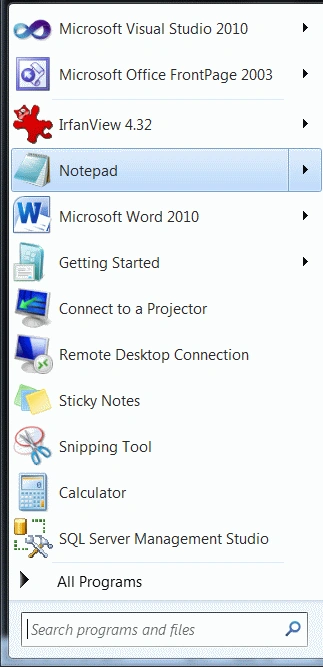
- Open start->Notepad.
- The name of the editor is "Button".
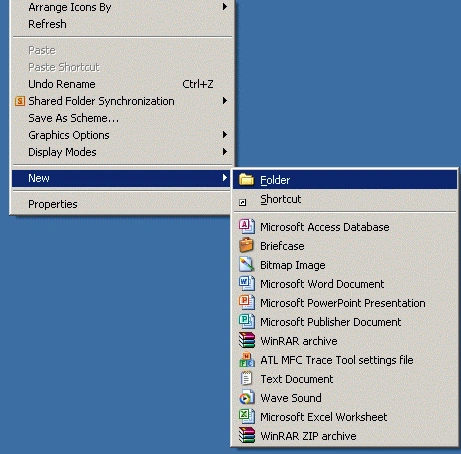
- Right-click on desktop->new->Folder.
- The name of the folder is "Tom".
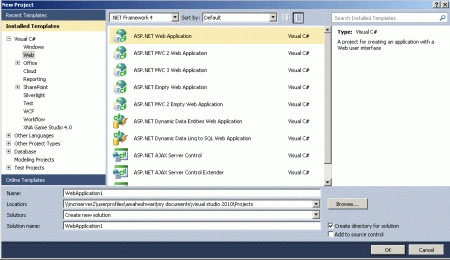
- Go to file -> New->Projects.
- Create an ASP. NET Web Application.
- Name of "FreshBottom.aspx".

- Right-click on Solution Explorer.
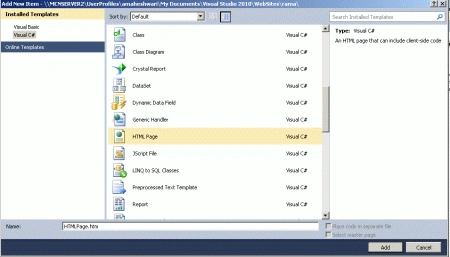
- Add->add new item->HTML form.
- The Name of the HTML form is "Bottom.html".
Code
- body
- {
- font-family: Helvetica, Arial, sans-serif;
- font-weight: bold;
- color:Purple;
- background:#99ff99 url(../title.png) no-repeat center center;
- height:600px;
- }
- a.ref
- {
- color:Fuchsia;
- text-decoration:none;
- text-shadow:1px 1px 1px #000;
- position:absolute;
- bottom:10px;
- right:10px;
- }
- a.ref:hover
- {
- color:Green;
- }
- ul#menu li
- {
- float:left;
- margin:0px 10px 0px 0px;
- }
- ul#menu a
- {
- cursor:pointer;
- position:relative;
- float:left;
- bottom:-95px;
- line-height:20px;
- width:210px;
- }
Step 6: Now we define the content of a fresh bottom slide-out menu.
Code
- <h1>Csharpcorner</h1>
- <div class="container" style="background-color: #FF99CC">
- <ul id="menu">
- <li>
- <a>
- <i class="icon_about"></i>
- <span class="title">Home</span>
- <span class="description">CSharpcorner is a best tutorials site</span>
- </a>
- </li>
- <li>
- <a>
- <i class="icon_work"></i>
- <span class="title">Fourms</span>
- <span class="description">You ask any real technical problem</span>
- </a>
- </li>
- <li>
- <a>
- <i class="icon_help"></i>
- <span class="title">Training</span>
- <span class="description">Provide a every technical training</span>
- </a>
- </li>
- <li>
- <a>
- <i class="icon_search"></i>
- <span class="title">Jobs</span>
- <span class="description">We also provide a job in development</span>
- </a>
- </li>
- </ul>
- </div>
Step 7: Now in this step we define a JQuery that moves a bottom slider
Code
- $(function () {
- $('#menu > li').hover(
- function () {
- var ctx = $(this);
- $('A', ctx).stop(true, true).animate({
- 'bottom': '-15px'
- }, 400);
- $('I', ctx).stop(true, true).animate({
- 'top': '-10px'
- }, 500);
- },
- function () {
- var ctx = $(this);
- $('A', $this).stop(true, true).animate({
- 'bottom': '-95px'
- }, 400);
- $('I', ctx).stop(true, true).animate({
- 'top': '50px'
- }, 500);
- }
- );
Step 8 : The complete code of a fresh bottom slide-out menu application is as follows:
Code
- <html>
- <head>
- <title>Tom application</title>
- <link rel="stylesheet" href="Button.css" type="text/css" media="screen"/>
- <script type="text/javascript">
- </head>
- <body bgcolor="#99ccff">
- <h1>Csharpcorner</h1>
- <div class="container" style="background-color: #FF99CC">
- <ul id="menu">
- <li>
- <a>
- <i class="icon_about"></i>
- <span class="title">Home</span>
- <span class="description">CSharpcorner is a best tutorials site</span>
- </a>
- </li>
- <li>
- <a>
- <i class="icon_work"></i>
- <span class="title">Fourms</span>
- <span class="description">You ask any real technical problem</span>
- </a>
- </li>
- <li>
- <a>
- <classclass="icon_help"></i>
- <span class="title">Training</span>
- <span class="description">Provide a every technical training</span>
- </a>
- </li>
- <li>
- <a>
- <i class="icon_search"></i>
- <span class="title">Jobs</span>
- <span class="description">We also provide a job in development</span>
- </a>
- </li>
- </ul>
- </div>
- <script type="text/javascript" src="Scripts/P1.js"></script>
- <script type="text/javascript">
- $(function () {
- $('#menu > li').hover(
- function () {
- var $this = $(this);
- $('a', $this).stop(true, true).animate({
- 'bottom': '-15px'
- }, 400);
- $('i', $this).stop(true, true).animate({
- 'top': '-10px'
- }, 500);
- },
- function () {
- var $this = $(this);
- $('a', $this).stop(true, true).animate({
- 'bottom': '-95px'
- }, 400);
- $('i', $this).stop(true, true).animate({
- 'top': '50px'
- }, 500);
- }
- );
- </script>
- </body>
- </html>
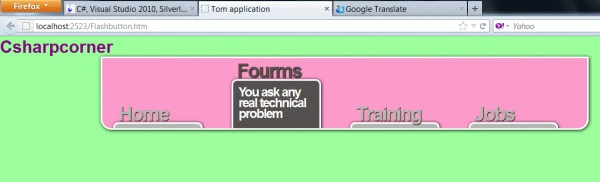
Step 9 : Press Ctrl + F5 to run the application in a browser.
Output




Resources
Here are some useful resources
Join the conversation! Your thoughts help the community grow.