

This article has been
excerpted from book "A Programmer's Guide to ADO.NET in C#".
The ActiveX Data Object Multi-Dimensional Library (ADOMD) provides access to
Online Analytical Processing (OLAP) Server data from applications. OLAP services
extract, summarize, organize, and store data warehouses in multidimensional
structure, also known as OLAP server cubes.
To test the OLAP sample, I'll use the FoodMart 2000 database that comes with the
Microsoft SQL Server Analysis Server. Before testing this sample, you must have
SQL Server 2000 Analysis Server running. If you don't have SQL Server 2000
Analysis Server running, you can install it from Microsoft SQL Server CD by
selecting SQL Server 2000 Components > Install Analysis Services. This option
will install SQL Server Analysis Service on your machine.
Note: Install Analysis Services may not install the FoodMart 2000
database. On my machine I needed to restore the database from the C:\Program
Files\Microsoft Analysis Service\Sample\ Foodmart 2000.cab file. You can restore
a database by using Analysis Manager > Meta Data > Restore option.
ADOMD functionality is defined in the msadomd.dll library. If this library is
not listed in your COM component list, you can use the Browser button in the Add
Reference dialog box to browser it. The default path for this library is
C:\Program Files\Common Files\System\ADO (see Figure 10-29).
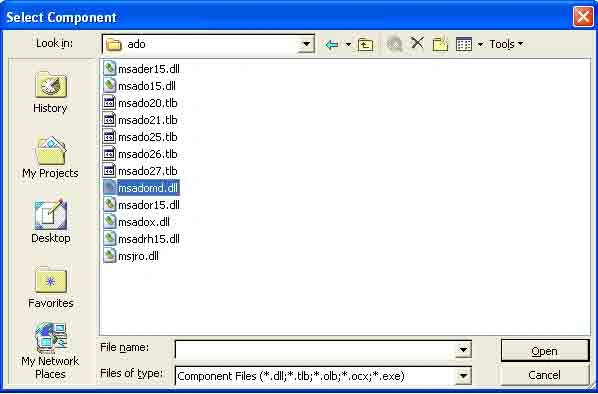
Figure 10-29: Browsing the msadomd.dll library
After adding a reference to the msadomd.dll, the Add Reference dialog box looks
like figure 10-30.
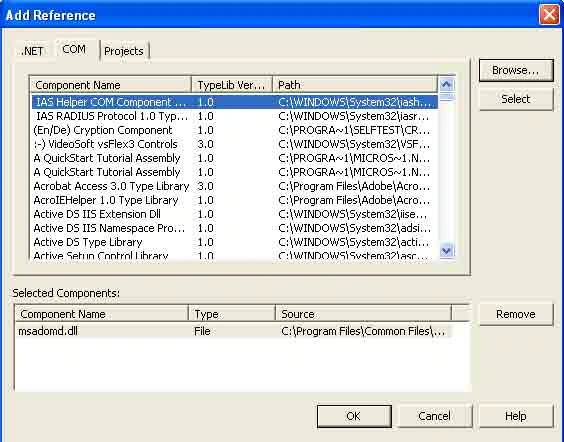
Figure 10-30: Adding a reference to msadomd.dll library
Now click the OK button to add the reference. This action adds the ADOMD
namespace to the project (see Figure 10-31).
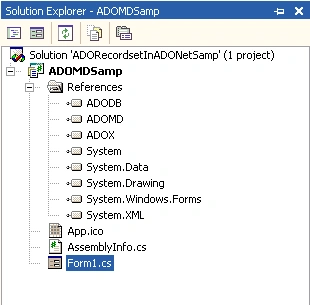
Figure 10-31: ADOMD namespace listed in the project namespace
Now you can use the using directive to include the ADOMD namespace in your
project and use ADOMD classes.
Note: I added a reference to the ADOMD and ADODB (described in the "Using
the ADO Recordset in ADO.NET" section) because I'll also use the Connection
object of ADO.
To test the source code, create a Windows application and add two list boxes,
two buttons, a text box, and a label and set their properties (see Figure
10-32).
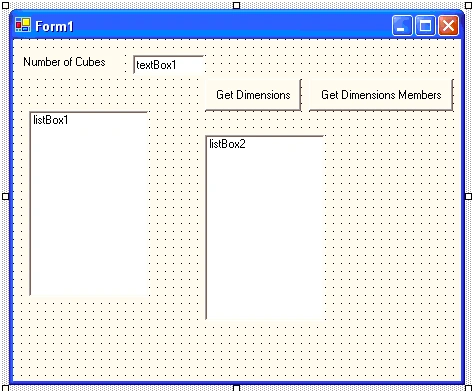
Figure 10-32: Windows Form to test ADOMD
Now add references to ADOMD and ADODB in the application as follows:
using ADOMD;
using ADODB;
Also add the following variables in the beginning of the form class.
private
string strConn;
private
Connection dbConn;
private Catalog
dtCatalog;
private CubeDefs
cubes;
After that, create Connection and Catalog objects on the Form_Load event and use
CubeDefs of Catalog to get all the cubes. As you can see from listing 10-8, I
added all cubes to the list box and the number of cubes to the text box.
Listing 10-8: Getting all available cubes from the FoodMart 2000 database
private void
Form1_Paint(object sender,
PaintEventArgs e)
{
strConn = "Provider=msolap; Data Source
=MAIN-SERVER;" +
"Initial Catalog = FoodMart 2000;";
// Create and open a
connection
dbConn = new Connection();
dbConn.Open(strConn, "",
"",
(int)ConnectModeEnum.adModeUnknown);
// Create a Catalog
object and set it's active connection
// as connection
dtCatalog = new Catalog();
dtCatalog.ActiveConnection = (object)dbConn;
// Get all cubes
cubes = dtCatalog.CubeDefs;
// Set text box as
total number of cubes
textBox1.Text = cubes.Count.ToString();
foreach (CubeDef cube
in cubes)
{
string str =
" ";
listBox1.Items.Add(cube.Name.ToString());
str = "Cube Name :" +
cube.Name.ToString() + " , ";
str += "Description :" +
cube.Description.ToString() + ", ";
str += "Dimension :" +
cube.Dimensions.ToString();
}
listBox1.SetSelected(0, true);
}
Now if you run the application, the output looks like figure 10-33.
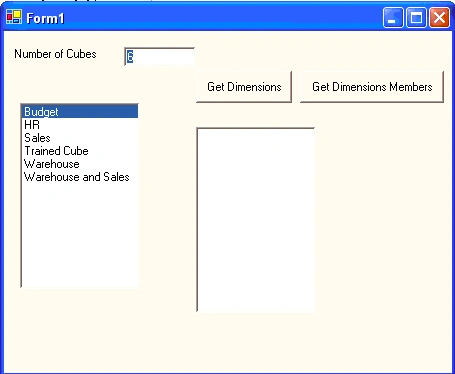
Figure 10-33: All available cubes in the FoodMart 2000 database
The Get Dimension button gets the dimensions of the selected cube in the left
list box in Figure 10-33. Listing 10-9 returns the dimensions of a cube and adds
it to the right list box of figure 10-33.
Listing 10-9. Getting all the dimensions of a cube
private void
button1_Click(object sender, System.EventArgs
e)
{
// Get the selected
cube
CubeDef cube = cubes[listBox1.SelectedItem.ToString()];
// Get all the
dimensions of the selected cube
for (int
i = 0; i < cube.Dimensions.Count; i++)
{
Dimension dim = cube.Dimensions[i];
listBox2.Items.Add(dim.Name.ToString());
}
listBox2.SetSelected(0, true);
}
The output of the Get Dimensions button fills the right list box with the
dimensions (see Figure 10-34).
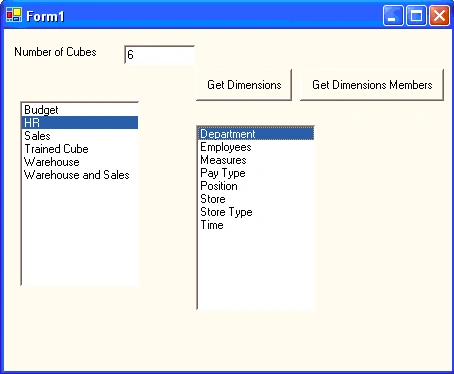
Figure 10-34: Getting dimensions of a cube
The Get Dimension Members button returns the properties of a dimension such as
name, hierarchies, UniqueName, and Properties (see Listing 10-10).
Listing 10-10: Getting dimension members
private void
button2_Click(object sender, System.EventArgs
e)
{
// Get the selected
cube
CubeDef cube = cubes[listBox1.SelectedItem.ToString()];
// Get the selected
Dimension
Dimension dim = cube.Dimensions[listBox2.SelectedItem.ToString()];
MessageBox.Show("Dimension
Properties :: Name= " + dim.Name.ToString()
+ ", Description=" +
dim.Description.ToString() + ", Hierarchies="
+ dim.Hierarchies.ToString() +
", Unique Name="
+ dim.UniqueName.ToString());
}
The output of Listing 10-10 looks like Figure 10-35.
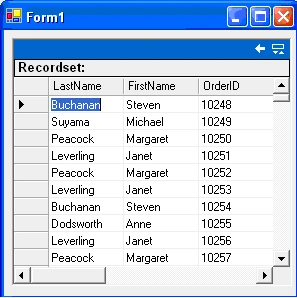
Figure 10-35: Viewing dimension properties
Conclusion
Hope this article would have helped you in understanding accessing OLAP Server
Data with ADO .NET. See other articles on
the website also for further reference.
 |
This essential guide to Microsoft's ADO.NET overviews C#, then leads you toward deeper understanding of ADO.NET. |
Sibeesh VenuPosted Nov 28, 2014, 12:22 AM
good one.
Anand Kumar KPosted Aug 29, 2013, 2:39 AM
Thank you so much. You made my day
Pawel WarmuthPosted Dec 14, 2010, 6:08 AM
Hi there , Great Tutorial But i miss something : How did you get the Drilltroughdata to the Datagridview ? I dont see any code .. Greetz
rada bogdanPosted Aug 15, 2010, 9:22 AM
i tried the example exposed here...i followed every step but i'm getting this errors: The type or namespace name 'ADOBD' could not be found and The type or namespace name 'Connection' could not be found and i don't really know how to fix it. can anyone help me please? thank u very much