

1.0 Introduction:
The Metadata Navigation and Filtering Feature in Microsoft SharePoint Server 2010 can help users filter and find content. Metadata Navigation and Filtering is a new feature in Microsoft SharePoint Server 2010 that enables users to filter and find content by using metadata. Metadata navigation builds upon the SharePoint Tree view hierarchy control and combines it with a new Key Filters control providing users a powerful tool in finding content based on metadata.
Navigation hierarchies: Use and expand the capabilities of list views to navigate hierarchies of folders, content types, choice fields, or managed metadata term sets. This allows users to use list views to filter on a metadata hierarchy just like navigating folders.
Key Filters: This control appears below the site hierarchy control and can consist of several fields such as date, choice, content type, single and multi-value fields, currency, yes / no, and user fields. Any number of key filters can be applied in combination with a selected navigation hierarchy.
To configure Navigation hierarchies and Key Filters a custom powershell cmdlet Add-SPMetadataNavigationSettings can be used.
2.0 Add-SPMetadataNavigationSettings
Custom Powershell cmdlet to configure Navigation Settings and Key Filters.
NAME
Add-SPMetadataNavigationSettings
SYNTAX
Add-SPMetadataNavigationSettings [-url] <String> [-ListName] <String> -FolderHierarchy <bool> -ContentTypeHierarchy <bool> [[-FieldHierarchy] <List`1>] –ContentTypeKeyFilter <bool> [[-FieldKeyFilter] <List`1>]
Parameters
|
Parameter |
Required |
Type |
Description |
|
Url |
Required |
System.String |
Specifies the URL of the site collection. |
|
ListName |
Required |
System.String |
Specifies the list name. |
|
FolderHierarchy |
Required |
System.Boolean |
Add folder hierarchy to settings. |
|
ContentTypeHierarchy |
Required |
System.Boolean |
Add content type hierarchy to settings. |
|
FieldHierarchy |
Optional |
System.Collections.Generic.List<T> |
Add additional metadata hierarchies to settings.
Fields that are available for use as navigation
hierarchies include columns on this list that are one of the following
types: |
|
ContentTypeKeyFilter |
Required |
System.Boolean |
Add content type key filter to settings. |
|
FieldKeyFilter |
Optional |
System.Collections.Generic.List<T> |
Adds key filters to settings.
Fields that are available for use as navigation
hierarchies include columns on this list that are one of the following
types: |
Detailed Description
EXAMPLE 1
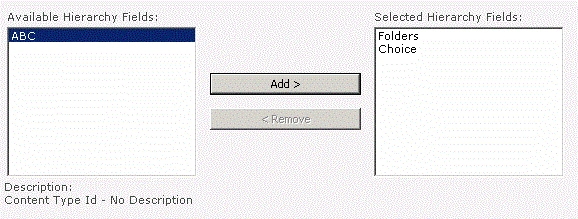
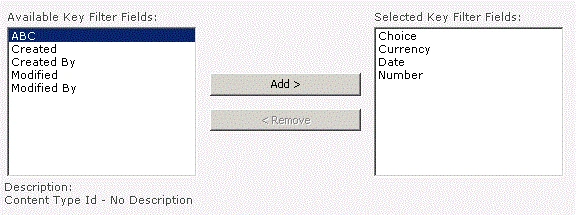
Add-SPMetadataNavigationSettings http://sitename/sites/test -ListName "tl" – FolderHierarchy $true – ContentTypeHierarchy $false – FieldHierarchy @("Choice") – ContentTypeKeyFilter $false – FieldKeyFilter @("Choice","Date","Number","Currency")
The
above cmdlet will clear all the configuration hierarchies and key filters, and
then it will add the mentioned fields in the cmdlet to the configuration
hierarchies and key filters.
3.0 Register the cmdlet:
-
Unzip the source code.
-
Go to the installer folder.
-
Run Install.bat.
-
anavijai.SP2010.PowerShell.dll will be installed in the gac.
-
Go to 14\CONFIG\POWERSHELL\Registration and check whether anavijaiSP2010Cmdlet.xml is available.
-
Run "SharePoint 2010 Management Shell" as administrator.
-
Check whether the cmdlet is registered by executing the following commands.
-- Get-Command Add-SPMetadatNavigationSettings
-- Help SPMetadatNavigationSettings
Join the conversation! Your thoughts help the community grow.