

Introduction
This article describes how to dynamically add rows to the table in the ASP.NET Web API. We can add the rows at runtime to the table.
Procedure for creating the application.
Step 1
First we create a Web API application as in the following:
- Start Visual Studio 2013.
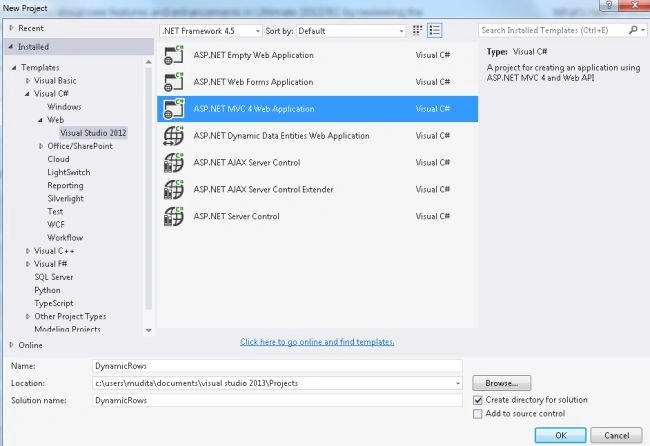
- From the Start Window select "New Project".
- From the new project window select "Installed" -> "Visual C#" -> "Web" -> "Visual Studio 2012".
- Select "ASP.NET MVC4 Web Application" and click the "OK" button.
- From the "MVC4 project" window select "Web API".
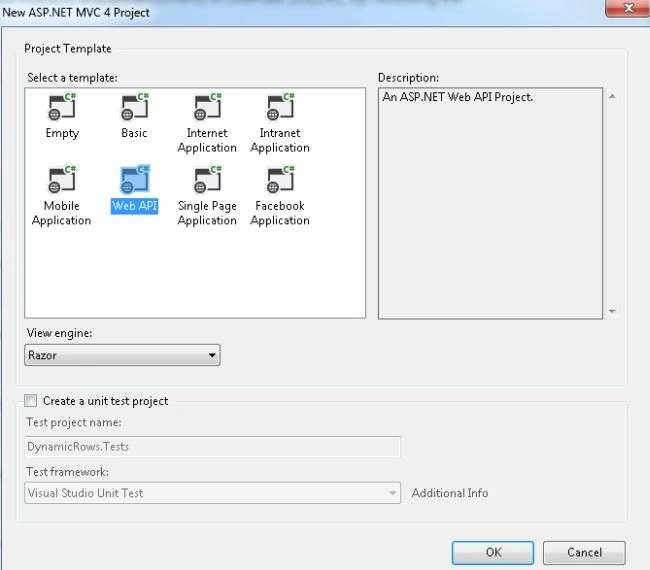
-
click on the "Ok" button.
Step 2
Add a Model class as in the following:
- In the "Solution Explorer".
- Right -click on the "Model folder".
- Select "Add" -> "class".
- From the add item window select "Installed" -> "Visual C#".
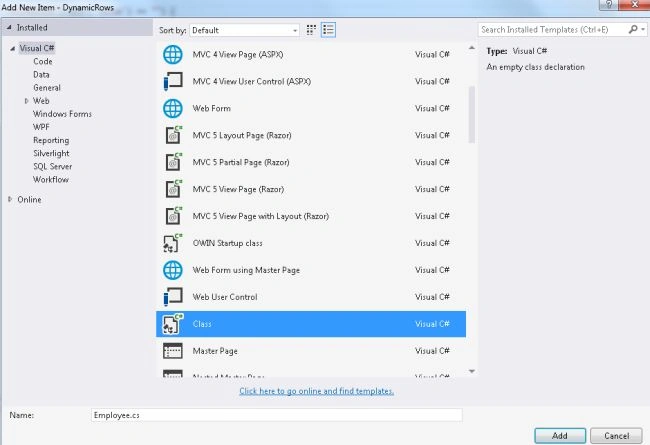
- Select "Class" and click on the "Add" button.
Add the following code:
- using System;
- using System.Collections.Generic;
- using System.Linq;
- using System.Web;
- namespace DynamicRows.Models
- {
- public class EmployeeModel
- {
- public List<Information> InfoModel { get; set; }
- }
- public class Information
- {
- public int ID { get; set; }
- public string Name { get; set; }
- public int Contact { get; set; }
- public string Address { get; set; }
- }
- }
Step 3
Now in the "Controller" we add the code that uses all the variables of the Model class. This file exists:
-
In the "Solution explorer".
-
Expand the "Controller" folder.
-
Select the "HomeController".
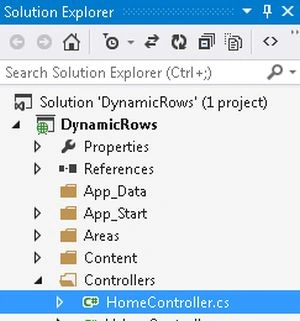
Add the following code:
- using System;
- using System.Collections.Generic;
- using System.Linq;
- using System.Web;
- using System.Web.Mvc;
- using DynamicRows.Models;
- namespace DynamicRows.Controllers
- {
- public class HomeController : Controller
- {
- public ActionResult Index()
- {
- EmployeeModel obj = new EmployeeModel();
- obj.InfoModel = new List<Information>();
- obj.InfoModel.Add(new Information { ID = 0, Name = "", Contact = 0, Address = "" });
- return View(obj);
- }
- [HttpPost]
- public ActionResult Index(EmployeeModel objmodel)
- {
- objmodel.InfoModel.Add(new Information { ID = 0, Name = "", Contact = 0, Address = "" });
- return View(objmodel);
- }
- }
- }
Step 4
In the View write some code as in the following:
-
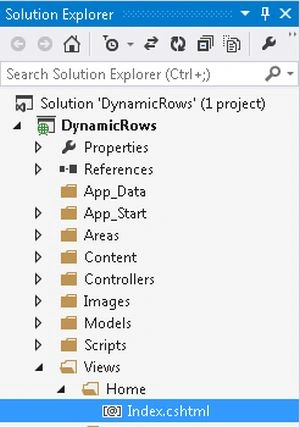
In the "Solution Explorer".
-
Expand the "Views Folder"
-
Select "Home" -> "Index.cshtml".
Add the following code:
- @model DynamicRows.Models.EmployeeModel
- @{
- ViewBag.Title = "Dynamically adding rows to table";
- }
- <script type="text/javascript">
- function ValidateData() {
- if ($(".validateID").attr('value') == "0" || $(".validateID").attr('value') == "") {
- alert("Enter valide ID ");
- return false;
- }
- else if ($(".validateName").attr('value') == "") {
- alert(" Enter name of employee.");
- return false;
- }
- else if ($(".validateContact").attr('value') == "") {
- alert("Enter Contact number of Employee.");
- return false;
- }
- else if ($(".validateAddress").attr('value') == "") {
- alert("Enter address of employee.");
- return false;
- }
- return true;
- }
- </script>
- @using (Html.BeginForm("Index", "Home"))
- {
- <html>
- <head>
- <style>
- * {
- padding: 0px;
- margin: 0px;
- }
- </style>
- </head>
- <body>
- <div style="text-align:center;">
- <table cellpadding="3" cellspacing="0" border="1" style="border-color:Black;border-collapse:collapse; text-align:center; width:20%;">
- <tr style="font-weight: bold; background-color: #c19191; height: 20px;">
- <td>Id</td>
- <td>Name</td>
- <td>Contact</td>
- <td>Address</td>
- </tr>
- @for (int a = 0; a < Model.InfoModel.Count; a++)
- {
- <tr>
- <td style="width:20%;">@Html.TextBoxFor(m => m.InfoModel[a].ID, new { @class = "validateID" })</td>
- <td style="width:20%;">@Html.TextBoxFor(m => m.InfoModel[a].Name, new { @class = "validateName" })</td>
- <td style="width:20%;">@Html.TextBoxFor(m => m.InfoModel[a].Contact, new { @class = "validateContact" })</td>
- <td style="width:20%;">@Html.TextBoxFor(m => m.InfoModel[a].Address, new { @class = "validateAddress" })</td>
- </tr>
- }
- <tr>
- <td colspan="2">
- <input type="submit" value="Add New Data" title="Add New Data" onclick="javascript:return ValidateData();" />
- </td>
- </tr>
- </table>
- </div>
- </body>
- </html>
- }
- </html>
Step 5
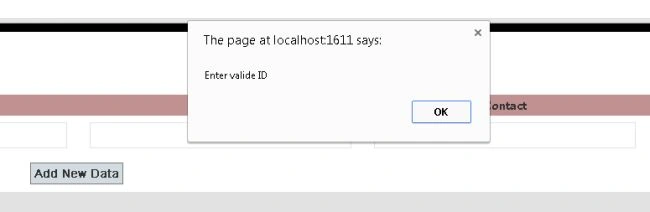
Execute the application. The output will be:

Without adding any records click on the "Add New Data" button.
Add the record.

Join the conversation! Your thoughts help the community grow.