

Really Simple Syndication (RSS) is used for transmitting information across the internet and intranets. We can also subscribe to RSS Feeds from SharePoint libraries, lists, and other elements. We can use an RSS Viewer Web Part to display an RSS Feed on a SharePoint site. The RSS Viewer Web Part provides a convenient way to view information from many sources on a single page.
In this article we will be seeing how to obtain the URL for the RSS feed from the SharePoint list and how to configure an RSS viewer Web Part for it.
URL for the RSS feed:
In this section we will be seeing how to obtain the URL for the RSS feed from the SharePoint list. I have a SharePoint list called "Contributor" which has the following items.
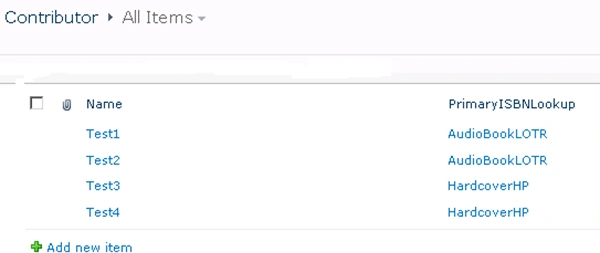
I am going to get the URL for the RSS feed from the SharePoint list.
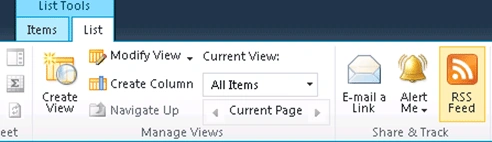
Go to the List => List Tools =>List => click on RSS Feed (which will be available in the "Share & Track" tab in the ribbon interface).
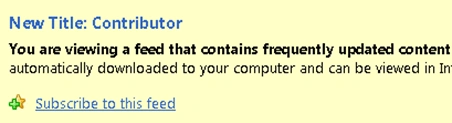
Right click on "Subscribe to this feed".
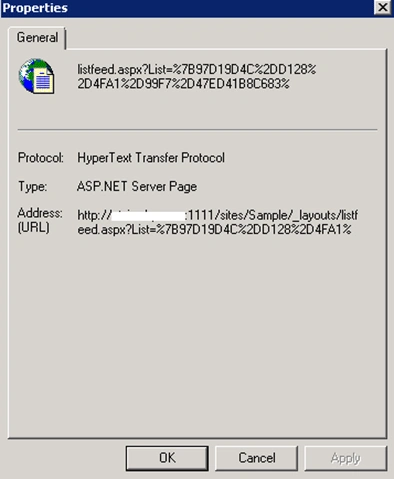
Go to the properties and copy the "URL" of the RSS feed.
Configure RSS viewer Web Part:
- Go to the SharePoint site.
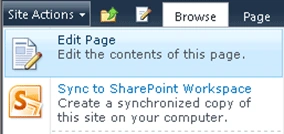
- Go to Site Actions => Edit page.
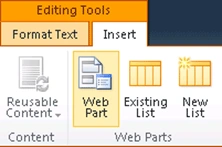
- In the ribbon interface go to Editing Tools => Insert => Web Part.
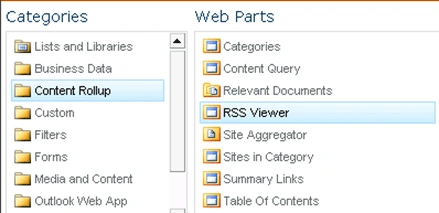
- In the Categories select "Content Rollup" => RSS Viewer => Click on Add.
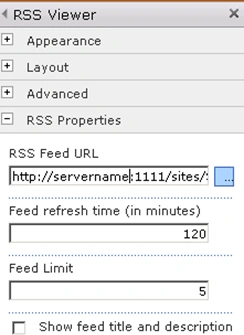
- In the Web Part properties enter the URL for the "RSS Feed URL" that we got from the SharePoint List RSS Feed.
- Click on ok.
- You may be getting an error as shown in the following.

- I searched for the error; in many blogs they said that the feed we are trying to get requires authentication and this issue occurs if you use NTLM authentication for the RSS feed instead of one of the following authentication methods:
- Kerberos authentication
- Anonymous Access
- Go to Central Administration => Application Management => Manage Web Applications.
- Select the web application where the RSS viewer Web Part is created.
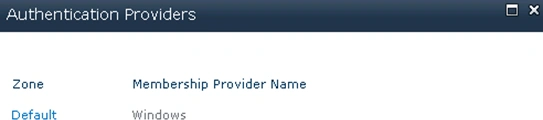
- In the ribbon interface, click on Authentication Providers.

- Click on "Default".
- In the IIS Authentication Settings, select "Negotiate (Kerberos)".
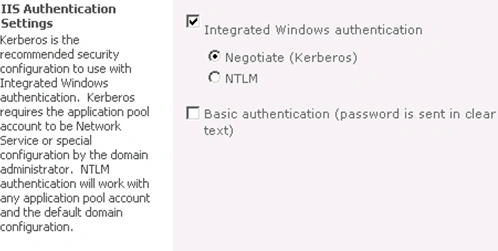
- Click on Ok.
- Now go to the site where the RSS viewer Web Part is created.
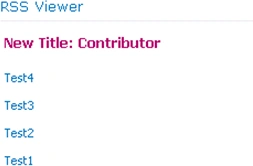
- You should be able to see the RSS feeds as shown in the following.
JAYASANKAR GPosted Sep 9, 2014, 2:52 AM
is there any way to do without enabling Anonymous access?
kalpesh patilPosted Mar 6, 2013, 11:42 AM
Really nice post...! But I have a question.... Also I have to do the same but the problem is that when I clicked on RSS image in the Ribbon it shows the RSS content but "Subscribe to this feed" option does not appear. Still I copy the URL from address bar and paste into the rss viewer webpart property. It shows only the List title. I wrote the count query in XSLT it shows count to zero. Is there any reasons as I am not able to see 'Subscribe to this feed option' and Could not see list items in rss viewer webpart?
Sam HobbsPosted Jun 7, 2011, 8:39 PM
Actually RSS is a dialect of XML. The actual transmision of information is done by software but not by RSS.