

So, let's try to create a Logo for C# corner:
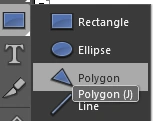
Step 1: Open a New Document in Expression Design and from the tools select the Polygon:
- Draw three polygons of the following width and Height:
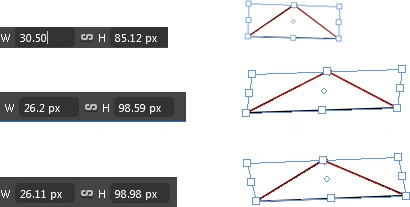
- Adjust all of them by changing the Angle to make a triangle :

- Select the left polygon and fill it using Gradient :
Select the gradient from the Properties -> Fill -> More Swatches -> Categories -> Gradients :
I have selected the last gradient of the first row.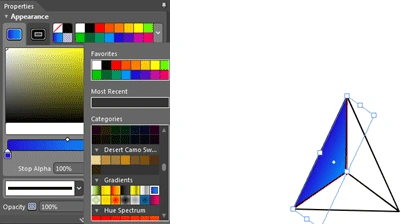
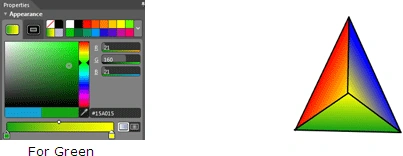
- Now Change the colors of the gradient by changing the Red "R", Green "G" and Blue "B" Color:
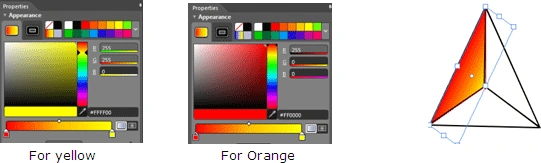
- Repeat the same Procedure for the other two polygons:
Note: Yellow color will be same for all polygons.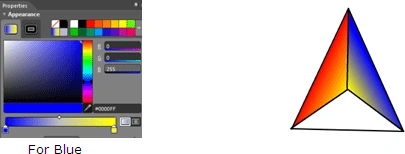
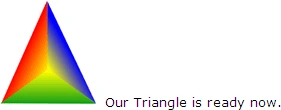
- Remove the stroke from all the three polygons:
- There is Text tool in the tool panel
 ; select it and write C# Corner as under:
Now, change the properties of the text shown on the righthand side of the window :
C and Corner should be written using the following properties :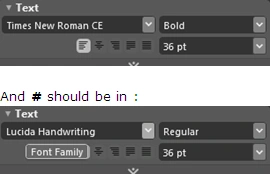
Your design would be like this :
- Let's change the color of the text; apply the shadow effect to it:
For color effect select Text and change the Fill property:
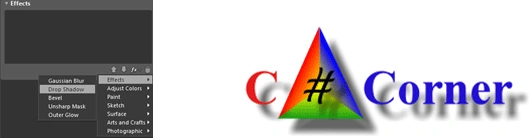
For Shadow effects select all the objects and Goto Effects -> fx(Add Effects) -> Effects -> Drop Shadow:
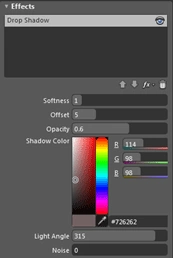
To have dull effects of shadow:
Remove the shadow effect from "#":

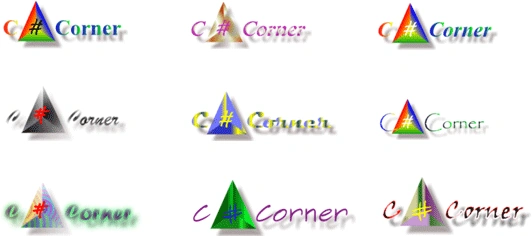
Logo in Different Styles:
tarun tripathiPosted Sep 26, 2012, 3:17 PM
Sir I just Came to know that you are writing a book with Mahesh Sir.. I would like to thank you in Advance..Because all of the Books from C#-Corner are great help for beginners like me...
tarun tripathiPosted Sep 26, 2012, 3:14 PM
Great...Impressive
Vishal NayanPosted Feb 4, 2011, 11:44 AM
Very Illustrative