
In SharePoint, libraries are a central feature used for storing, organizing, sharing, and collaborating on documents and other files. They function similarly to folders in traditional file storage systems but with enhanced features specific to SharePoint's collaborative environment.
Key Features of Libraries in SharePoint
- Document Libraries: The most common type of library in SharePoint, designed to store files like Word documents, Excel spreadsheets, PowerPoint presentations, PDFs, etc. You can track versions, set permissions, and collaborate in real-time.
- Version Control: SharePoint libraries support versioning, so users can track changes to documents and revert to previous versions if needed. Both major and minor (draft) versions can be enabled.
- Permissions and Sharing: You can set permissions at both the library and individual document levels, allowing you to control who can view, edit, or contribute to the library.
- Co-Authoring: SharePoint supports simultaneous collaboration on documents by multiple users, especially with Microsoft Office files like Word or Excel. This is particularly useful for team projects.
- Alerts and Notifications: You can set up alerts to notify you or other users when changes are made to files in the library.
Types of Libraries in SharePoint
- Document Library: This is for storing files such as Word, Excel, PowerPoint, and PDFs.
- Picture Library: Specialized for storing and sharing images.
- Form Library: Stores XML-based business forms.&
- Wiki Page Library: Used for collaborative content creation, similar to a wiki.
- Asset Library: This is used to manage digital media such as video and audio files.
- Custom Library: You can create a custom library based on your specific needs.
Document Library
A Document Library in SharePoint is a specialized repository used to store, manage, and share files such as documents, spreadsheets, presentations, PDFs, and other file types. It’s a fundamental feature of SharePoint, designed to help organizations collaborate efficiently by providing structured, version-controlled, and permissioned document storage.
Key Points About a Document Library
- Secure Storage: Files are securely stored, and you can control who has access to them.
- Easy Access: Files can be accessed from any device, making it easier for remote teams to collaborate.
- Drag-and-Drop: You can easily add or move files between folders by dragging and dropping them.
Features of a Document Library
Co-Authoring: Multiple users can work on the same document at the same time.
Permissions: You can manage access at the library, folder, or file level, ensuring sensitive information remains secure.
Activity Tracking: SharePoint lets you track changes to files, showing when they were last modified and who made changes and notifying you when updates occur.
Custom Views: Create custom views to display specific file metadata or organize information in a way that best suits your workflow.
External Links: You can add links to documents or content located outside the library, such as files in another library or external web pages.
File Highlighting: Highlight important files, folders, or links for quick access.
Create a Document in SharePoint
1. Go to the SharePoint Site
Navigate to the SharePoint site where you want to create the document library. This could be your team site or any other site where you have the necessary permissions.
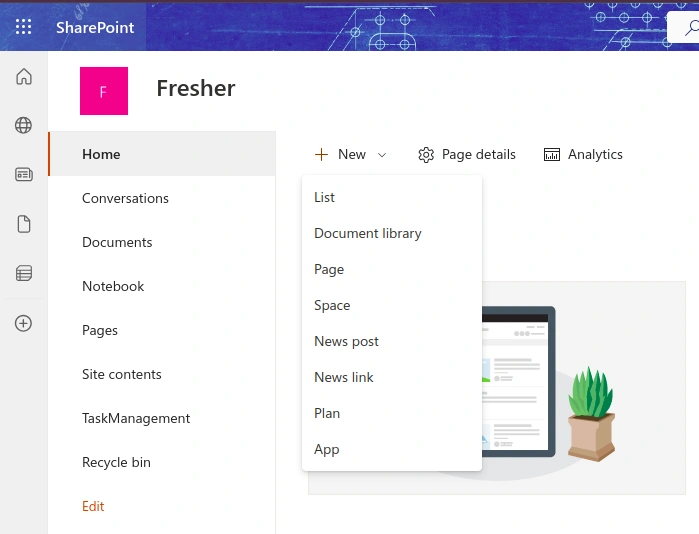
2. Click +New
- On the menu bar, click +New, and then select Document Library.
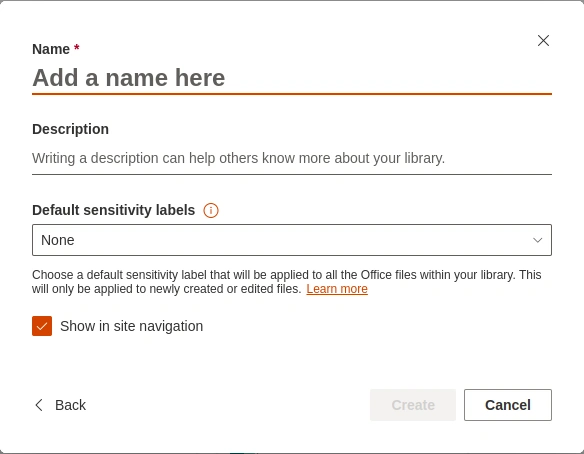
3. In the Name dialog box, we can provide a name and description for our new library to help others easily find and understand its purpose.
Delete a document library in SharePoint
1. Navigate to the SharePoint Site
- Go to the SharePoint site where the document library is located.
- Navigate to the library that you want to delete.
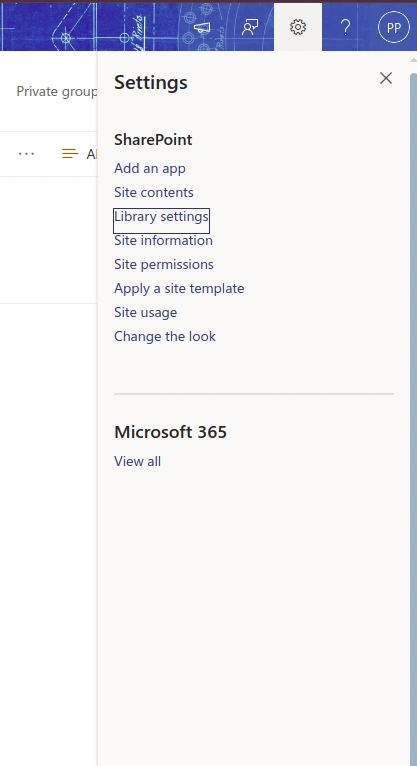
2. Open Library Settings
- In the toolbar (or gear icon ⚙), select Library settings (this may be under the "Settings" menu or by clicking "Settings" in the library's ribbon interface).
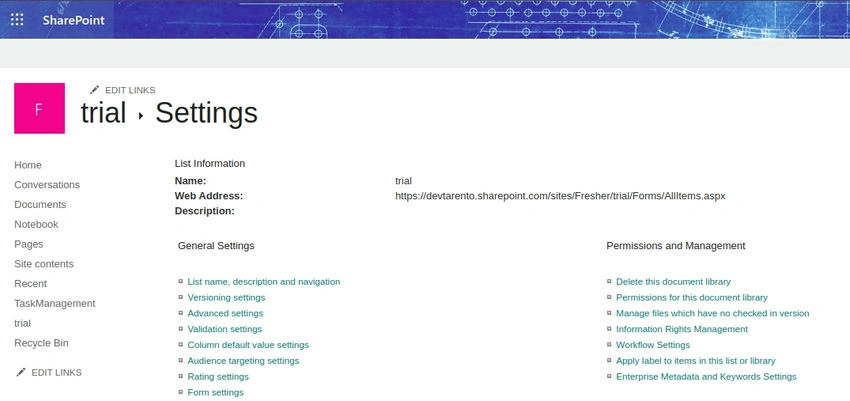
3.. Delete the Library
- On the Settings page, scroll down to the Permissions and Management section.
- Click Delete this document library.
4. Confirm Deletion
- A confirmation dialog box will appear asking if you’re sure you want to delete the library.
- Click OK to confirm the deletion.
Use Cases for SharePoint
Team Collaboration: Sharing files across teams and departments with real-time collaboration and version control.
Project Management: Managing documents and tasks for specific projects with shared access and workflows.
Intranet: Creating internal communication sites for company-wide or department-level announcements and document storage.
Advanced Document Management: Managing official documents, policies, and procedures with security and compliance.
Join the conversation! Your thoughts help the community grow.