

In this article, we will learn how we export a data sheet in Excel using Angular. In this demo, we will use Xlsx library to export data in an Excel sheet.
Steps required to export data in an Excel:
Step 1
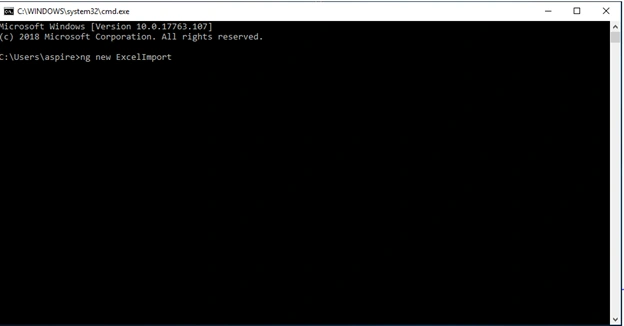
Create an Angular project by using the following command.
ng new ExcelImport
Step 2
Open the newly created project in Visual Studio Code and open the terminal. Add the following command to add Xlsx library.
npm install xlsx --save
Step 3
Add the following command to add Bootstrap in this project
npm install --save Bootstrap
Step 4
Now open styles.css file and add Bootstrap file reference. We can also add Bootstrap file reference into angular.json file.
To add reference in styles.css file import this line,
@import '~bootstrap/dist/css/bootstrap.min.css';
Step 5
Now Open app.component.ts file and import xlsx library
- import * as XLSX from 'xlsx';
Now, add the following lines in app.component.ts file
- import { Component, ElementRef, ViewChild } from '@angular/core';
- import * as XLSX from 'xlsx';
- @Component({
- selector: 'app-root',
- templateUrl: './app.component.html',
- styleUrls: ['./app.component.css']
- })
- export class AppComponent {
- @ViewChild('TABLE', { static: false }) TABLE: ElementRef;
- title = 'Excel';
- ExportTOExcel() {
- const ws: XLSX.WorkSheet = XLSX.utils.table_to_sheet(this.TABLE.nativeElement);
- const wb: XLSX.WorkBook = XLSX.utils.book_new();
- XLSX.utils.book_append_sheet(wb, ws, 'Sheet1');
- XLSX.writeFile(wb, 'ScoreSheet.xlsx');
- }
- team: any = [{
- Sno: 1,
- Team: 'India',
- Match: 8,
- Win: 7,
- Loss: 0,
- Cancel: 1,
- Point: 15
- }, {
- Sno: 2,
- Team: 'NewZeland',
- Match: 8,
- Win: 6,
- Loss: 1,
- Cancel: 1,
- Point: 13
- },
- {
- Sno: '3',
- Team: 'Aus',
- Match: 8,
- Win: 6,
- Loss: 1,
- Cancel: 1,
- Point: 13
- },
- {
- Sno: '4',
- Team: 'England',
- Match: 8,
- Win: 5,
- Loss: 2,
- Cancel: 1,
- Point: 11
- },
- {
- Sno: '5',
- Team: 'S.Africa',
- Match: 8,
- Win: 4,
- Loss: 3,
- Cancel: 1,
- Point: 9
- },
- {
- Sno: '6',
- Team: 'Pak',
- Match: 8,
- Win: 4,
- Loss: 4,
- Cancel: 1,
- Point: 9
- },
- {
- Sno: '7',
- Team: 'SriLanka',
- Match: 8,
- Win: 3,
- Loss: 3,
- Cancel: 2,
- Point: 8
- },
- {
- Sno: '8',
- Team: 'Bdesh',
- Match: 8,
- Win: 2,
- Loss: 4,
- Cancel: 2,
- Point: 6
- }
- ];
- }
- <div class="col-lg-12 table-responsive" #TABLE #table>
- <div style="padding-bottom: 10px;padding-top: 10px;">
- <div class="row">
- <div class="col-sm-12">
- <button (click)="ExportTOExcel()" class="btn btn-success">ExportTOExcel</button> </div>
- </div>
- </div>
- <table class="table table-bordered">
- <thead class="thead-dark">
- <tr>
- <th>S.No</th>
- <th>Team</th>
- <th>Match</th>
- <th>Win</th>
- <th>Loss</th>
- <th>Cancel</th>
- <th>Point</th>
- </tr>
- </thead>
- <tbody>
- <tr *ngFor="let tm of team">
- <td>{{tm.Sno}}</td>
- <td>{{tm.Team}}</td>
- <td>{{tm.Match}}</td>
- <td>{{tm.Win}}</td>
- <td>{{tm.Loss}}</td>
- <td>{{tm.Cancel}}</td>
- <td>{{tm.Point}}</td>
- </tr>
- </tbody>
- </table>
- </div>
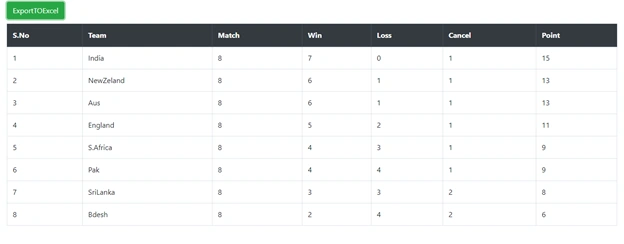
Now run the project:
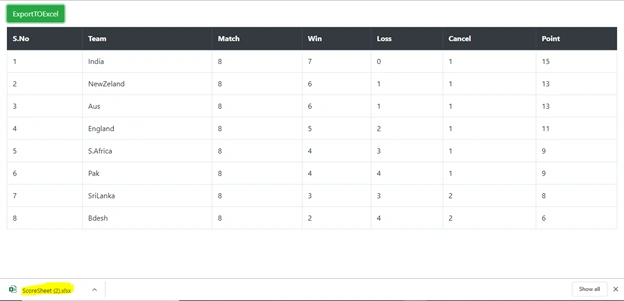
Click on the Button and check Excel is created
Summary
In this article we learned how we create Export data in an Excel sheet using Angular.
Андрей ДудинPosted May 29, 2020, 9:46 AM
Could you help please. This plugin with this parameters export only current view (visible page). If I have big table with many pages how could I export full table?
Former memberPosted May 6, 2020, 4:52 PM
What if you want to export sql data table to Excel?
Raja KhanPosted Apr 20, 2020, 1:15 PM
How to change background color of header column in excel ?
chitti babuPosted Mar 10, 2020, 6:50 AM
How to hidden column in xlsx
bhavesh bhaveshPosted Jan 23, 2020, 4:38 PM
How to apply group by
ken hackiePosted Oct 5, 2019, 6:41 AM
I want to change background color of excel file column