

Introduction
In this article I describe how to use FlipView controls in Windows Store Apps using JavaScript. You can use a FlipView control to provide an option to see various images. I assume that you can develop a simple Windows Store App using JavaScript; for help with that visit Simple Windows Store Apps using JavaScript.
To start the creation of the app, add two JavaScript files by right-clicking on the js folder in Solution Explorer and give an appropriate name; here I give the names imgdata.js and script1.js respectively. The imgdata.js file contains the references of the images. Now add one HTML page by right-clicking on the name of your project in the Solution Explorer and give an appropriate name; I use page.html.
Now put the images in the image folder and right-click on the image folder then select add > existing item then select the image folder and select images and then ok. 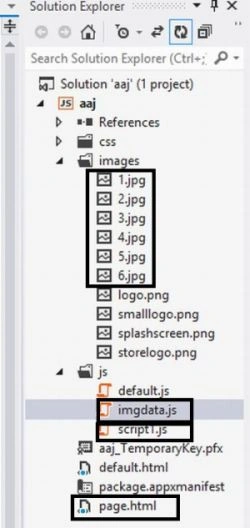
Write the following code in default.html:
<!DOCTYPE html>
<html>
<head>
<meta charset="utf-8" />
<title>Example of flipview using JavaScript</title>
<link rel="stylesheet" href="//Microsoft.WinJS.1.0/css/ui-light.css" />
<script src="//Microsoft.WinJS.1.0/js/base.js"></script>
<script src="//Microsoft.WinJS.1.0/js/ui.js"></script>
<link rel="stylesheet" href="/sample-utils/sample-utils.css" />
<link rel="stylesheet" href="/css/default.css" />
<script src="script1.js"></script>
<script src="/js/default.js"></script>
</head>
<body role="application" style="background-color: chocolate">
<center><div id="rootGrid">
<div id="content">
<h1 id="featureLabel"></h1>
<div id="contentHost"></div>
</div>
</div></center>
</body>
</html>
Write the following code in default.js:
(function () {
"use strict";
var sampleTitle = "";
var pages = [
{ url: "page.html" }
];
function activated(eventObject) {
if (eventObject.detail.kind === Windows.ApplicationModel.Activation.ActivationKind.launch) {
eventObject.setPromise(WinJS.UI.processAll().then(function () {
var url = WinJS.Application.sessionState.lastUrl || pages[0].url;
return WinJS.Navigation.navigate(url);
}));
}
}
WinJS.Navigation.addEventListener("navigated", function (eventObject) {
var url = eventObject.detail.location;
var host = document.getElementById("contentHost");
host.winControl && host.winControl.unload && host.winControl.unload();
WinJS.Utilities.empty(host);
eventObject.detail.setPromise(WinJS.UI.Pages.render(url, host, eventObject.detail.state).then(function () {
WinJS.Application.sessionState.lastUrl = url;
}));
});
WinJS.Namespace.define("Apps", {
sampleTitle: sampleTitle,
pages: pages
});
WinJS.Application.addEventListener("activated", activated, false);
WinJS.Application.start();
})();
Write the following code in page.html:
<!DOCTYPE html>
<html>
<head>
<title></title>
<script src="/js/imgdata.js"></script>
<script src="/js/simpleflipview.js"></script>
</head>
<body>
<div id="simple_ItemTemplate" data-win-control="WinJS.Binding.Template" style="display: none">
<div class="overlaidItemTemplate">
<img class="image" data-win-bind="src: picture; alt: title" />
<div class="overlay">
<h2 class="ItemTitle" data-win-bind="innerText: title"></h2>
</div>
</div>
</div>
<div id="simple_FlipView" class="flipView"
data-win-control="WinJS.UI.FlipView"
data-win-options="{ itemDataSource: imgdata.bindingList.dataSource, itemTemplate: simple_ItemTemplate }" style="width:350px " >
</div>
</div>
</body>
</html>
Write the following code in script1.js:
(function () {
var pageOutput = WinJS.Class.define(
function (element, options) {
element.winControl = this;
this.element = element;
new WinJS.Utilities.QueryCollection(element)
.setAttribute("role", "region")
.setAttribute("aria-labelledby", "outputLabel")
.setAttribute("aria-live", "assertive");
element.id = "output";
this._addOutputLabel(element);
this._addStatusOutput(element);
}, {
_addOutputLabel: function (element) {
var label = document.createElement("h2");
label.id = "outputLabel";
label.textContent = "Output";
element.parentNode.insertBefore(label, element);
},
_addStatusOutput: function (element) {
var statusDiv = document.createElement("div");
statusDiv.id = "statusMessage";
element.insertBefore(statusDiv, element.childNodes[0]);
}
}
);
var currentpageUrl = null;
WinJS.Navigation.addEventListener("navigating", function (evt) {
currentpageUrl = evt.detail.location;
});
WinJS.log = function (message, tag, type) {
var statusDiv = document.getElementById("statusMessage");
};
function activated(e) {
WinJS.Utilities.query("#featureLabel")[0].textContent = Apps.sampleTitle;
}
WinJS.Application.addEventListener("activated", activated, false);
WinJS.Namespace.define("Apps", {
pageOutput: pageOutput
});
})();
Write the following code in imgdata.js:
(function () {
"use strict";
var array = [
{ type: "item", title: "1rst img", picture: "images/1.jpg" },
{ type: "item", title: "2nd img", picture: "images/2.jpg" },
{ type: "item", title: "3rd img", picture: "images/3.jpg" },
{ type: "item", title: "4th img", picture: "images/4.jpg" },
{ type: "item", title: "5th img", picture: "images/5.jpg" },
{ type: "item", title: "6th img", picture: "images/6.jpg" }
];
var bindingList = new WinJS.Binding.List(array);
WinJS.Namespace.define("imgdata", {
bindingList: bindingList,
array: array
});
var e = imgdata.bindingList.dataSource;
})();
Output

Summary
In this article I described how to show images using a FlipView in Windows Store Apps using JavaScript. I hope this article would have helped you in understanding this topic. Please share it if you know more about this, your feedback and constructive contributions are welcome.
Deepak MiddhaPosted Oct 3, 2012, 6:17 AM
thanks gaurav.
Gaurav GuptaeditedPosted Oct 1, 2012, 3:24 AMEdited Oct 3, 2012, 6:20 AM
Nice article Middha..