
Introduction : Here I demonstrate how we call the Host method in a Workflow Application. A host application is run in the separate threads. When we build our application to provide the communication between the host application and the running workflow. The communication that occurs between client and server.
Create a Console Application :
Step 1 : Open Visual Studio 2010.
- Select File-> New-> Project.
- Select Sequential Workflow Library.
- Go to Solution Explorer and right-click.
- Select ADD-> New Item.
- Select Sequential Workflow Console Application.
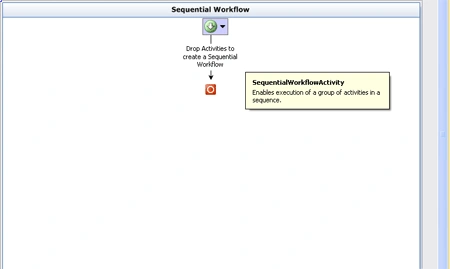
Step 2 : Go to Solution Explorer and right-click in Project.
- Select Startup Project.
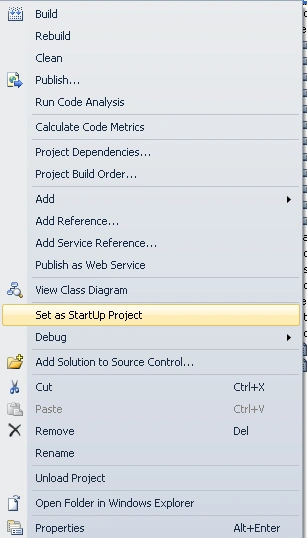
Step 3 : Right-click in project again.
- Select Add Reference.
- Select Project Tab.
- Click OK.
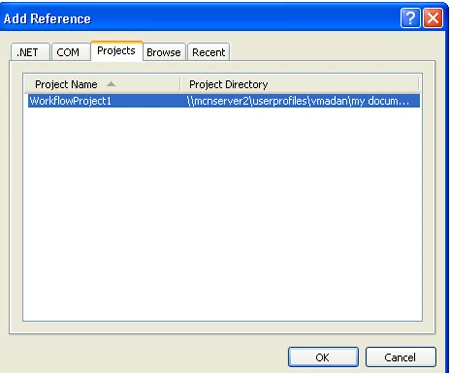
Step 4 : Go to Program.cs file and write the below code.
Code :
using
System;
using
System.Collections.Generic;
using
System.Linq;
using
System.Text;
using
System.Threading;
using
System.Workflow.Runtime;
using
System.Workflow.Runtime.Hosting;
using
System.Workflow.Activities;
using
System.Workflow.ComponentModel;
namespace
my_ConsoleApplication1
{
class Program
{
private static
class4 cl4 = new
class4();
static void
Main(string[] args)
{
using (WorkflowRuntime
workflowRuntime = new
WorkflowRuntime())
{
AutoResetEvent waitHandle =
new AutoResetEvent(false);
workflowRuntime.WorkflowCompleted +=
delegate(object sender,
WorkflowCompletedEventArgs e) {
waitHandle.Set(); };
workflowRuntime.WorkflowTerminated +=
delegate(object sender,
WorkflowTerminatedEventArgs e)
{
Console.WriteLine(e.Exception.Message);
waitHandle.Set();
};
var dataService =
new
ExternalDataExchangeService();
workflowRuntime.AddService(dataService);
dataService.AddService(cl4);
var parameters =
new Dictionary<String,
Object>();
parameters.Add("Path",
"C:\\");
WorkflowInstance instance = workflowRuntime.CreateWorkflow(typeof(my_ConsoleApplication1.Workflow1),parameters);
instance.Start();
waitHandle.WaitOne();
}
}
}
}
Create Interface :
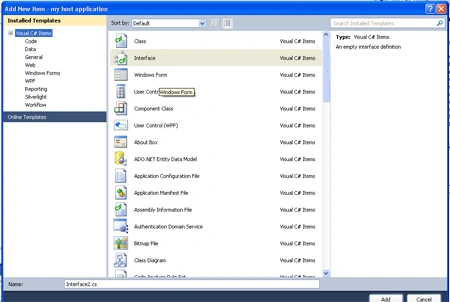
Step 5 : Go to Solution Explorer and right -click on the Host project.
- Select Add -> New Item.
- Select Interface Class.
- Click Add option.
- Class.cs file open.
Code :
using
System;
using
System.Collections.Generic;
using
System.Linq;
using
System.Text;
using
System.Workflow.Activities;
namespace
my_host_application
{
[ExternalDataExchange]
public interface
Interface1
{
void ReportProgress(String
fileName);
}
}
Create Workflow :
Step 6 : Go to Workflow.cs Design option.
- Drag activity from Toolbox While, CallExternal Method activity.
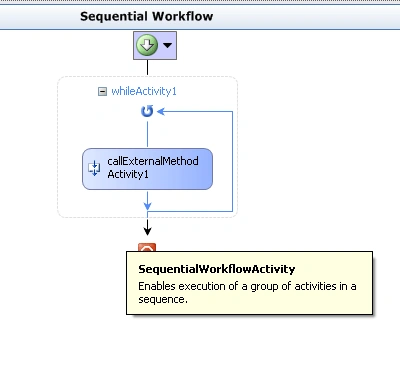
Step 7 : Select View Code option.
- Write the below code.
Code :
using
System;
using
System.ComponentModel;
using
System.ComponentModel.Design;
using
System.Collections;
using
System.Linq;
using
System.Workflow.ComponentModel.Compiler;
using
System.Workflow.ComponentModel.Serialization;
using
System.Workflow.ComponentModel;
using
System.Workflow.ComponentModel.Design;
using
System.Workflow.Runtime;
using
System.Workflow.Activities;
using
System.Workflow.Activities.Rules;
using System.IO;
namespace
my_host_application
{
public sealed
partial class
Workflow1 :
SequentialWorkflowActivity
{
public string
currentFileName;
private string[]
files;
private int
totalFiles;
private int
currentFile;
public Workflow1()
{
InitializeComponent();
}
private void
SetFiles(string Path)
{
if (!String.IsNullOrEmpty(Path))
{
files = Directory.GetFiles(Path);
totalFiles = files.Length;
currentFile = 0;
}
}
private string
pathValue;
public string
Path
{
get {
return pathValue; }
set
{
pathValue = value;
SetFiles(value);
}
}
private void
SetFileName(object sender,
EventArgs e)
{
currentFileName = files[currentFile];
currentFile++;
}
}
}
Step 8 : Define a condition
and method for while activity.
- Select While activity and right-click.
- Define condition, Condition Name.
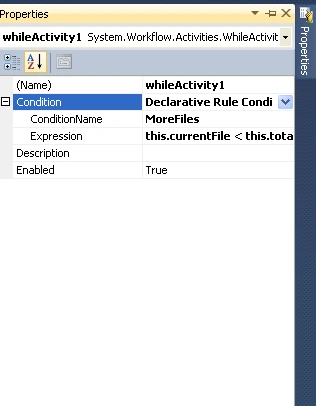
Step 9 : Define Method Name, Property.
- Select callExternal Method Activity.
- Go to property option.
- Give fileName and MethodName.
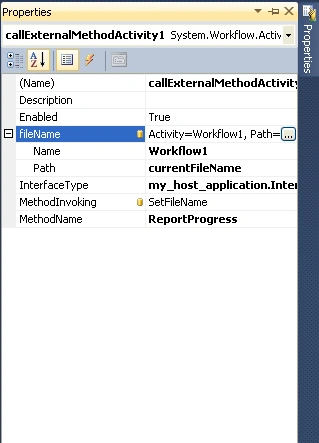
Interface Implementation :
Step 10 : Go to Solution Explorer and add Class from context menu.
- Define progress condition.
- Write the below code.
Code :
using
System;
using
System.Collections.Generic;
using
System.Linq;
using
System.Text;
using
my_host_application;
using
System.Workflow.Activities;
using
System.Workflow.Runtime;
namespace
my_ConsoleApplication1
{
[Serializable]
class class4
: Interface1
{
public void
ReportProgress(string fileName)
{
Console.WriteLine("Processing
file: {0}", fileName)
}
}
}
Step 11 : Press F6 and build
the application.
Step 12 : When Workflow executes, it calls External Method activity.
- Go to Program.cs file and add the following code.
Code :
var
dataService = new
ExternalDataExchangeService();
workflowRuntime.AddService(dataService);
dataService.AddService(cl4);
var parameters =
new Dictionary<String,
Object>();
parameters.Add("Path",
"C:\\");
Step 13 : Press F5 to run the application.
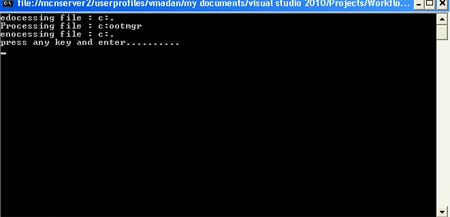
Join the conversation! Your thoughts help the community grow.