

Managing users, licenses, security, and services in Microsoft 365 starts in one place: the Microsoft 365 Admin Center. Whether you’re a new IT admin or a business owner handling things yourself, knowing how to access the admin center correctly saves time and avoids costly mistakes.
This guide walks through every common access method, required permissions, common login problems, and security best practices. No fluff. Just what you need.
What Is the Microsoft 365 Admin Center?
The Microsoft 365 Admin Center is a web-based management portal where administrators control their organization’s Microsoft 365 environment.
From this dashboard, you can:
Create and manage users
Assign or remove licenses
Configure security and compliance
Access other admin portals like Exchange, Teams, and SharePoint
Monitor service health and billing
Only users with admin roles can access it. Regular users cannot see the admin dashboard, even if they have Microsoft 365 licenses.
Who Can Access the Microsoft 365 Admin Center?
Access depends entirely on admin roles.
Supported Admin Roles
You can access the admin center if your account has one of the following roles:
Global Administrator
User Administrator
Billing Administrator
Security Administrator
Application Administrator
Global Administrators have full access. Other roles see limited sections based on their permissions.
Work or School Account Requirement
You must sign in with a work or school account, not a personal Microsoft account. Personal accounts end in domains like:
@outlook.com
@hotmail.com
@live.com
Business accounts usually look like:
How to Access Microsoft 365 Admin Center via Browser
This is the most common and reliable method.
Direct Login Method
Open any modern browser (Edge, Chrome, Firefox)
Go to: https://admin.microsoft.com
Sign in using your Microsoft 365 admin credentials
Complete multi-factor authentication if prompted
If your role is valid, you’ll land on the Microsoft 365 admin dashboard.
Access from Microsoft 365 Home Page
Sign in with your work or school account
Select Admin from the app launcher (nine-dot menu)
If you don’t see “Admin,” your account likely doesn’t have admin permissions.
Accessing Microsoft 365 Admin Center from Mobile
Microsoft offers a dedicated mobile app for admins who need quick access.
Microsoft 365 Admin App
Available on iOS and Android
Search for Microsoft 365 Admin
Sign in with your admin account
The app allows you to:
Monitor service health
Reset passwords
View tickets and alerts
Manage users (limited actions)
It’s useful for monitoring, but not a replacement for the full web portal.
Required Permissions and Role Assignment
If you can’t access the admin center, permissions are the first thing to check.
How Roles Are Assigned
Only a Global Administrator can assign admin roles.
Steps:
Go to the Microsoft 365 Admin Center
Navigate to Users > Active users
Select a user
Choose Manage roles
Assign the appropriate admin role
Save changes
Role changes may take a few minutes to apply.
Common Login Problems and How to Fix Them
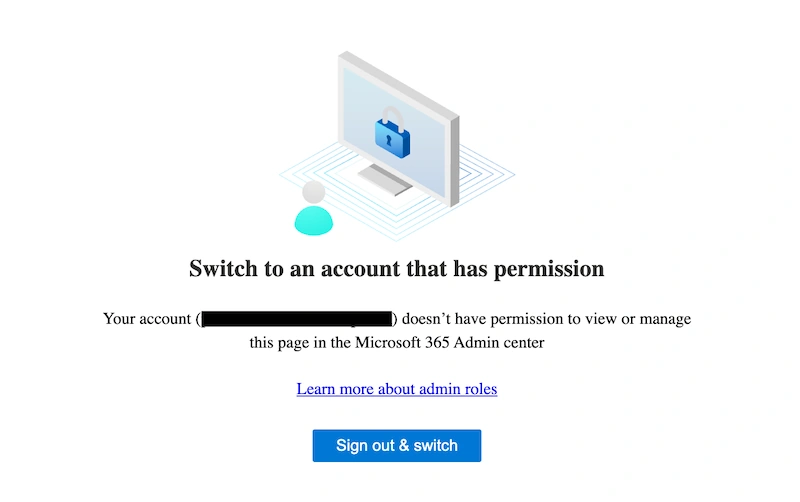
“You Don’t Have Permission to Access This Page”
You can see the following image
Cause:
Your account is not assigned an admin role
Fix:
Ask a Global Administrator to assign the correct role
Stuck in User Dashboard Instead of Admin Center
Cause:
Signed in with a non-admin account
Fix:
Sign out completely
Sign back in using the admin account
Use an InPrivate or Incognito window
Multi-Factor Authentication Issues
Cause:
MFA device unavailable or misconfigured
Fix:
Contact another Global Administrator to reset MFA
Use backup authentication methods if configured
Account Locked or Disabled
Cause:
Security policy violations or expired credentials
Fix:
Another admin must re-enable the account
Reset password and review sign-in logs
Security Best Practices When Accessing the Admin Center
Admin access comes with risk. Follow these basics.
Use Dedicated Admin Accounts
Don’t use your daily email account for admin work.
Create a separate admin-only account
No mailbox, no Teams access
Admin tasks only
Always Enable Multi-Factor Authentication
MFA should be mandatory for:
All admin roles
Privileged users
External access scenarios
This single step blocks most account compromise attempts.
Limit Global Administrator Accounts
Best practice:
2 to 4 Global Admins maximum
Use lower-privilege roles whenever possible
Related Admin Portals You Can Access from Microsoft 365 Admin Center
Once inside the main admin center, you can jump to specialized portals, including:
Exchange Admin Center
Microsoft Teams Admin Center
SharePoint Admin Center
Security and Compliance portals
Microsoft Entra (identity and access management)
All of these inherit permissions from your assigned admin role.
Final Checklist to Access Microsoft 365 Admin Center
Before trying again, confirm:
You’re using a work or school account
Your account has an admin role
You’re signing in at admin.microsoft.com
MFA is working correctly
Your account isn’t blocked or disabled
If all five are true, access should work.
About Microsoft 365 Administration
Microsoft 365 is developed and maintained by Microsoft, and the admin center is the primary control hub for managing its business and enterprise services.
Join the conversation! Your thoughts help the community grow.