

Enable Like on List Items
Like: Like is a Microblogging feature of SharePoint 2013. Although it is disabled for list items by default, we can enable it using list settings.
Figure 1: Like
Create List: To start with, create a new list and add a few items into it as shown in the following screenshot:
Figure 2: Create List
Now go to the list settings. You will see the Ratings settings as shown in the following screenshot: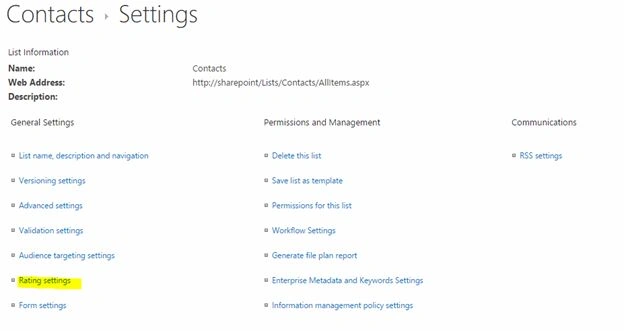
Figure 3: Contact Settings
Choose the following options: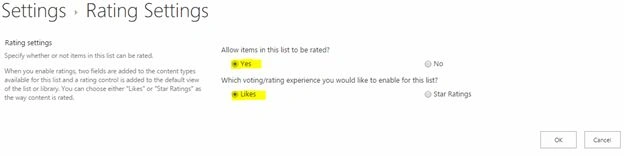
Figure 4: Rating Settings
Save the changes and return to the list. You should see the Like link now.
Testing Like: You can click on the Like link to test it.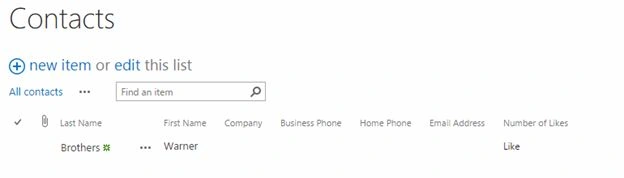
Figure 5: Contacts
Now the Like link converts to unlike and it will also display the Total Like count.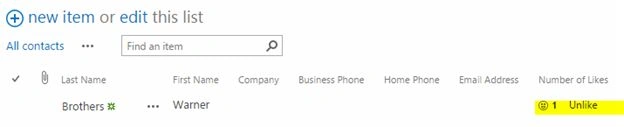
Figure 6: New Item
This shows the usage of Rating Settings to enable like item for a list item.
We can use the Like functionality to enable user-voting on multiple choices.
References
https://technet.microsoft.com/en-us/library/jj219700.aspx
Summary
In this article we have seen how to enable Like button for list items.
How to Enable Like on List Items
In this article we can see how to enable Like on List items.
Join the conversation! Your thoughts help the community grow.
Sign in to leave a comment
It is the same account you read, post and publish with — and you will come straight back to this page.
Jean PaulPosted Jun 30, 2015, 11:22 AM
Thank You all dear Friends! :)
Jacob RobinsonPosted Jun 30, 2015, 2:46 AM
Nice Article..
Santhakumar MunuswamyPosted Jun 27, 2015, 10:59 AM
Thanks for nice article:)
Sibeesh VenuPosted Jun 27, 2015, 12:33 AM
Good one.
Debendra DashPosted Jun 26, 2015, 1:41 PM
good one...
Gopi ChandPosted Jun 26, 2015, 1:09 PM
Well done sir
Abhay ShankerPosted Jun 26, 2015, 11:34 AM
Nice one sir
Debasis SahaPosted Jun 26, 2015, 9:52 AM
Nice one
Atul GuptaPosted Jun 26, 2015, 9:30 AM
Informative!
Rajeesh MenothPosted Jun 26, 2015, 7:39 AM
Good One..