

SharePoint 2010 provides the capability to subscribe the content through a feature called "Alerts". Alerts can be subscribed for at one of the four levels list, document library, list item and document. This also enables you to be notified by e-mail of any changes made to the content of your SharePoint Web site. In this article we will be seeing how to create an alert for a particular user and for a specified document library using the SharePoint object model.
For configuring alerts in SharePoint 2010 through out of the box refer to my previous article http://www.c-sharpcorner.com/UploadFile/anavijai/7593/ (Copy and paste the hyperlink).
SPAlert Class:
This class is used to represent an alert, which generates periodic e-mail or Short Message Service (SMS) notifications sent to a user about the list, list item, document, or document library to which the alert applies. Using this class we will be creating a new alert for a document library.
Steps involved:
- Open Visual Studio 2010.
- Go to File => New => Project.
- Select Console Application template from the installed templates.
- Add the following references.
- Microsoft.SharePoint
- Add the following namespaces.
- using Microsoft.SharePoint;
- Replace Program.cs with the following code.
using System;
using System.Collections.Generic;
using System.Linq;
using System.Text;
using Microsoft.SharePoint;namespace Alerts
{
class Program
{
static void Main(string[] args)
{
using (SPSite site = new SPSite("http://serverName:22222/sites/TestSite/"))
{
using (SPWeb web = site.RootWeb)
{
SPList list=web.Lists.TryGetList("Shared Documents");
SPUser user = web.EnsureUser(@"domainName\userName");
SPAlert newAlert = user.Alerts.Add();
newAlert.Title = "My Custom Alert";
newAlert.AlertType=SPAlertType.List;
newAlert.List = list;
newAlert.DeliveryChannels = SPAlertDeliveryChannels.Email;
newAlert.EventType = SPEventType.Add;
newAlert.AlertFrequency = SPAlertFrequency.Immediate;
newAlert.Update();
}
}
}
}
}
- Build the solution.
- Hit F5.
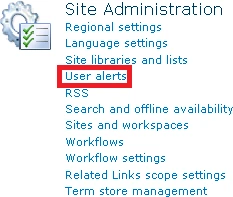
- Go to Site Actions => Site Settings =>Site Administration => User Alerts.
- Select the user from the drop down to show all the alerts created by that user and click on "Update".
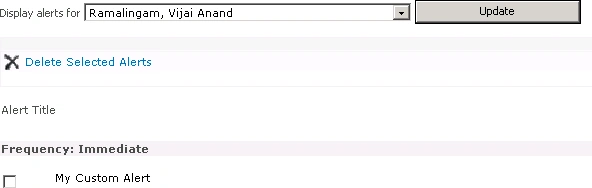
- A new alert is created successfully using SharePoint object model.
- An alternative method to check the newly created alert is to go to the Shared Documents (I have mentioned to create an alert for Shared Documents in my code) => in the ribbon interface, select Library Tools => Library => Alert Me.
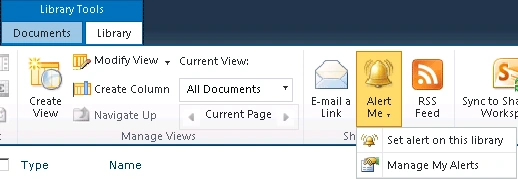
- Click on "Manage my alerts".
- You should be able to see the alert created as shown in the following.

SPAlertType Enumeration:
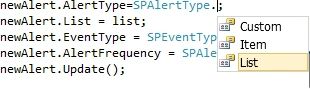
It is used to specify the type of item to which an alert applies. Here I am applying the alert to the document library, so I have chosen "List" as my alert type.
SPAlertDeliveryChannels Enumeration:
It is used to specify the method of delivering alerts.

SPAlertFrequency Enumeration:
It is used to specify the time interval for sending an alert about changes to a specific list, list item, document library, or document.

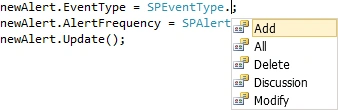
SPEventType Enumeration:
It is used to specify the type of event for a list, list item, document, or document library to which an alert responds.
muneeb mohammedPosted Apr 16, 2013, 10:33 AM
Vijay, I wanted to know if Alerts work with FAST Search with Sharepoint? i wanted to create an alert for saved queries. Thanks
Sukanya ArumugamPosted Feb 28, 2013, 4:34 AM
Awesome Article, completely met my requirement. Thank u Vijay
ninelPosted Jun 4, 2012, 3:34 PM
Can an alert be utilized for a weekly email and to make it more complicated for multiple lists/document libraries on a site? So basically if there were changes to 10 lists I need it all listed in one email.