
Let see how to create Sequential Workflow:
Step 1 : Open Visual studio 2010.
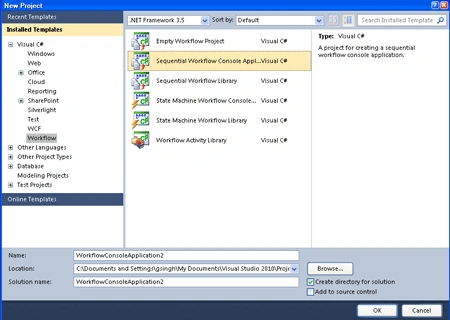
- Go to File->New->Project option.
- Select Visual C#->Workflow->.NET Framework 3.5.
- Select Sequential Workflow Console Application.
- Click OK.
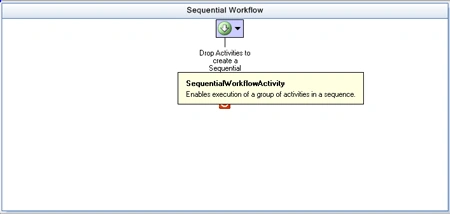
After creating the Application, designer window look like this:
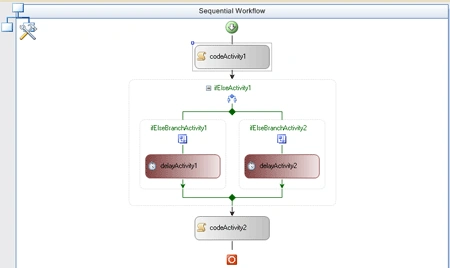
Step 2: Add activity from Toolbox for Workflow.
- Add a Code activity , IfElse activity, Delay activity.
Step 3: Go to Workflow1.cs class add these variables.
Variables:
private int i;
private DateTime start, finish;
Step 4: Go to Design View and double-click in codeActivity1 and write the below code.
Code:
private void codeActivity1_ExecuteCode(object sender, EventArgs e)
{
i = (new Random()).Next(10);
Console.WriteLine("Number = " + i);
Console.WriteLine("Started...");
start = DateTime.Now;
}
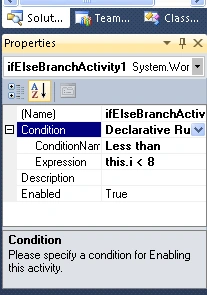
Step 5: Go to Design View and click ifElseActivity1.
- Go to Properties->Condition row.
- Select Declarative Rule Condition.
- Set Condition Name LessThan.
- Click Expression->Rule Condition Editor window write the below code.
Code:
this.i < 8
Step 6: Same process for the other activity and write the below code for Greaterthan.
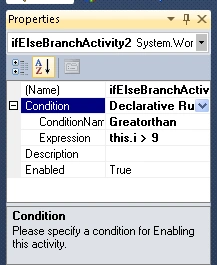
Code:
this.i > 9
Step 7: Go to Design View and double-click in codeActivity2 and write the below code.
Code:
private void codeActivity2_ExecuteCode(object sender, EventArgs e)
{
Console.WriteLine("Finished...");
finish = DateTime.Now;
Console.WriteLine("Time Elapsed : " + finish.Subtract(start));
Console.WriteLine("my sequential activity");
Console.ReadLine();
}
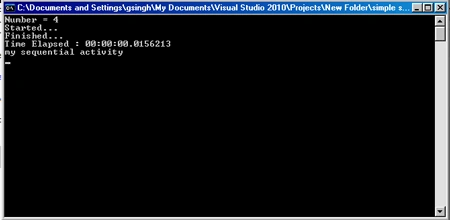
Step 8: Now press F5 run it. We will get different outputs.
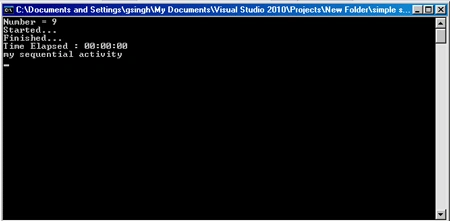
Step 9: Two possible outputs value are shown below.
Join the conversation! Your thoughts help the community grow.