

In this article I am explaining, how to update a list item using share point
designer.
1. This is my list say Task List.
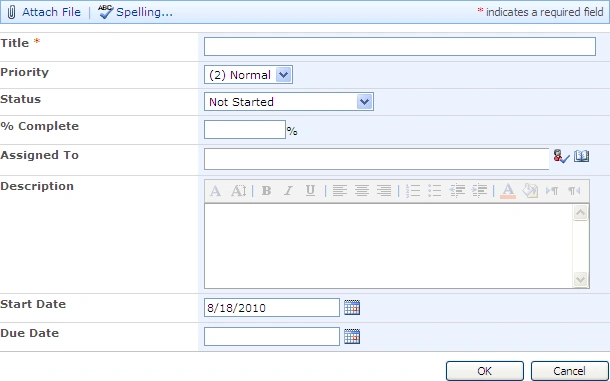
2. Here I am updating the list Item % complete to 100 ,if the Status is
completed while editing or adding event . item.
1. First of all you have to open your web application in share point
designer
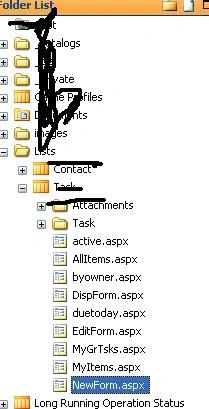
2. You have to go to File -> New -> Work Flow as shown below
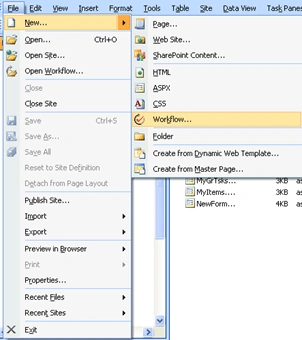
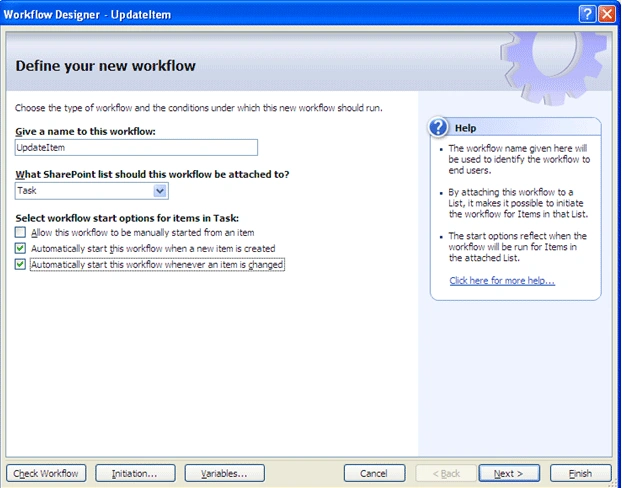
3. From the next screen, You have to give a name for your work flow.
4. Select the List where you want to incorporate the work flow from the
second drop down as shown below
5. Select automatically start this work flow when new item is added or
changed.
6. Click Next
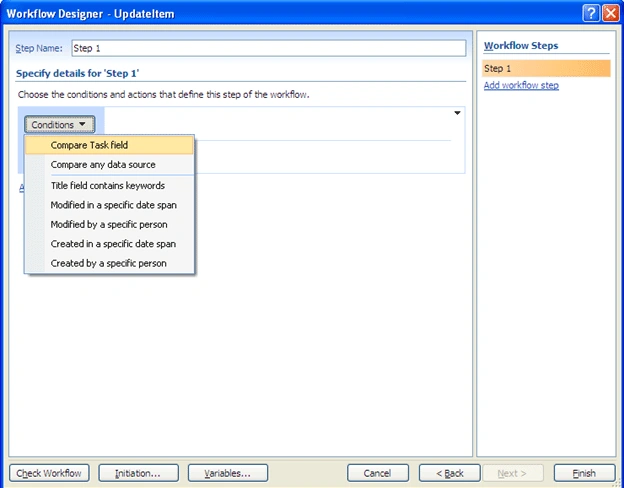
7. From the next screen Select Condition then Compare Task Field
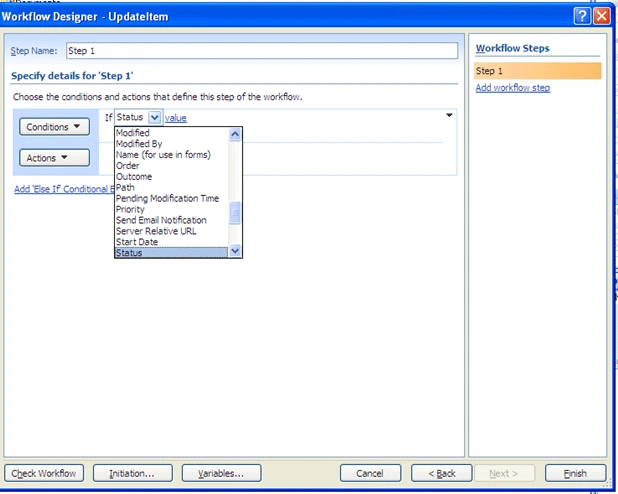
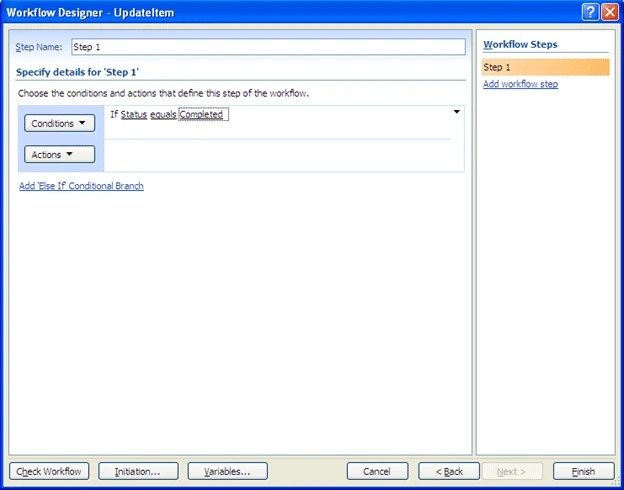
8. From the next screen, select the field you want to compare .I selected
Status the value you set as completed
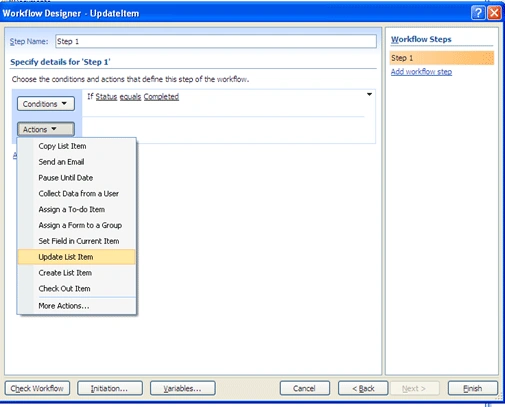
9. Then Click on Actions Then select Update List Item
10. From the next screen click "This List" then select Current item from the
List drop down
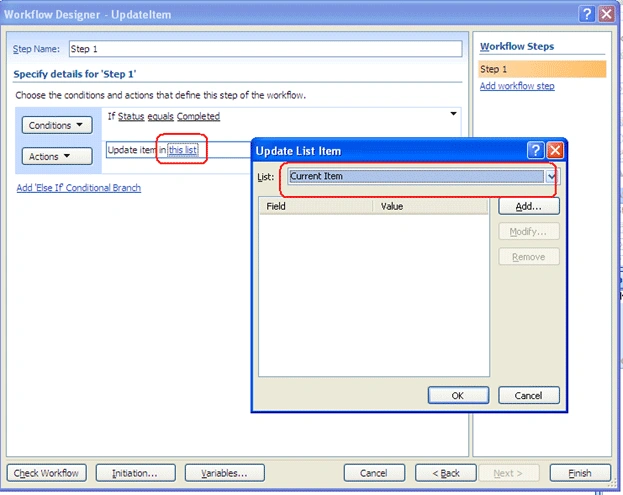
11. Click on Add button Select Set Field value as " % complete" To This
Value as 100.
12. Click OK and Finish .You are done
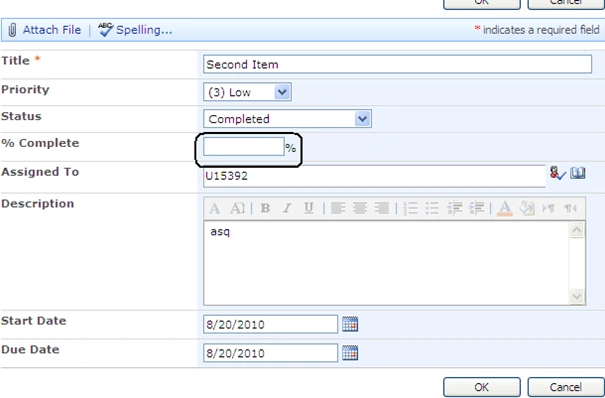
13. You can see in the above screen .I didn't filled the value for %
complete but I made the status as completed.
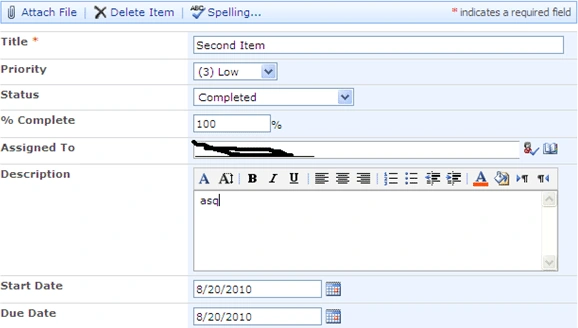
14. In the below screen you can see it is updated with 100%
Loading
Join the conversation! Your thoughts help the community grow.