

Introduction
This article contains the remaining activities of our SharePoint with an Angular project and it is a continuation of my previous article SharePoint With Angular - Part One.
Prerequisites
- Visual Studio Code. You can download and install from Visual Studio Code
- Node.js. You can download and install from Node.js
- Basic knowledge of SharePoint
- Knowledge of TypeScript
Note
The remaining activities of our Sharepoint projects using Angular are:
- Create an angular project and write the code for CRUD operation in SharePoint.
- Integrate third-party library (PrimeNg) for showing records.
- Build and add an Angular project to the SharePoint site.
Create an Angular project and write the code for a CRUD operation in Sharepoint
To demonstrate the CRUD operation in SharePoint online, I have created the Employee list with following the columns.
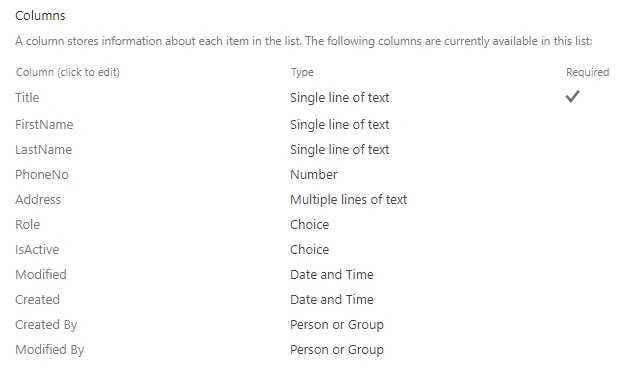
Let's create an Angular project using Angular CLI. You can install angular CLI using npm install -g @angular/cli
Step 1
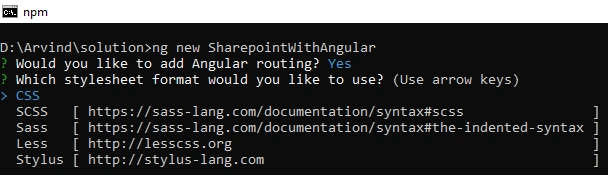
Open the command prompt and type below command to create an Angular project where SharepointWithAngular is the project name.
ng new SharepointWithAngular
Step 2
Select the following options.
Would you like to add Angular routing? - y (Type y, as we are using routing for SharepointWithAngular).
Which stylesheet format would you like to use? CSS (You can choose any option, As I am using CSS for this project).
Now it will install the necessary packages and files. Once done, open the proxy-server project in Visual Studio code.
Step 3
Now install the proxy library by using the following command.
npm install sp-rest-proxy --save-dev - To install sp-rest-proxy library.
Step 4
Create a proxy.conf.json file and write the below code.
- {
- "/sites/*": {
- "target": "http://localhost:8080",
- "secure": false,
- "changeOrigin": true,
- "logLevel": "debug",
- "pathRewrite": {
- "^/sites": "http://localhost:8080/sites"
- }
- }
- }
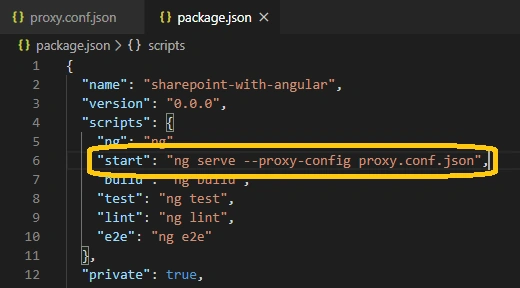
Modify the start tag with this line in package.json file under the scripts tag.
"start": "ng serve --proxy-config proxy.conf.json"
Note
Step(3 and 4) are required so that we can use SharePoint services(like REST API, Groups, list, etc) locally or on localhost by running the command.
npm run start
Step 5
In order to perform actions like create, view, update, and delete in Sharepoint list item. Create the following services with these commands.
ng g s services/Constant - where (g - generate and s - service)
It will generate two files constant.service.ts and constant.service.spec.ts(It is used for testing). Open constant.services.ts file and paste the following code in it.
- import { Injectable } from '@angular/core';
- @Injectable({
- providedIn: 'root'
- })
- export class ConstantService {
- constructor() { }
- // Define constant for list names
- public listNames = {
- Employee: {
- name: 'Employee',
- type: 'SP.Data.EmployeeListItem'
- }
- }
- // Define REST API Query in Constant file.
- public QUERY = {
- GET_CHOICEFIELD: {
- filter: 'EntityPropertyName eq \'{{choiceField}}\''
- },
- GET_EMPLOYEE: {
- select: 'ID,Title,FirstName,LastName,Address,Role,IsActive,PhoneNo,Created,Modified,Editor/ID,Editor/Title',
- expand: 'Editor',
- filter: 'IsActive eq \'{{isActive}}\''
- }
- }
- }
ng g s services/Common
It will generate two files common.service.ts and common.service.spec.ts(It is used for testing). Opencommon.services.tsfile and paste the following code in it.
- import { Injectable } from '@angular/core';
- import { DatePipe } from '@angular/common';
- @Injectable({
- providedIn: 'root'
- })
- export class CommonService {
- constructor(
- private datePipe: DatePipe
- ) { }
- /**
- * construct a request to filter the array data into unique records.
- *
- * @description
- *
- * It will filter the array with unique records and return the filter array.
- *
- * @param array The array parameters contains an array which is required to filter the data.
- *
- * @return array It will returns an array having a unique value into the array.
- */
- uniqueArrayObj(array: any) {
- let sts: any = '';
- return sts = Array.from(new Set(array.map(s => s.label))).map(label1 => {
- return {
- label: label1,
- value: array.find(s => s.label === label1).value
- };
- });
- }
- // Sort array with property as label & value
- sortData(array: any) {
- return array.sort((a, b) => {
- if (a.label && a.label !== null && b.label && b.label !== null) {
- if (a.label.toLowerCase() < b.label.toLowerCase()) {
- return -1;
- }
- if (a.label.toLowerCase() > b.label.toLowerCase()) {
- return 1;
- }
- }
- return 0;
- })
- }
- /**
- * This method is used to sort number.
- * @param array Pass the array as parameter.
- */
- sortNumberArray(array: any) {
- return array.sort((a, b) => {
- if (parseFloat(a.label) && parseFloat(b.label)) {
- return a.label - b.label;
- }
- return 0;
- })
- }
- /**
- * This method is used to sort the DateArray;
- * @param array Pass the array as parameter.
- */
- sortDateArray(array: any) {
- const reverseDateRepresentation = date => {
- if (date) {
- let d1 = this.datePipe.transform(date.label ? date.label : date, 'dd-MM-yyyy');
- let parts = d1.split('-');
- let sortedDate = `${parts[2]}-${parts[1]}-${parts[0]}`;
- return sortedDate;
- } else {
- return null;
- }
- };
- const sortedDates = array
- .map(reverseDateRepresentation)
- .sort()
- .map(reverseDateRepresentation);
- return sortedDates;
- }
- }
ng g s services/SPOperation
It will generate two files spoperation.service.ts and spoperation.service.spec.ts(It is used for testing). Openspoperation.services.tsfile and paste the following code in it.
- import { Injectable } from '@angular/core';
- import { HttpClient, HttpHeaders, HttpErrorResponse } from '@angular/common/http';
- import { ConstantService } from './constant.service';
- import { GlobalObjectService } from './global-object.service';
- @Injectable({
- providedIn: 'root'
- })
- export class SPOperationService {
- // declare the variable to define header
- jsonHeader = 'application/json; odata=verbose';
- headers = { 'Content-Type': this.jsonHeader, Accept: this.jsonHeader };
- //declare the apiUrl
- apiUrl: string;
- baseUrl: string;
- constructor(
- private httpClient: HttpClient,
- private constants: ConstantService,
- private globalObj: GlobalObjectService
- ) { this.setBaseUrl(null); }
- /**
- * This method is used to set the default base url
- * @param webUrl
- */
- setBaseUrl(webUrl?: string) {
- const ctx = window['_spPageContextInfo'];
- if (ctx) {
- // If user is on SharePoint page use _spPageContextInfo.webAbsoluteUrl
- this.baseUrl = ctx.webAbsoluteUrl;
- } else {
- // Use the local variable value
- this.baseUrl = this.globalObj.sharePointPageObject.webAbsoluteUrl;
- }
- // Default to local web URL
- this.apiUrl = this.baseUrl + '/_api/web/lists/GetByTitle(\'{0}\')/items';
- }
- /**
- * This method is used to get the headers.
- * @param bAddContext
- * @param returnOp
- */
- getHeaders(bAddContext, returnOp) {
- const headerCopy: any = Object.assign({}, this.headers);
- if (bAddContext) {
- const context: any = document.getElementById('__REQUESTDIGEST');
- if (context) {
- headerCopy['X-RequestDigest'] = context.value;
- }
- }
- if (returnOp) {
- const httpOptions = {
- headers: new HttpHeaders(headerCopy)
- };
- return httpOptions;
- } else {
- return headerCopy;
- }
- }
- /**
- * This method is used to read the ODATA properties of sharepoint url and bind them.
- * @param url pass the url as parameters
- * @param options pass the options
- */
- readBuilder(url: string, options: any): string {
- if (options) {
- if (options.select) {
- url += ((url.indexOf('?') === -1) ? '?' : '&') + '$select=' + options.select;
- }
- if (options.filter) {
- url += ((url.indexOf('?') === -1) ? '?' : '&') + '$filter=' + options.filter;
- }
- if (options.expand) {
- url += ((url.indexOf('?') === -1) ? '?' : '&') + '$expand=' + options.expand;
- }
- if (options.orderby) {
- url += ((url.indexOf('?') === -1) ? '?' : '&') + '$orderby=' + options.orderby;
- }
- if (options.top) {
- url += ((url.indexOf('?') === -1) ? '?' : '&') + '$top=' + options.top;
- }
- if (options.skip) {
- url += ((url.indexOf('?') === -1) ? '?' : '&') + '$skip=' + options.skip;
- }
- }
- return url;
- }
- /**
- * This method is used to get the Item url for sharepoint
- * @param listName pass the listname as parameter
- * @param id pass the id for update and delete operation
- * @param options pass data in options parameter if you want to update else donot pass.
- */
- getItemURL(listName: string, id: any, options?: any) {
- let url = this.apiUrl.replace('{0}', listName) + '(' + id + ')';
- url = this.readBuilder(url, options);
- return url;
- }
- /**
- * This method is used to build the get items url
- * @param listName Pass the listname as parameter
- * @param options Pass the options as parameter.
- */
- getReadURL(listName: string, options?: any) {
- let url = this.apiUrl.replace('{0}', listName);
- url = this.readBuilder(url, options);
- return url;
- }
- /**
- * This method will create the new item in sharepoint list
- * @param listName pass the listname
- * @param jsonBody pass the body
- * @param type pass the type
- */
- async createItem(listName: string, jsonBody: any, type: string) {
- const url = this.getReadURL(listName, null);
- // append metadata
- if (!jsonBody.__metadata) {
- jsonBody.__metadata = {
- // tslint:disable-next-line:object-literal-key-quotes
- 'type': type
- };
- }
- // Call the http post method
- const data = JSON.stringify(jsonBody);
- const res = await this.httpClient.post(url, data, this.getHeaders(true, true)).toPromise().catch((err: HttpErrorResponse) => {
- const error = err.error;
- return error;
- });
- return res.d.results;
- }
- /**
- * This method is used to update the item in sharepoint list
- * @param listName pass the list name as parameter
- * @param id pass the id of the item.
- * @param jsonBody pass the data which you want to update
- * @param type pass the type of list.
- */
- async updateItem(listName: string, id: any, jsonBody: any, type?: string) {
- // Append HTTP header MERGE for UPDATE scenario
- const localOptions = this.getHeaders(true, false);
- localOptions['X-HTTP-Method'] = 'MERGE';
- localOptions['If-Match'] = '*';
- // Append metadata
- if (!jsonBody.__metadata) {
- jsonBody.__metadata = {
- // tslint:disable-next-line:object-literal-key-quotes
- 'type': type
- };
- }
- // stringify the data
- const data = JSON.stringify(jsonBody);
- const url = this.getItemURL(listName, id);
- const httpOptions = {
- headers: new HttpHeaders(localOptions)
- };
- // Call the http post method
- await this.httpClient.post(url, data, httpOptions).toPromise().catch((err: HttpErrorResponse) => {
- const error = err.error;
- return error;
- });
- }
- /**
- * This method is used to read items from sharepoint list based on REST query.
- * @param listName Pass the listname as a parameter
- * @param options pass the query
- */
- async readItems(listName: string, options?: any) {
- // build the read url
- const url = this.getReadURL(listName, options);
- let res;
- // Call the http get method
- res = await this.httpClient.get(url, this.getHeaders(true, true)).toPromise().catch((err: HttpErrorResponse) => {
- const error = err.error;
- return error;
- });
- return res.d.results;
- }
- /**
- * This method is used to delete items from sharepoint list based on REST query.
- * @param listName Pass the listName as a parameter.
- * @param id pass the list item Id
- */
- async deleteItem(listName: string, id: number) {
- // Append HTTP header Delete for Delete scenario
- const localOptions = this.getHeaders(true, false);
- localOptions['X-HTTP-Method'] = 'DELETE'; // set the delete header for post call.
- localOptions['If-Match'] = '*';
- const url = this.getItemURL(listName, id);
- const httpOptions = {
- headers: new HttpHeaders(localOptions)
- };
- // build the delete url
- let res;
- // Call the http delete method
- res = await this.httpClient.post(url, null, httpOptions).toPromise().catch((err: HttpErrorResponse) => {
- const error = err.error;
- return error;
- });
- return res;
- }
- /**
- * This method is used to get the choice field value from list
- * @param listName Pass the list name as parameter
- * @param options Pass the optiosn as parameter
- */
- async getChoiceFieldItems(listName: string, options?: any) {
- const url = this.getChoiceFieldUrl(listName, options);
- let res;
- res = await this.httpClient.get(url, this.getHeaders(true, true)).toPromise().catch((err: HttpErrorResponse) => {
- const error = err.error;
- return error;
- });
- return res.d.results;
- }
- /**
- * This method is used to build the url for choice columns.
- * @param listName Pass the list name as parameter
- * @param options Pass the options as parameter.
- */
- getChoiceFieldUrl(listName: string, options?: any) {
- const choiceUrl = this.baseUrl + '/_api/web/lists/GetByTitle(\'{listName}\')/fields';
- let url = choiceUrl.replace('{listName}', listName);
- url = this.readBuilder(url, options);
- return url;
- }
- }
ng g s services/GlobalObject
It will generate two files global-object.service.ts and global-object.service.spec.ts (It is used for testing). Openglobal-object.services.tsfile and paste the following code in it.
- import { Injectable } from '@angular/core';
- @Injectable({
- providedIn: 'root'
- })
- export class GlobalObjectService {
- constructor() { }
- //Define the SharePoint Object.
- public sharePointPageObject = {
- webAbsoluteUrl: '',
- webRelativeUrl: '',
- userId: 0
- };
- }
Step 6
Write this code in the following files which are required for our projects.
app.component.ts
- import { Component, ViewEncapsulation, NgZone } from '@angular/core';
- import { GlobalObjectService } from './services/global-object.service';
- import { Router } from '@angular/router';
- declare const _spPageContextInfo;
- @Component({
- selector: 'app-root',
- templateUrl: './app.component.html',
- styleUrls: ['./app.component.css'],
- encapsulation: ViewEncapsulation.None
- })
- export class AppComponent {
- constructor(
- private globalService: GlobalObjectService,
- private router: Router,
- private _ngZone: NgZone
- ) { }
- /**
- * This method will initialize the required variable for project
- */
- ngOnInit() {
- // Set the webAbsoluteUrl for localhost and sharepoint page
- this.globalService.sharePointPageObject.webAbsoluteUrl = window.location.href.indexOf('localhost') > -1 ? '/sites/Your Site Name'
- : _spPageContextInfo.webAbsoluteUrl;
- this.globalService.sharePointPageObject.webRelativeUrl = window.location.href.indexOf('localhost') > -1 ? '/sites/Your Site Name'
- : _spPageContextInfo.webRelativeUrl;
- this.globalService.sharePointPageObject.userId = window.location.href.indexOf('localhost') > -1 ? 'Your User Id': _spPageContextInfo.userId;
- // This will call first when employee page loads
- window['employeeComponentReference'] = {
- component: this, zone: this._ngZone,
- loadEmployeeDashboard: () => this.goToEmployeeDashboard(),
- };
- }
- // This method set the routing first time.
- goToEmployeeDashboard() {
- if (window.location.href.includes('employee') || !window.location.href.includes('#')) {
- this.router.navigate(['/employee']);
- }
- }
- }
app.component.html
- <div>
- <a routerLink="/employee">open employee section</a>
- </div>
- <router-outlet></router-outlet>
- @import '~primeicons/primeicons.css';
- body {
- font-family: Helvetica;
- font-size: 14px;
- }
- .empTable div.ui-table-wrapper {
- overflow: visible!important;
- }
- .empTable .ui-table-wrapper tbody.ui-table-tbody>tr>td:last-child {
- overflow: visible;
- }
- .empTable .ui-table-wrapper tbody.ui-table-tbody>tr>td:last-child>div {
- position: relative;
- }
- .empTable .ui-table-wrapper tbody.ui-table-tbody>tr>td:last-child>div>i {
- top: 0px !important;
- }
- .empTable .ui-table-wrapper tbody.ui-table-tbody>tr>td:last-child>div div.ui-menu {
- top: 0px !important;
- left: inherit !important;
- right: 40px !important;
- }
- .minFirstLastCol5Per .ui-table .ui-table-thead > tr> th:first-child,
- .minFirstLastCol5Per .ui-table .ui-table-thead > tr> th:last-child,
- .minFirstLastCol5Per .ui-table .ui-table-tbody > tr> td:first-child,
- .minFirstLastCol5Per .ui-table .ui-table-tbody > tr> td:last-child {
- width: 5% !important;
- }
- .minFirstLastCol5Per .ui-table .ui-table-tbody tr> td{
- word-break: break-all;
- }
- .clearBoth {
- clear: both;
- }
- .compulsory {
- display: inline;
- padding-right: 2px;
- color: #c53e3e;
- }
- .mr-5 {
- margin-right: 5px;
- }
- .mt-20 {
- margin-top: 20px;
- }
- input,
- optgroup,
- select,
- textarea {
- padding: 6px 20px 6px 6px !important;
- }
- .error {
- color: red !important;
- }
- .spanner {
- position: absolute;
- /* top: calc( 100vh - 35vh); */
- padding: 50% 0% 35% 0%;
- left: 0;
- background: #2a2a2a55;
- width: 100%;
- display: block;
- text-align: center;
- color: #FFF;
- transform: translateY(-50%);
- z-index: 1000;
- visibility: hidden;
- }
- .overlay {
- position: fixed;
- width: 100%;
- height: 100%;
- visibility: hidden;
- }
- .spanner,
- .overlay {
- opacity: 0;
- -webkit-transition: all 0.3s;
- -moz-transition: all 0.3s;
- transition: all 0.3s;
- }
- .spanner.show,
- .overlay.show {
- opacity: 1
- }
- .show {
- visibility: visible;
- }
- .loader,
- .loader:before,
- .loader:after {
- border-radius: 50%;
- width: 2.5em;
- height: 2.5em;
- -webkit-animation-fill-mode: both;
- animation-fill-mode: both;
- -webkit-animation: load7 1.8s infinite ease-in-out;
- animation: load7 1.8s infinite ease-in-out;
- }
- .loader {
- color: #ffffff;
- font-size: 10px;
- margin: 30px auto;
- position: relative;
- text-indent: -9999em;
- -webkit-transform: translateZ(0);
- -ms-transform: translateZ(0);
- transform: translateZ(0);
- -webkit-animation-delay: -0.16s;
- animation-delay: -0.16s;
- margin-top: 20%;
- }
- .loader:before,
- .loader:after {
- content: '';
- position: absolute;
- top: 0;
- }
- .loader:before {
- left: -3.5em;
- -webkit-animation-delay: -0.32s;
- animation-delay: -0.32s;
- }
- .loader:after {
- left: 3.5em;
- }
- @-webkit-keyframes load7 {
- 0%,
- 80%,
- 100% {
- box-shadow: 0 2.5em 0 -1.3em;
- }
- 40% {
- box-shadow: 0 2.5em 0 0;
- }
- }
- @keyframes load7 {
- 0%,
- 80%,
- 100% {
- box-shadow: 0 2.5em 0 -1.3em;
- }
- 40% {
- box-shadow: 0 2.5em 0 0;
- }
- }
app-routing.module.ts
- import { NgModule } from '@angular/core';
- import { Routes, RouterModule } from '@angular/router';
- import { EmployeeComponent } from './employee/employee.component';
- // Declare the route with following code
- const routes: Routes = [
- { path: '', redirectTo: 'employee', pathMatch: 'full' },
- { path: 'employee', component: EmployeeComponent, pathMatch: 'full' }
- ];
- @NgModule({
- imports: [RouterModule.forRoot(routes, { useHash: true, onSameUrlNavigation: 'reload' })],
- exports: [RouterModule]
- })
- // export the AppRouting module.
- export class AppRoutingModule { }
Integrate third party library (PrimeNg) for showing records
We can easily add a third-party module or framework using npm commands.
Step 1
To add third party (primeng) in our project use the following command at the project directory(D:/Arvind/Solution/SharePointWithAngular)
npm install primeng --save - To install primeng framework
npm install primeicons --save - To install primeng icons.
npm install @angular/cdk --save - Virtual Scrolling for NgPrime dropdown depends on this library.
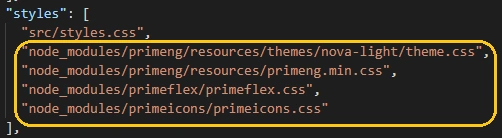
After installing primeng successfully, add the following CSS in angular.json file under styles tag to use primeng, CSS and icons.
"node_modules/primeng/resources/themes/nova-light/theme.css",
"node_modules/primeng/resources/primeng.min.css",
"node_modules/primeflex/primeflex.css",
"node_modules/primeicons/primeicons.css"
Step 2
Using Angular CLI, create the angular component(Employee) with this command.
ng g c Employee where (g - generate and c-component)
Create one interface folder at src/app level and create employeeInterfaces.ts file under interface folder with the below code.
- export interface IEmployee {
- ID: number;
- FullName: String;
- FirstName: String;
- LastName: String;
- PhoneNo: number;
- Address: String;
- Role: String;
- IsActive: String;
- Created: Date;
- Modified: Date;
- ModifiedID: number;
- ModifiedBy: String;
- }
Step 3
To use various ngprime component such as table(p-table), dropdown(p-dropdown), multiselect(p-multiselect), sidebar(p-sidebar) etc, import these files into app.module.ts files.
- import { MultiSelectModule } from 'primeng/multiselect';
- import {SidebarModule} from 'primeng/sidebar';
- import { DynamicDialogModule, DialogService } from 'primeng/dynamicdialog';
- import { ToastModule } from 'primeng/toast';
- import { DialogModule } from 'primeng/dialog';
- import { ButtonModule } from 'primeng/button';
- import {ConfirmDialogModule} from 'primeng/confirmdialog';
- import { MenuModule } from 'primeng/menu';
- import {TableModule} from 'primeng/table';
- import {DropdownModule} from 'primeng/dropdown';
- import { BrowserAnimationsModule } from '@angular/platform-browser/animations';
- import { HttpClientModule } from '@angular/common/http';
- import { DatePipe } from '@angular/common';
- import { MessageService, ConfirmationService } from 'primeng/api';
Complete app.module.ts
- import { BrowserModule } from '@angular/platform-browser';
- import { NgModule } from '@angular/core';
- import { FormsModule, ReactiveFormsModule } from "@angular/forms"
- import { AppRoutingModule } from './app-routing.module';
- import { AppComponent } from './app.component';
- import { EmployeeComponent } from './employee/employee.component';
- import { MultiSelectModule } from 'primeng/multiselect';
- import {SidebarModule} from 'primeng/sidebar';
- import { DynamicDialogModule, DialogService } from 'primeng/dynamicdialog';
- import { ToastModule } from 'primeng/toast';
- import { DialogModule } from 'primeng/dialog';
- import { ButtonModule } from 'primeng/button';
- import {ConfirmDialogModule} from 'primeng/confirmdialog';
- import { MenuModule } from 'primeng/menu';
- import {TableModule} from 'primeng/table';
- import {DropdownModule} from 'primeng/dropdown';
- import { BrowserAnimationsModule } from '@angular/platform-browser/animations';
- import { HttpClientModule } from '@angular/common/http';
- import { DatePipe } from '@angular/common';
- import { MessageService, ConfirmationService } from 'primeng/api';
- @NgModule({
- declarations: [
- AppComponent,
- EmployeeComponent
- ],
- imports: [
- BrowserModule,
- AppRoutingModule,
- MultiSelectModule,
- DynamicDialogModule,
- ToastModule,
- DialogModule,
- ButtonModule,
- MenuModule,
- FormsModule,
- TableModule,
- SidebarModule,
- DropdownModule,
- ReactiveFormsModule,
- BrowserAnimationsModule,
- HttpClientModule,
- ConfirmDialogModule
- ],
- providers: [DialogService, DatePipe, MessageService, ConfirmationService],
- bootstrap: [AppComponent]
- })
- export class AppModule { }
Step 4
Add the below code in employee component (Employee component generates these four files).
employee.html
- <div class="mt-20">
- <button pButton icon="pi pi-plus-circle" label="Add New Employee" type="button"
- (click)="showAddEditEmployeeForm()"></button>
- </div>
- <div class="clearBoth"></div>
- <div #loader class="overlay"></div>
- <div #spanner class="spanner">
- <div class="loader"></div>
- <p>Please wait...</p>
- </div>
- <div class="empTable mt-20">
- <div *ngIf="showTable">
- <p-table #up [columns]="employeeColumns" [value]="employeeDataArray" [paginator]="true" [rows]="10"
- class="minFirstLastCol5Per">
- <ng-template pTemplate="header" let-columns>
- <tr>
- <th>Sr.No.</th>
- <th *ngFor="let col of columns" [pSortableColumn]="col.field" [hidden]="!col.visibility">
- {{col.header}}
- <p-sortIcon [field]="col.field" ariaLabel="Activate to sort"
- ariaLabelDesc="Activate to sort in descending order"
- ariaLabelAsc="Activate to sort in ascending order">
- </p-sortIcon>
- </th>
- <th></th>
- </tr>
- <tr>
- <th></th>
- <th *ngFor="let col of columns" [ngSwitch]="col.field" [hidden]="!col.visibility">
- <p-multiSelect *ngSwitchCase="'FirstName'" [style]="{'width':'100%'}"
- [options]="employeeMultiColArray.firstNameArray"
- (onChange)="up.filter($event.value, col.field, 'in')"
- (keydown.enter)="$event.preventDefault()" filter="true" resetFilterOnHide="true"
- (onPanelShow)="isOptionFilter=true;">
- </p-multiSelect>
- <p-multiSelect *ngSwitchCase="'LastName'" [style]="{'width':'100%'}"
- [options]="employeeMultiColArray.lastNameArray"
- (onChange)="up.filter($event.value, col.field, 'in')"
- (keydown.enter)="$event.preventDefault()" filter="true" resetFilterOnHide="true"
- (onPanelShow)="isOptionFilter=true;">
- </p-multiSelect>
- <p-multiSelect *ngSwitchCase="'FullName'" [style]="{'width':'100%'}"
- [options]="employeeMultiColArray.fullNameArray"
- (onChange)="up.filter($event.value, col.field, 'in')"
- (keydown.enter)="$event.preventDefault()" filter="true" resetFilterOnHide="true"
- (onPanelShow)="isOptionFilter=true;">
- </p-multiSelect>
- <p-multiSelect *ngSwitchCase="'PhoneNo'" [style]="{'width':'100%'}"
- [options]="employeeMultiColArray.phoneNoArray"
- (onChange)="up.filter($event.value, col.field, 'in')"
- (keydown.enter)="$event.preventDefault()" filter="true" resetFilterOnHide="true"
- (onPanelShow)="isOptionFilter=true;">
- </p-multiSelect>
- <p-multiSelect *ngSwitchCase="'Address'" [style]="{'width':'100%'}"
- [options]="employeeMultiColArray.addressArray"
- (onChange)="up.filter($event.value, col.field, 'in')"
- (keydown.enter)="$event.preventDefault()" filter="true" resetFilterOnHide="true"
- (onPanelShow)="isOptionFilter=true;">
- </p-multiSelect>
- <p-multiSelect *ngSwitchCase="'Role'" [style]="{'width':'100%'}"
- [options]="employeeMultiColArray.roleArray"
- (onChange)="up.filter($event.value, col.field, 'in')"
- (keydown.enter)="$event.preventDefault()" filter="true" resetFilterOnHide="true"
- (onPanelShow)="isOptionFilter=true;">
- </p-multiSelect>
- <p-multiSelect *ngSwitchCase="'IsActive'" [style]="{'width':'100%'}"
- [options]="employeeMultiColArray.isActiveArray"
- (onChange)="up.filter($event.value, col.field, 'in')"
- (keydown.enter)="$event.preventDefault()" filter="true" resetFilterOnHide="true"
- (onPanelShow)="isOptionFilter=true;">
- </p-multiSelect>
- <p-multiSelect *ngSwitchCase="'Modified'" [style]="{'width':'100%'}"
- [options]="employeeMultiColArray.lastUpdatedArray"
- (onChange)="up.filter($event.value, col.field, 'in')"
- (keydown.enter)="$event.preventDefault()" filter="true" resetFilterOnHide="true"
- (onPanelShow)="isOptionFilter=true;">
- </p-multiSelect>
- <p-multiSelect *ngSwitchCase="'ModifiedBy'" [style]="{'width':'100%'}"
- [options]="employeeMultiColArray.lastModifiedByArray"
- (onChange)="up.filter($event.value, col.field, 'in')"
- (keydown.enter)="$event.preventDefault()" filter="true" resetFilterOnHide="true"
- (onPanelShow)="isOptionFilter=true;">
- </p-multiSelect>
- </th>
- <th></th>
- </tr>
- </ng-template>
- <ng-template pTemplate="body" let-rowData let-columns="columns" let-rowIndex="rowIndex">
- <tr>
- <td>
- {{rowIndex+1}}
- </td>
- <td *ngFor="let col of columns" [hidden]="!col.visibility" class="ui-resizable-column">
- <ng-container *ngIf="col.field != 'Created' && col.field != 'Modified' && col.field != '' ">
- {{rowData[col.field]}}
- </ng-container>
- <ng-container *ngIf="col.field == 'Modified'">
- {{rowData[col.field] | date:'MMM dd, yyyy' }}
- </ng-container>
- </td>
- <td>
- <div>
- <p-menu #menu [popup]="true" [model]="pMenuItems" styleClass="borderMenu"></p-menu>
- <i class="pi pi-ellipsis-v" style="font-size:2em;top: 100px !important;cursor: pointer;"
- (click)="storeRowData(rowData); menu.toggle($event);"></i>
- </div>
- </td>
- </tr>
- </ng-template>
- <ng-template pTemplate="emptymessage" let-columns>
- <tr>
- <td [attr.colspan]="9">
- No Data found
- </td>
- </tr>
- </ng-template>
- </p-table>
- </div>
- <div *ngIf="!employeeDataArray.length">
- <span>No employee data found.</span>
- </div>
- </div>
- <div class="clearBoth"></div>
- <p-dialog [(visible)]="isEmployeeFormVisible" [modal]="true" appendTo="body" [style]="{width: '1000px'}">
- <p-header *ngIf="isAddEmployee">
- Add Employee
- </p-header>
- <p-header *ngIf="!isAddEmployee">
- Edit Employee
- </p-header>
- <form [formGroup]='employeeForm'>
- <div class="p-grid mt-20">
- <div class="p-col-2 "><span class="compulsory">*</span>First Name</div>
- <div class="p-col-4">
- <input class="mr-5" type="text" size="30" formControlName="firstName" placeholder="First Name"
- pInputText>
- <div class="error" *ngIf="isEmployeeFormSubmit && employeeForm.controls.firstName.errors">
- <div *ngIf="employeeForm.controls.firstName.errors.required">
- First Name is required</div>
- </div>
- </div>
- <div class="p-col-2 "><span class="compulsory">*</span>Last Name</div>
- <div class="p-col-4">
- <input class="mr-5" type="text" size="30" formControlName="lastName" placeholder="Last Name" pInputText>
- <div class="error" *ngIf="isEmployeeFormSubmit && employeeForm.controls.lastName.errors">
- <div *ngIf="employeeForm.controls.lastName.errors.required">
- Last Name is required</div>
- </div>
- </div>
- </div>
- <div class="p-grid mt-20">
- <div class="p-col-2 "><span class="compulsory">*</span>Phone Number</div>
- <div class="p-col-4">
- <input class="mr-5" type="number" size="30" formControlName="phoneNum" placeholder="Phone Number"
- pInputText>
- <div class="error" *ngIf="isEmployeeFormSubmit && employeeForm.controls.phoneNum.errors">
- <div *ngIf="employeeForm.controls.phoneNum.errors.required">Phone Number is required</div>
- </div>
- </div>
- <div class="p-col-2 "><span class="compulsory">*</span>Address</div>
- <div class="p-col-4">
- <textarea [rows]="5" [cols]="40" formControlName="address" pInputTextarea
- autoResize="autoResize"></textarea>
- <div class="error" *ngIf="isEmployeeFormSubmit && employeeForm.controls.address.errors">
- <div *ngIf="employeeForm.controls.address.errors.required">
- Address is required</div>
- </div>
- </div>
- </div>
- <div class="p-grid mt-20">
- <div class="p-col-2 "><span class="compulsory">*</span>Role</div>
- <div class="p-col-4">
- <p-dropdown [options]="roleDropArray" placeholder="Select Role" formControlName="role" filter="true"
- resetFilterOnHide="true" showIcon="true">
- </p-dropdown>
- <div class="error" *ngIf="isEmployeeFormSubmit && employeeForm.controls.role.errors">
- <div *ngIf="employeeForm.controls.role.errors.required">
- Role is required</div>
- </div>
- </div>
- <div class="p-col-2 "><span class="compulsory">*</span>Is Active</div>
- <div class="p-col-4">
- <p-dropdown [options]="isActiveDropArray" placeholder="Select Active" formControlName="isActive"
- filter="true" resetFilterOnHide="true" showIcon="true">
- </p-dropdown>
- <div class="error" *ngIf="isEmployeeFormSubmit && employeeForm.controls.isActive.errors">
- <div *ngIf="employeeForm.controls.isActive.errors.required">
- Is Active is required</div>
- </div>
- </div>
- </div>
- </form>
- <p-footer>
- <button pButton label="{{isAddEmployee ? 'Add Employee': 'Edit Empoyee'}}" type="button" class="adminBtn"
- (click)="saveEmployee()"></button>
- <button pButton label="Cancel" type="button" class="adminBtn" (click)="cancelEmployee()"></button>
- </p-footer>
- </p-dialog>
- <div *ngIf="isEmployeeSideVisible" class="ng-right-side-overlay">
- <p-sidebar [(visible)]="isEmployeeSideVisible" position="right" styleClass="ui-sidebar-md">
- <p-table [value]="employeeRightSideArray">
- <ng-template pTemplate="header">
- <tr>
- <th>Name</th>
- <th>Value</th>
- </tr>
- </ng-template>
- <ng-template pTemplate="body" let-rowData let-emp style="overflow: auto">
- <tr>
- <td [ngStyle]="{'color':'#d7181f'}">First Name</td>
- <td>{{emp.FirstName}}</td>
- </tr>
- <tr>
- <td [ngStyle]="{'color':'#d7181f'}">Last Name</td>
- <td>{{emp.LastName}}</td>
- </tr>
- <tr>
- <td [ngStyle]="{'color':'#d7181f'}">Full Name</td>
- <td>{{emp.FullName}}</td>
- </tr>
- <tr>
- <td [ngStyle]="{'color':'#d7181f'}">Phone Number</td>
- <td>{{emp.PhoneNo}}</td>
- </tr>
- <tr>
- <td [ngStyle]="{'color':'#d7181f'}">Address</td>
- <td>{{emp.Address}}</td>
- </tr>
- <tr>
- <td [ngStyle]="{'color':'#d7181f'}">Role</td>
- <td>{{emp.Role}}</td>
- </tr>
- <tr>
- <td [ngStyle]="{'color':'#d7181f'}">IsActive</td>
- <td>{{emp.IsActive}}</td>
- </tr>
- <tr>
- <td [ngStyle]="{'color':'#d7181f'}">Last Modified Date</td>
- <td>{{emp.Modified | date:'MMM dd, yyyy'}}</td>
- </tr>
- <tr>
- <td [ngStyle]="{'color':'#d7181f'}">Last Modified By</td>
- <td>{{emp.ModifiedBy}}</td>
- </tr>
- </ng-template>
- </p-table>
- </p-sidebar>
- </div>
- <p-toast position="bottom-center" key="employeeToast"></p-toast>
- <p-confirmDialog key="confirm"></p-confirmDialog>
employee.component.ts
- import { Component, OnInit, ViewEncapsulation, ViewChild, ElementRef } from '@angular/core';
- import { FormGroup, FormBuilder, Validators, FormControl } from '@angular/forms';
- import { IEmployee } from '../interface/empoyeeInterfaces';
- import { ConstantService } from '../services/constant.service';
- import { SPOperationService } from '../services/spoperation.service';
- import { MessageService, ConfirmationService } from 'primeng/api';
- import { DatePipe } from '@angular/common';
- import { CommonService } from '../services/common.service';
- @Component({
- selector: 'app-employee',
- templateUrl: './employee.component.html',
- styleUrls: ['./employee.component.css'],
- encapsulation: ViewEncapsulation.None // it will apply the parent css to this component.
- })
- export class EmployeeComponent implements OnInit {
- // declare variable
- showTable: boolean;
- isOptionFilter: boolean;
- isEmployeeFormSubmit: boolean = false;
- isAddEmployee: boolean;
- isEmployeeFormVisible: boolean;
- currEmployeeObj: IEmployee;
- employeeRightSideArray = [];
- isEmployeeSideVisible: boolean = false;
- // declare pmenu item which show menu in table
- pMenuItems = [];
- // create different array for multiselect.
- employeeMultiColArray = {
- firstNameArray: [],
- lastNameArray: [],
- fullNameArray: [],
- phoneNoArray: [],
- addressArray: [],
- roleArray: [],
- isActiveArray: [],
- lastUpdatedArray: [],
- lastModifiedByArray: []
- };
- // create employee coloumn array
- employeeColumns = [];
- // create employee Array
- employeeDataArray = [];
- // create role dropdown array
- roleDropArray = [];
- // create Is Active dropdown array.
- isActiveDropArray = [];
- // create form variable.
- employeeForm: FormGroup;
- @ViewChild("loader", { static: false }) loaderView: ElementRef;
- @ViewChild("spanner", { static: false }) spannerView: ElementRef;
- /**
- * The constructor will create the object of following classes.
- * @param frmbuilder
- * @param constant
- * @param spServices
- */
- constructor(
- private frmbuilder: FormBuilder,
- private constant: ConstantService,
- private spServices: SPOperationService,
- private messageService: MessageService,
- private datepipe: DatePipe,
- private common: CommonService,
- private confirmationService: ConfirmationService
- ) { }
- ngOnInit(): void {
- this.showTable = false;
- this.isEmployeeFormVisible = false;
- // Initialize the employee form.
- this.initEmployeeForm();
- // put the value into employee column array.
- this.employeeColumns = [
- { field: 'FirstName', header: 'First Name', visibility: true },
- { field: 'LastName', header: 'Last Name', visibility: true },
- { field: 'FullName', header: 'Full Name', visibility: true },
- { field: 'PhoneNo', header: 'PhoneNo Number', visibility: true },
- { field: 'Address', header: 'Address', visibility: true },
- { field: 'Role', header: 'Role', visibility: true },
- { field: 'IsActive', header: 'IsActive', visibility: true },
- { field: 'Modified', header: 'Last Updated Date', visibility: true },
- { field: 'ModifiedBy', header: 'Last Updated By', visibility: true },
- ];
- this.loadEmployeeTable();
- }
- /**
- * This method is used to get the value from employee list.
- * and pass that store that value into employeeDataArray = [];
- */
- async loadEmployeeTable() {
- this.isEmployeeFormVisible = false;
- this.employeeDataArray = [];
- // Prepare the Get query
- const getEmployeeOptions = Object.assign({}, this.constant.QUERY.GET_EMPLOYEE);
- getEmployeeOptions.filter = getEmployeeOptions.filter.replace(/{{isActive}}/gi, 'Yes');
- // Call the SharePoint Rest GET
- const results = await this.spServices.readItems(this.constant.listNames.Employee.name, getEmployeeOptions);
- // Check the data in results
- if (results && results.length) {
- const tempArray = [];
- // loop through array and store into the employeeData Array.
- results.forEach(element => {
- const employeeObj: IEmployee = {
- ID: element.ID,
- FullName: element.Title,
- FirstName: element.FirstName,
- LastName: element.LastName,
- PhoneNo: element.PhoneNo,
- Role: element.Role,
- Address: element.Address,
- IsActive: element.IsActive,
- Created: element.Created,
- Modified: new Date(this.datepipe.transform(element.Modified, 'MMM dd, yyyy')),
- ModifiedID: element.Editor.ID,
- ModifiedBy: element.Editor.Title
- }
- tempArray.push(employeeObj);
- });
- this.employeeDataArray = tempArray;
- // Assign the value to multi-select
- this.colFilterData(tempArray);
- this.showTable = true;
- }
- }
- /**
- * This method is used to uniquely assign the value to multiselect dropdown
- * @param colData
- */
- colFilterData(colData) {
- // sort and unique data assign to multiselect firstNameArray
- this.employeeMultiColArray.firstNameArray = this.common.sortData(this.common.uniqueArrayObj(colData.map(a => {
- const b = {
- label: a.FirstName, value: a.FirstName
- };
- return b;
- })));
- // sort and unique data assign to multiselect lastNameArray
- this.employeeMultiColArray.lastNameArray = this.common.sortData(this.common.uniqueArrayObj(colData.map(a => {
- const b = {
- label: a.LastName, value: a.LastName
- };
- return b;
- })));
- // sort and unique data assign to multiselect fullNameArray
- this.employeeMultiColArray.fullNameArray = this.common.sortData(this.common.uniqueArrayObj(colData.map(a => {
- const b = {
- label: a.FullName, value: a.FullName
- };
- return b;
- })));
- // sort and unique data assign to multiselect phoneNoArray
- this.employeeMultiColArray.phoneNoArray = this.common.sortNumberArray(this.common.uniqueArrayObj(colData.map(a => {
- const b = {
- label: a.PhoneNo, value: a.PhoneNo
- };
- return b;
- })));
- // sort and unique data assign to multiselect roleArray
- this.employeeMultiColArray.roleArray = this.common.sortData(this.common.uniqueArrayObj(colData.map(a => {
- const b = {
- label: a.Role, value: a.Role
- };
- return b;
- })));
- // sort and unique data assign to multiselect addressArray
- this.employeeMultiColArray.addressArray = this.common.sortData(this.common.uniqueArrayObj(colData.map(a => {
- const b = {
- label: a.Address, value: a.Address
- };
- return b;
- })));
- // sort and unique data assign to multiselect isActiveArray
- this.employeeMultiColArray.isActiveArray = this.common.sortData(this.common.uniqueArrayObj(colData.map(a => {
- const b = {
- label: a.IsActive, value: a.IsActive
- };
- return b;
- })));
- // this.employeeMultiColArray.firstNameArray = this.common.sortData(this.common.uniqueArrayObj(colData.map(a => { const b = { label: a.FirstName, value: a.FirstName }; return b; }).filter((ele: { label: any; }) => ele.label)));
- const modified = this.common.sortDateArray(this.common.uniqueArrayObj(colData.map(a => { const b = { label: this.datepipe.transform(a.Modified, 'MMM dd, yyyy'), value: a.Modified }; return b; }).filter((ele: { label: any; }) => ele.label)));
- this.employeeMultiColArray.lastUpdatedArray = modified.map((a: any) => { const b = { label: this.datepipe.transform(a, 'MMM dd, yyyy'), value: new Date(this.datepipe.transform(a, 'MMM dd, yyyy')) }; return b; }).filter((ele: { label: any; }) => ele.label);
- // sort and unique data assign to multiselect lastModifiedArray
- this.employeeMultiColArray.lastModifiedByArray = this.common.sortData(this.common.uniqueArrayObj(colData.map(a => {
- const b = {
- label: a.ModifiedBy, value: a.ModifiedBy
- };
- return b;
- })));
- }
- optionFilter(event: any) {
- if (event.target.value) {
- this.isOptionFilter = false;
- }
- }
- storeRowData(rowData) {
- this.currEmployeeObj = rowData;
- // Add menu to pMenuItems Array
- this.pMenuItems = [
- { label: 'Edit', command: (e) => this.editEmployee(rowData) },
- { label: 'View', command: (e) => this.viewEmployee(rowData) },
- { label: 'Mark As InActive', command: (e) => this.markAsInactive() },
- { label: 'Delete', command: (e) => this.deleteEmployee() }
- ];
- console.log(rowData);
- }
- /**
- * This method is used to show the Add employee form.
- */
- showAddEditEmployeeForm() {
- // make isAddEmployee variable to true. So that add employee form will visible.
- this.loaderView.nativeElement.classList.add('show');
- this.spannerView.nativeElement.classList.add('show');
- this.employeeForm.reset();
- this.loadDropDown();
- setTimeout(() => {
- this.isAddEmployee = true;
- }, 500);
- this.isEmployeeFormVisible = true;
- this.spannerView.nativeElement.classList.remove('show');
- }
- async loadDropDown() {
- this.isActiveDropArray = [];
- this.roleDropArray = [];
- // Get the choice column role value form Employee list (Role is choice column);
- const getRoleInfo = Object.assign({}, this.constant.QUERY.GET_CHOICEFIELD);
- getRoleInfo.filter = getRoleInfo.filter.replace(/{{choiceField}}/gi, 'Role');
- // Get choice value
- const choiceResults = await this.spServices.getChoiceFieldItems(this.constant.listNames.Employee.name, getRoleInfo);
- console.log("Role Array value", choiceResults);
- if (choiceResults && choiceResults.length) {
- const tempArray = choiceResults[0].Choices.results;
- this.roleDropArray = [];
- // loop through each choice and add into roleDropdown array.
- tempArray.forEach(element => {
- this.roleDropArray.push({ label: element, value: element });
- });
- }
- // Here you can again make call to employee list to get the choice column value
- // But I have used the static value here.
- this.isActiveDropArray.push(
- { label: 'Yes', value: 'Yes' },
- { label: 'No', value: 'No' }
- );
- }
- /**
- * This method is used to edit the employee
- * @param currObj
- */
- async editEmployee(currObj) {
- this.spannerView.nativeElement.classList.add('show');
- await this.loadDropDown();
- this.employeeForm.get('firstName').setValue(currObj.FirstName);
- this.employeeForm.get('lastName').setValue(currObj.LastName);
- this.employeeForm.get('role').setValue(currObj.Role);
- this.employeeForm.get('address').setValue(currObj.Address);
- this.employeeForm.get('phoneNum').setValue(currObj.PhoneNo);
- this.employeeForm.get('isActive').setValue(currObj.IsActive);
- this.isAddEmployee = false;
- this.isEmployeeFormVisible = true;
- this.spannerView.nativeElement.classList.remove('show');
- }
- /**
- * This method is used to show the employee on right side.
- * @param currObj
- */
- viewEmployee(currObj) {
- this.isEmployeeSideVisible = true;
- this.spannerView.nativeElement.classList.add('show');
- this.employeeRightSideArray = [currObj]
- this.spannerView.nativeElement.classList.remove('show');
- }
- /**
- * This method is used to mark the current employee as Inactive
- * @param currObj Pass the current employee obj
- */
- async markAsInactive() {
- // Pop messages.
- this.confirmationService.confirm({
- message: 'Do you want to mark this record as Inactive?',
- header: 'Delete Confirmation',
- icon: 'pi pi-info-circle',
- key: 'confirm',
- accept: () => {
- this.onSubmit('InActive');
- },
- });
- }
- /**
- * This method is used to perform action based on operation parameter
- *
- * If InActive - It will update the Inactive='No' in Employee List.
- * If delete - It will delete the record from list.
- * @param operation
- */
- async onSubmit(operation) {
- this.spannerView.nativeElement.classList.add('show');
- if (operation === 'InActive') {
- // prepare the Json body
- const data = {
- __metadata: { type: this.constant.listNames.Employee.type },
- IsActive: 'No'
- };
- // call the update function
- await this.spServices.updateItem(this.constant.listNames.Employee.name, this.currEmployeeObj.ID, data, this.constant.listNames.Employee.type);
- this.messageService.add({
- key: 'employeeToast', severity: 'success', summary: 'Success message',
- detail: 'This employee marked as InActive in the list.'
- });
- await this.loadEmployeeTable();
- this.spannerView.nativeElement.classList.remove('show');
- }
- if (operation === 'delete') {
- this.spannerView.nativeElement.classList.add('show');
- // it will delete the employee record from list.
- await this.spServices.deleteItem(this.constant.listNames.Employee.name, this.currEmployeeObj.ID);
- this.messageService.add({
- key: 'employeeToast', severity: 'success', summary: 'Success message',
- detail: 'This employee deleted from list.'
- });
- await this.loadEmployeeTable();
- this.spannerView.nativeElement.classList.remove('show');
- }
- }
- /**
- * This method get called when delete option is selected form menu.
- * @param currObj pass the current employee object.
- */
- async deleteEmployee() {
- this.confirmationService.confirm({
- message: 'Do you want to delete this record?',
- header: 'Delete Confirmation',
- icon: 'pi pi-info-circle',
- key: 'confirm',
- accept: () => {
- this.onSubmit('delete');
- },
- });
- }
- /**
- * This method is used to add/update the employee information into sharepoint list.
- * If variable contains the value as per following
- *
- * isAddEmployee = true - It will add item to list.
- * isAddEmployee = false - It will update item to list.
- *
- */
- async saveEmployee() {
- // hide the spanner.
- // this.spannerView.nativeElement.classList.remove('show');
- // Allow the form to be able to submit it.
- this.loaderView.nativeElement.classList.add('show');
- this.isEmployeeFormSubmit = true;
- //check if isAddEmployee is true or not
- if (this.isAddEmployee) { // add employee
- if (this.employeeForm.valid) {
- this.spannerView.nativeElement.classList.add('show');
- const empData = this.getEmployeeData();
- const result = this.spServices.createItem(this.constant.listNames.Employee.name, empData, this.constant.listNames.Employee.type);
- this.messageService.add({
- key: 'employeeToast', severity: 'success', summary: 'Success message',
- detail: 'Employee added into the list.'
- });
- this.isAddEmployee = false;
- await this.loadEmployeeTable();
- //this.loaderView.nativeElement.classList.remove('show');
- this.spannerView.nativeElement.classList.remove('show');
- }
- } else { // update employee
- this.spannerView.nativeElement.classList.add('show');
- const data = this.getEmployeeData();
- await this.spServices.updateItem(this.constant.listNames.Employee.name, this.currEmployeeObj.ID, data, this.constant.listNames.Employee.type);
- this.messageService.add({
- key: 'employeeToast', severity: 'success', summary: 'Success message',
- detail: 'Employee updated Successfully.'
- });
- this.isAddEmployee = false;
- await this.loadEmployeeTable();
- this.spannerView.nativeElement.classList.remove('show');
- }
- }
- cancelEmployee() {
- this.isEmployeeFormVisible = false;
- //reset the form value.
- this.employeeForm.reset();
- }
- /**
- * This method is used to get the form value and prepare the body data for creating new item in employee list
- *
- */
- getEmployeeData() {
- // Assingn the form value to local variable
- const employeeForm = this.employeeForm.value;
- // prepare the body data for post call
- const data: any = {
- __metadata: { type: this.constant.listNames.Employee.type },
- Title: employeeForm.firstName + ' ' + employeeForm.lastName,
- FirstName: employeeForm.firstName,
- LastName: employeeForm.lastName,
- PhoneNo: employeeForm.phoneNum,
- Address: employeeForm.address,
- Role: employeeForm.role,
- IsActive: employeeForm.isActive
- };
- // return the data.
- return data;
- }
- /**
- * This method is used to initialize the employee form.
- */
- initEmployeeForm() {
- this.employeeForm = this.frmbuilder.group({
- firstName: ['', [Validators.required]],
- lastName: ['', [Validators.required]],
- phoneNum: ['', Validators.required],
- address: ['', Validators.required],
- role: ['', Validators.required],
- isActive: ['', Validators.required]
- });
- }
- }
employee.component.css - I have added all the css in app.component.css file for demonstration purposes, but you can add employee specific CSS in
this file and common CSS in app.component.css.
employee.component.spec.ts - This file is used for unit testing.
Note
Now we can run and check that our code is working properly on the development environment by running these two commands in two separate command prompt windows
OR
Both commands can run on the Visual Studio code terminal by opening the respective project in Visual Studio code.
npm run serve - To start the server

npm run start - To send and get a request from the Sharepoint server.

Additionally, we can debug our code in QA and Production environment (or any environment) by using the proxy setting with following changes in app.component.ts file
Depending upon your environment replace the following line and run the above two commands.
'Your Site Name' with your actual site name
'Your User Id' with your actual Id.
- this.globalService.sharePointPageObject.webAbsoluteUrl = window.location.href.indexOf('localhost') > -1 ? '/sites/Your Site Name'
- : _spPageContextInfo.webAbsoluteUrl;
- this.globalService.sharePointPageObject.webRelativeUrl = window.location.href.indexOf('localhost') > -1 ? '/sites/Your Site Name'
- : _spPageContextInfo.webRelativeUrl;
- this.globalService.sharePointPageObject.userId = window.location.href.indexOf('localhost') > -1 ? 'Your User Id': _spPageContextInfo.userId;
Build and add angular project to SharePoint site
Once we have satisfied that our code is working properly then we can build and upload the code on different environments of Sharepoint sites.
Step 1
Write these codes in angular.json file for building the code in different environments under configuration tag
Change the 'Your Angular files location url' with actual file location URL (In my case: https://SiteCollectionUrl/sites/sitename/SiteAssets/AngularDocs/employee/)
Note
I have created only three environment(devEmployee, qaEmployee and prodEmployee), You can add more environments to it.
- "configurations": {
- "production": {
- "fileReplacements": [
- {
- "replace": "src/environments/environment.ts",
- "with": "src/environments/environment.prod.ts"
- }
- ],
- "optimization": true,
- "outputHashing": "all",
- "sourceMap": false,
- "extractCss": true,
- "namedChunks": false,
- "extractLicenses": true,
- "vendorChunk": false,
- "buildOptimizer": true,
- "budgets": [
- {
- "type": "initial",
- "maximumWarning": "2mb",
- "maximumError": "5mb"
- },
- {
- "type": "anyComponentStyle",
- "maximumWarning": "6kb",
- "maximumError": "10kb"
- }
- ]
- },
- "devEmployee": {
- "outputHashing": "none",
- "deployUrl": "Your Angular files location url"
- },
- "qaEmployee": {
- "optimization": true,
- "outputHashing": "bundles",
- "sourceMap": false,
- "extractCss": true,
- "namedChunks": false,
- "aot": true,
- "extractLicenses": true,
- "vendorChunk": false,
- "buildOptimizer": true,
- "deployUrl": "Your Angular files location url"
- },
- "prodEmployee": {
- "optimization": true,
- "outputHashing": "bundles",
- "sourceMap": false,
- "extractCss": true,
- "namedChunks": false,
- "aot": true,
- "extractLicenses": true,
- "vendorChunk": false,
- "buildOptimizer": true,
- "deployUrl": "Your Angular files location url"
- }
- }
Step 2
Now run the below code for a different environment:
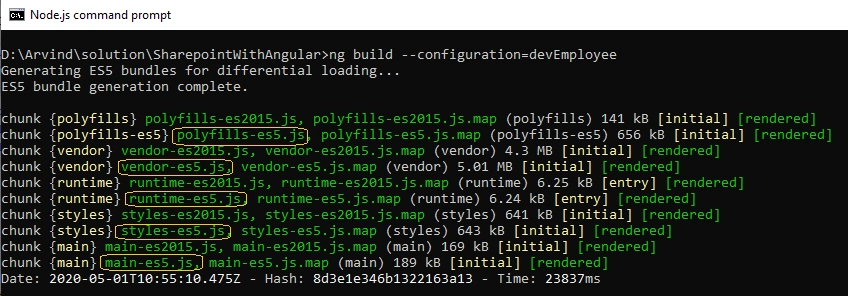
ng build --configuration=devEmployee -- For Dev Environment (I have run this command for our project.)
ng build --configuration=qaEmployee -- For QA Environment
ng build --configuration=prodEmployee -- For Production Environment
Step 3
Once the build is completed, rename the following highlighted files by navigating to project directory/dist/projectname (Your files may differ from mine depending upon the angular version, for Angular 9, these files are generated after the build)
For devEmployee build
polyfills-es5.js to polyfills.js
vendor-es5.js to vendor.js
runtime-es5.js to runtime.js
styles-es5.js to styles.js
main-es5.js to main.js
For qaEmployee build
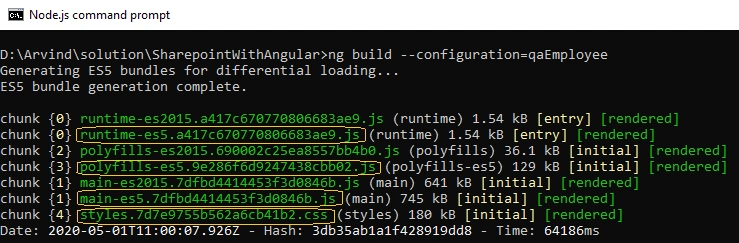
For prodEmployee build /
Step 4
After renaming the highlighted files, upload all the files from projectdirectory/dist/projectname (D:\Arvind\solution\SharepointWithAngular\dist\SharepointWithAngular) to Sharepoint library created in previous article (SiteAssets/AngularDocs/employee/).
Step 5
Create one page(employee.aspx) in Sharepoint and add contenteditor in it.
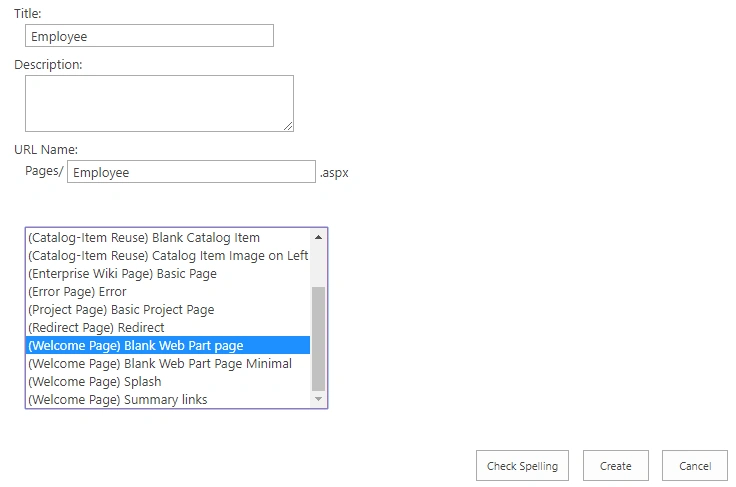
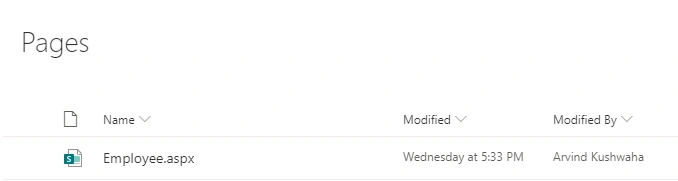
Step 6
Create one employee.html file, add all js and CSS file in it, then upload the file into SharePoint library(SiteAssets/AngularDocs/html/).
To use angular in SharePoint, add <app-root></app-root> in your HTML (employee.html)
- <!-- <link rel="stylesheet" href="/sites/Your Site Name/SiteAssets/AngularDocs/employee/styles.css?ver=1.0"> -->
- <!-- <base href="/sites/Your Site Name/employee"> -->
- <meta name="viewport" content="width=device-width, initial-scale=1">
- <app-root></app-root>
- <script type="text/javascript">
- // call when dom loaded
- document.addEventListener('DOMContentLoaded', function () {
- executeDelayLoad();
- setInterval(reloadContextInfo, 1200000);
- }, false);
- // store all the angular js file into array.
- function executeDelayLoad() {
- var array = [
- "/sites/Your Site Name/SiteAssets/AngularDocs/employee/runtime.js?ver=1.0",
- "/sites/Your Site Name/SiteAssets/AngularDocs/employee/polyfills.js?ver=1.0",
- "/sites/Your Site Name/SiteAssets/AngularDocs/employee/vendor.js?ver=1.0",
- "/sites/Your Site Name/SiteAssets/AngularDocs/employee/main.js?ver=1.0",
- "/sites/Your Site Name/SiteAssets/AngularDocs/employee/styles.js?ver=1.0"
- ]
- loadJSFile(array);
- }
- // create script tag and add the angular js file to page.
- function loadJSFile(arrayJS) {
- var script = arrayJS.shift();
- var jsElm = document.createElement("script");
- // set the type attribute
- jsElm.type = "text/javascript";
- // make the script element load file
- jsElm.src = script;
- jsElm.async = false;
- jsElm.onload = function (script) {
- //console.log(script + ' loaded!');
- if (arrayJS.length) {
- loadJSFile(arrayJS);
- } else {
- window.employeeComponentReference.zone.run(() => { window.employeeComponentReference.loadEmployeeDashboard(); });
- }
- };
- // finally insert the element to the body element in order to load the script
- document.getElementById("contentBox").parentElement.parentElement.appendChild(jsElm);
- }
- // IF session expire reload the context of page.
- function reloadContextInfo() {
- $.ajax({
- url: _spPageContextInfo.webAbsoluteUrl + "/_api/contextinfo",
- method: "POST",
- headers: { "Accept": "application/json; odata=verbose" },
- success: function (data) {
- $('#__REQUESTDIGEST').val(data.d.GetContextWebInformation.FormDigestValue)
- },
- error: function (data, errorCode, errorMessage) {
- alert("Session timed out. Page will be refreshed.");
- window.location.reload();
- }
- });
- }
- </script>
Step 7
Finally, refer this html(employee.html) file in (Employee.aspx) file content editor.
Open Employee.aspx file in edit mode and edit the content editor to add employee.html in the Context link section.
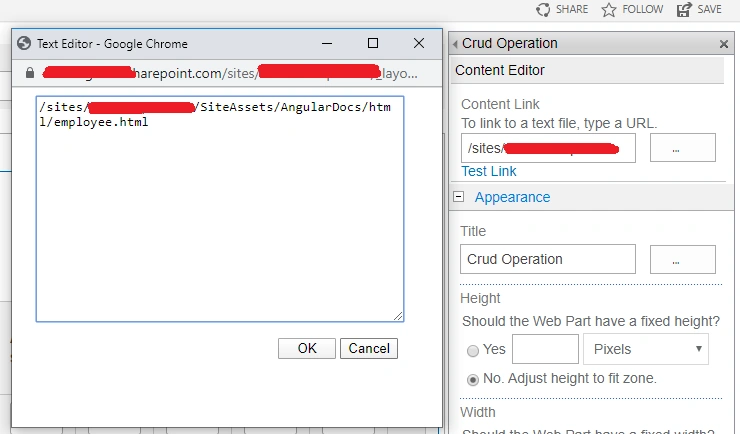
Once done check-in and publish the Employee.aspx page, So that it be available for everyone who has permission.
Now browse employee.aspx page to perform the crud operation using angular and SharePoint online.
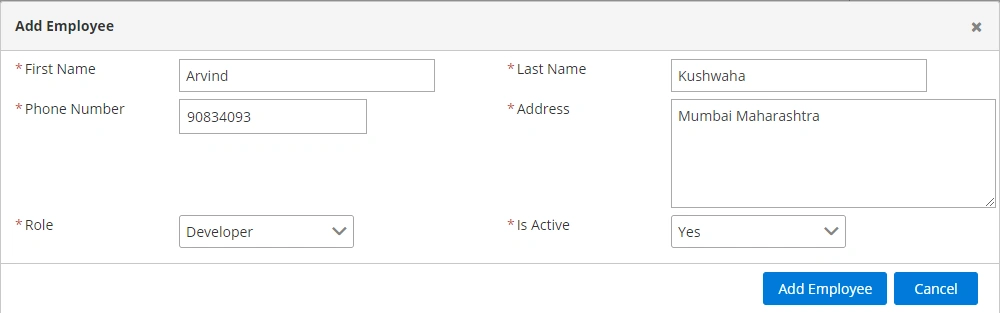
To Add Employee
Click on Add New Employee button and enter the values in fields.
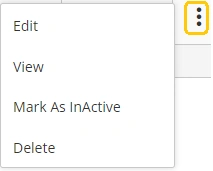
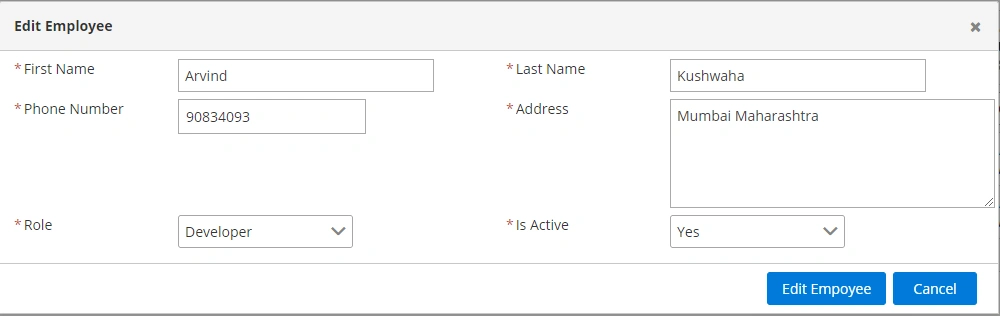
To Edit
Click on the three dots of the last column in the table to perform the appropriate action (Edit) operation.
To View
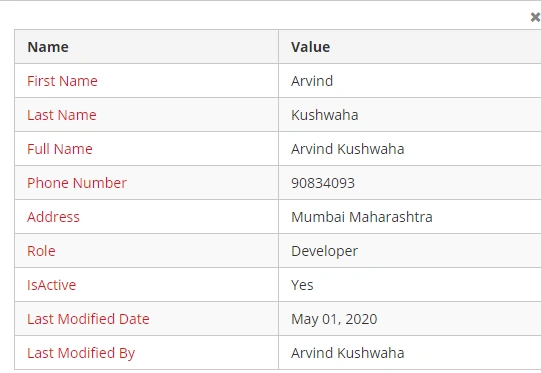
To view the data in the right side layout, click the three dots, and select the View option.
To delete
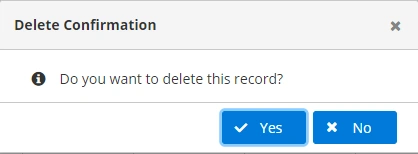
To delete the employee, click on three dots and select the Delete option
Additionally, pagination, sorting, and ordering are also available in the demo.
Conclusion
Now we know how to create a SharePoint project with the latest angular without using the SharePoint framework.
Hope you have enjoyed it. Thank You 
You can download the complete angular project from the attachment.
Jair PlPosted Mar 30, 2021, 3:10 AM
A couple of possible fixes for summarizing indefinitely. I'm not sure how your page is set up, however there should be a form summary somewhere on your page: <form runat = "server"> <SharePoint: FormDigest ID = "FormDigest1" runat = "server"> </ SharePoint: FormDigest> </form>
Gary YPosted Nov 17, 2020, 1:40 PM
Hi Arvind, your "employee.html" has a function loadJSFile(arrayJS). In this line document.getElementById("contentBox")...appendChild(jsElm), what is "contentBox"? Why didn't you use document.getElementsByTagName('body')? Thanks. "body" or "head"
Dileep Kumar Reddy BodanamPosted Oct 8, 2020, 7:10 AM
Hi Arvind Kushwaha i m unable to upload files to sharepont getting 403 error when making post call
Snehal KadamPosted Aug 14, 2020, 1:08 AM
How can I upload image in SharePoint list using Angular
cedric bouvePosted Aug 11, 2020, 9:00 AM
I am not understand how can i change my id and my site would you mind help me please
Rikam PalkarPosted May 4, 2020, 12:06 PM
Nice one article!! Keep contributing..