

Introduction
In this article, I will show the steps to set the page title using the title service in Angular apps using an example. The title service allows us the change the HTML title of the application.
Note. Before going through this session, please visit my previous article related to Angular applications as mentioned below.
Step 1. Create 3 Components using the below command
ng g c one
ng g c two
ng g c three
Each component uses the setTitle method of the Title service to set the title of each component.
Step 2. Add code in app.module.ts
import { BrowserModule, Title } from '@angular/platform-browser';
import { NgModule } from '@angular/core';

import { AppRoutingModule } from './app-routing.module';
import { AppComponent } from './app.component';
import { OneComponent } from './one/one.component';
import { TwoComponent } from './two/two.component';
import { ThreeComponent } from './three/three.component';

@NgModule({
  declarations: [
    AppComponent,OneComponent,TwoComponent,ThreeComponent
  ],
  imports: [
    BrowserModule,
    AppRoutingModule
  ],
  providers: [Title],
  bootstrap: [AppComponent]
})
export class AppModule { }
Step 3. Add code in app-routing.module.ts
import { NgModule } from '@angular/core';
import { Routes, RouterModule } from '@angular/router';
import { OneComponent } from './one/one.component';
import { TwoComponent } from './two/two.component';
import { ThreeComponent } from './three/three.component';


const routes: Routes = [
  {path: 'one', component:OneComponent},
  {path: 'two', component:TwoComponent},
  {path: 'three', component:ThreeComponent},
];

@NgModule({
  imports: [RouterModule.forRoot(routes)],
  exports: [RouterModule]
})
export class AppRoutingModule { }
Step 4. Add code in app.component.ts
import { Component } from '@angular/core';
import { Title } from '@angular/platform-browser';

@Component({
  selector: 'app-root',
  templateUrl: './app.component.html',
  styleUrls: ['./app.component.css']
})
export class AppComponent {
  title = 'title Service Example';

  constructor(private titleService:Title) {
  }

  ngOnInit() {
    this.titleService.setTitle(this.title);
  }
}
Step 5. Add code in app.component.html
<div class="container">
  <nav class="navbar navbar-default">
      <ul class="nav navbar-nav">
          <li>
              <a routerLinkActive="active" [routerLink]="['/one']">Male</a>
          </li>
          <li>
              <a routerLinkActive="active" [routerLink]="['/two']">Female</a>
          </li>
          <li>
            <a routerLinkActive="active" [routerLink]="['/three']">Unknown</a>
        </li>
      </ul>
  </nav>
  <router-outlet></router-outlet>
</div>
Step 6. Add code in one.component.ts
import { Component, OnInit } from '@angular/core';
import { Title } from '@angular/platform-browser';

@Component({
  template: `<h1>This is Male.</h1>`
})
export class OneComponent implements OnInit {
  title = 'Male - One Component Title';

  constructor(private titleService:Title){
  }

  ngOnInit() {
    this.titleService.setTitle(this.title);
  }

}
Step 7. Add code in two.component.ts
import { Component, OnInit } from '@angular/core';
import { Title } from '@angular/platform-browser';

@Component({
  template: `<h1>This is Female.</h1>`
})
export class TwoComponent implements OnInit {
  title = 'Female - Two Component Title';

  constructor(private titleService:Title) {
  }

  ngOnInit() {
    this.titleService.setTitle(this.title);
  }

}
Step 8. Add code in three.component.ts
import { Component, OnInit } from '@angular/core';
import { Title } from '@angular/platform-browser';

@Component({
  template: `<h1>This is Unknown.</h1>`
})
export class ThreeComponent implements OnInit {
  title = 'Unknown - Three Component Title';

  constructor(private titleService:Title){}

  ngOnInit() {
    this.titleService.setTitle(this.title);
  }
}
Code Setup and the need of the page title
Updating the page title is very important as it helps search engines know the purpose of the page and index it properly. It also helps users to know, which page we are in. As a single-page app, the angular does not reload the entire page. The page loads only once at the startup. Only part of the page gets loaded when you navigate from one route to another route.
The title of the page is set in the index.html as shown below. We use the HTML title tag to set the title of the app. Since it is loaded only at the start, all other pages or routes get the same title.
<!doctype html>
<html lang="en">
<head>
  <meta charset="utf-8">
  <title>Title Service Example</title>
  <base href="/">
  <meta name="viewport" content="width=device-width, initial-scale=1">
  <link rel="icon" type="image/x-icon" href="favicon.ico">
</head>
<body>
  <app-root></app-root>
</body>
</html>
What is title service in Angular?
A service that can be used to get and set the title of a current HTML document. Important methods are shown below.
- getTitle(): Get the title of the current HTML document.
- setTitle(): Set the title of the current HTML document.
Steps to use title service
Import it in the Angular Module.
import { BrowserModule, Title } from '@angular/platform-browser'Here the title service is part of the platform-browser package. i.e because the title meta tag is applicable to the HTML page in the browser.
Steps to register the service with DI providers
We need to register the title service with the Angular Providers in the root Angular module in app.module.ts.
@NgModule({
  declarations: [
    AppComponent,OneComponent,TwoComponent,ThreeComponent
  ],
  imports: [
    BrowserModule,
    AppRoutingModule
  ],
  providers: [Title],
  bootstrap: [AppComponent]
})
export class AppModule { }
Steps to inject title service in the component
Inject the title service, like all other Angular Services in the components (app.component.ts, one.component.ts, two.component.ts, three.component.ts) using Dependency Injection.
constructor(private titleService:Title){
  }
setTitle method to set the title in the Angular application
The title service provides only two methods. SetTitle & GetTitle. We use SetTitle to set the title of the page and GetTitle to find out the current title of the page.
ngOnInit() {
    this.titleService.setTitle(this.title);
  }
Output
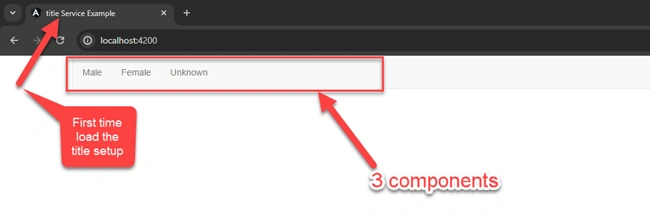
For first-time load, the title is shown below.
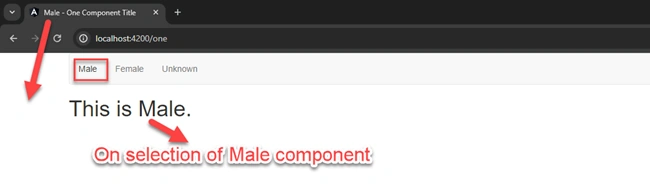
On selection of the Male link check the title and message.
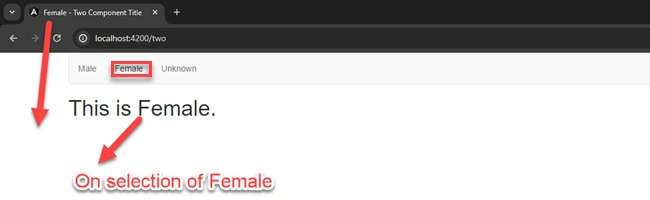
On selection of the Female link check the title and message.
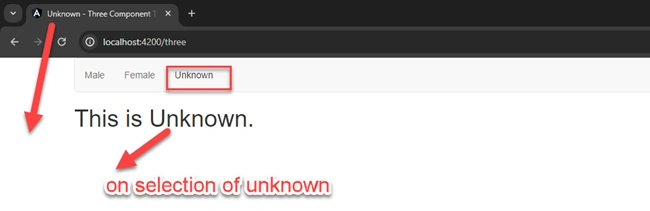
On selection of Unknown link check the title and message.
Summary
In this write-up, we have learned the details below.
- What is Title Service in Angular
- Importance of the page title
- Steps to implement Title service in Angular
Thank You & Stay Tuned For More
Join the conversation! Your thoughts help the community grow.