

Problem Statement
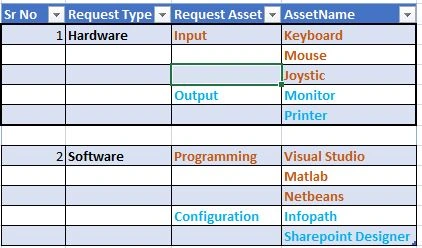
Create a SharePoint dropdown list to request asset,
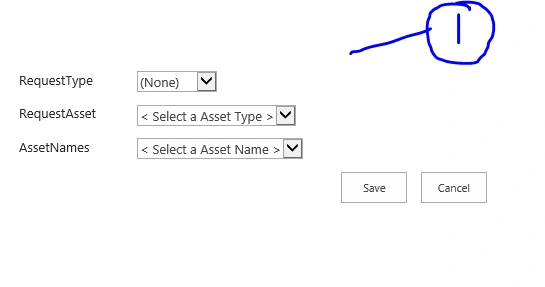
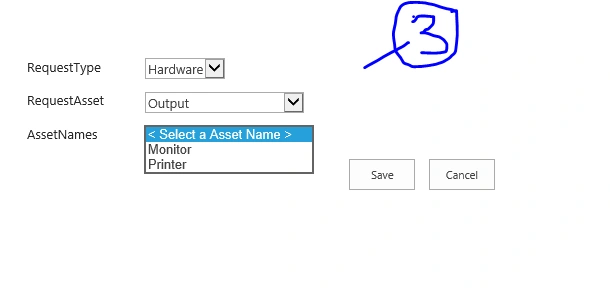
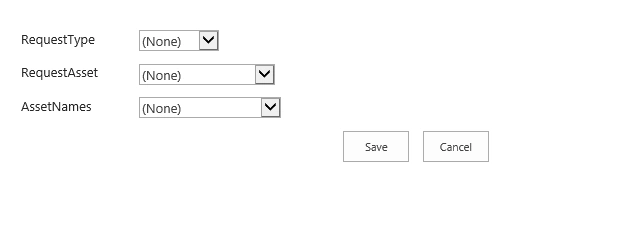
Output will look like this,
Solution
We need to create four SharePoint lists as shown the table below the problem statement.
List 1: RequestType
The list contains type of requirement (Hardware/Software)
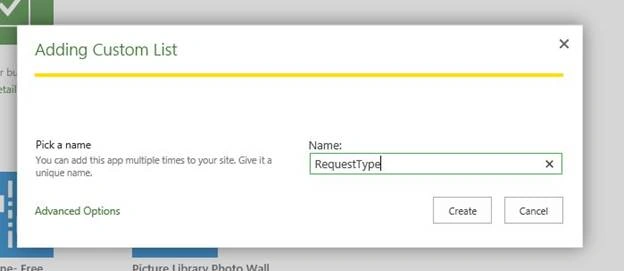
- Create SharePoint List named “RequestType”
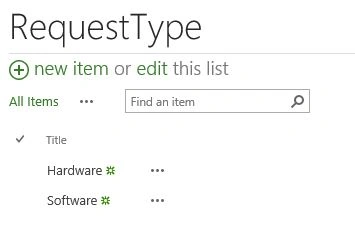
Add the following data in title column,
List 2: RequestAsset
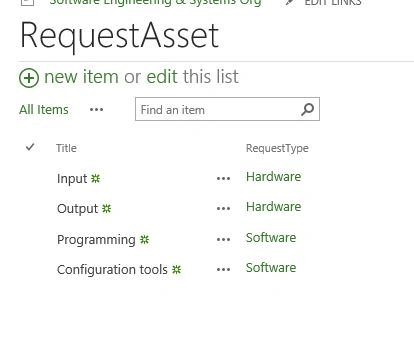
The list contains sub type of the requirement,
Hardware - Input, Output
Software - Programming, Configuration
-
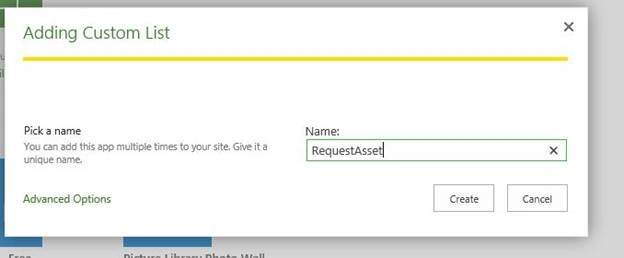
Create SharePoint List named “RequestAsset”
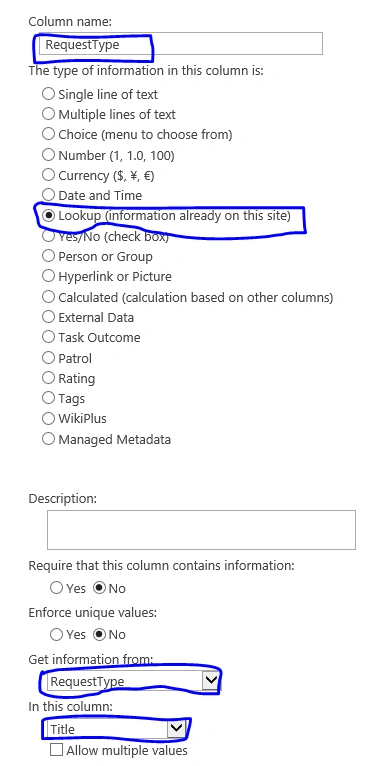
- Go to setting and create column Named “RequestType” and column type is “Lookup” as shown below.
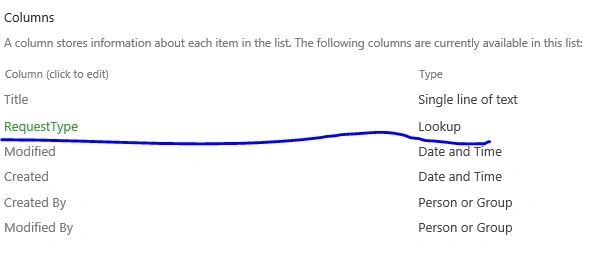
- All columns will look like this,
- Add the following data in this list
List 3: AssetNames
The list contains sub types of the requirement
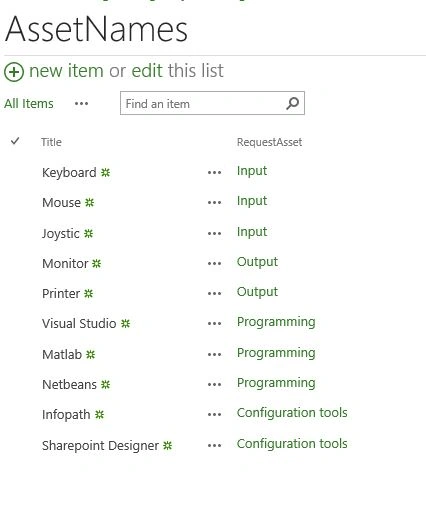
Input - Keyboard, Mouse, Joystick
Output - Monitor, Printer
Programming - Visual Studio, Matlab, Netbeans
Configuration - Infopath, Sharepoint Designer
- Create SharePoint List named “AssetNames”
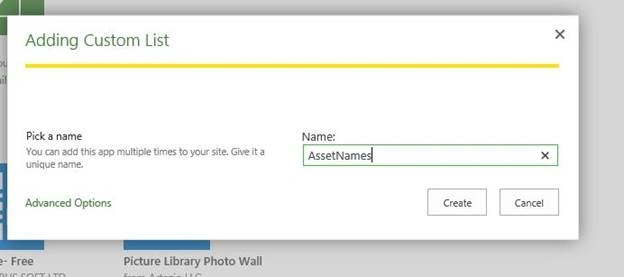
- Go to setting and create column Named “RequestAsset” and column type is “Lookup” as shown below.
sr no Column Name Column Type Description 1 RequestAsset Lookup Get inf from (RequestAsset list) and Column is Title
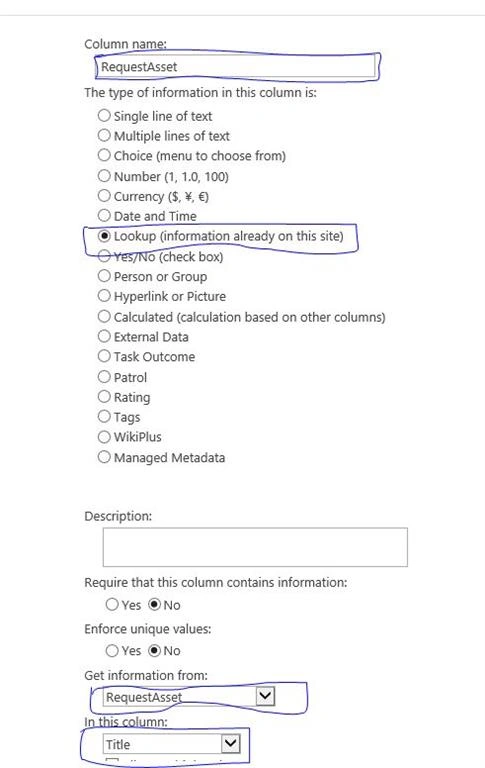
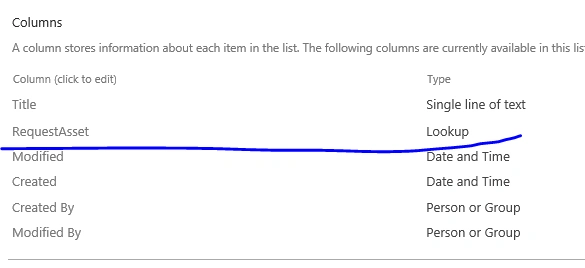
- All columns will look like this
- Add the following data in this list
All data is set for cascading. Now to access this data, create a fourth list
List 4: New Requirement
This is the list where we can achieve our output
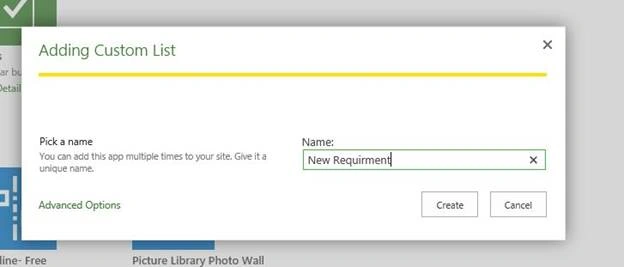
- Create SharePoint List named “New Requirement”
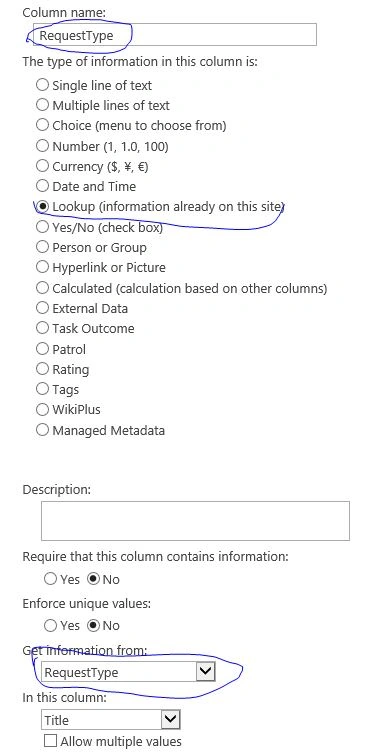
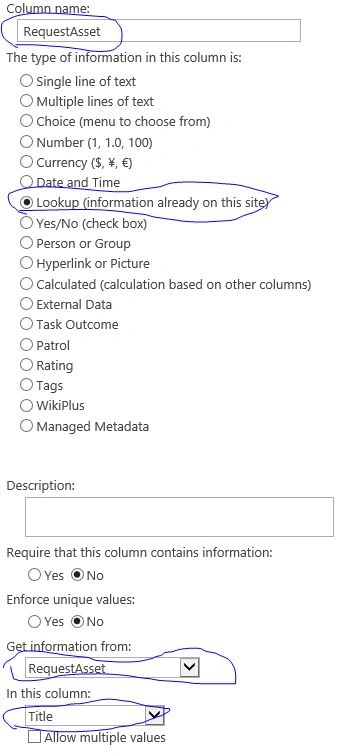
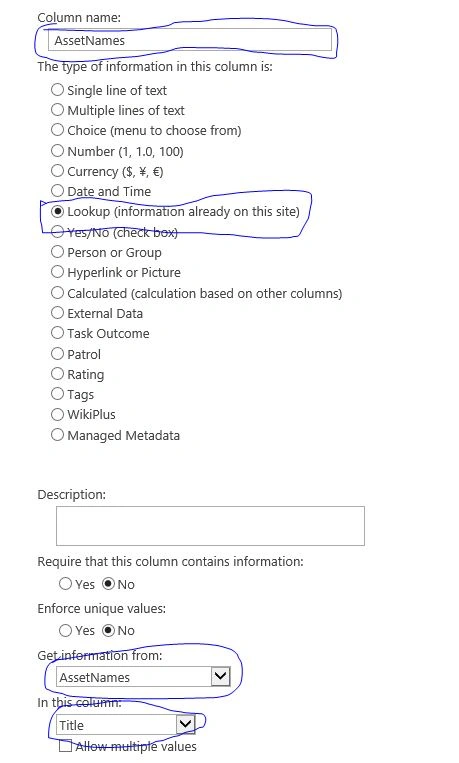
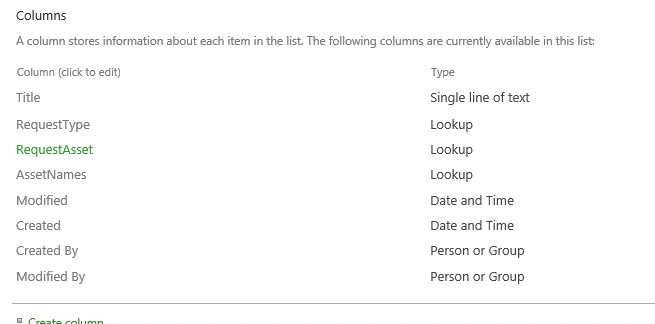
- Add three lookup columns as shown below
sr no Column Name Column Type Description 1 RequestType Lookup Get inf from (RequestType list) and Column is Title 2 RequestAsset Lookup Get inf from (RequestAsset list) and Column is Title 1 AssetNames Lookup Get inf from (AssetNames list) and Column is Title
Refer to the below three screenshots for three columns,1.RequestType column
2.RequestAsset Column
3.RequestNames Column
- All columns will look like this:
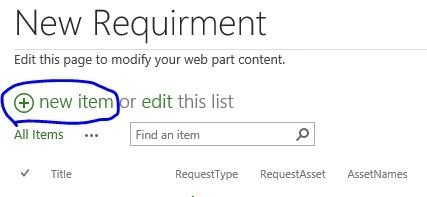
- Your list will look like the following. To write code for cascading, click on New item as shown below
- Following new form will open
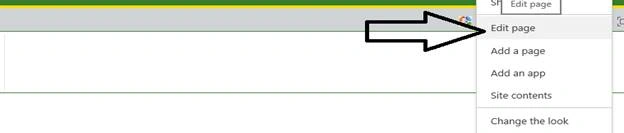
- Edit the form by using Gear icon on Top Right side
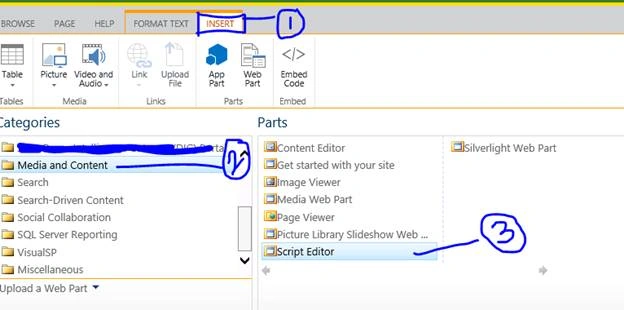
- Click on Insert button on Top Left side then select Media and Content, then click on Script Editor and click Add button on right
- Click on edit snippet
- Paste below code and click insert and stop editing the page
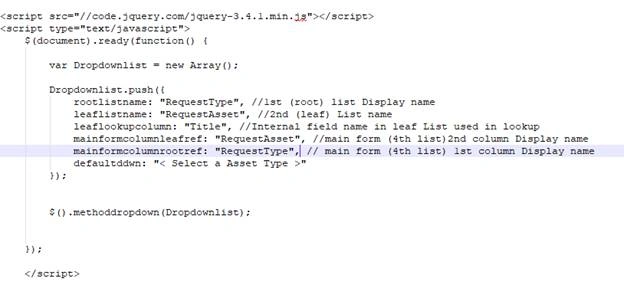
The following piece of code is for first level cascading dropdown,
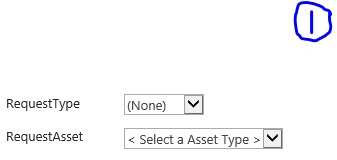
Output
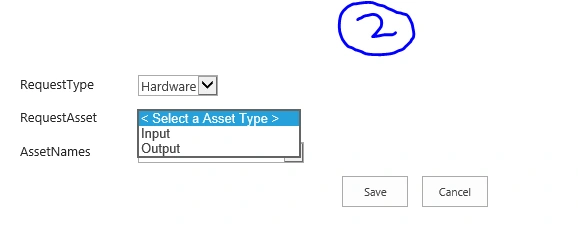
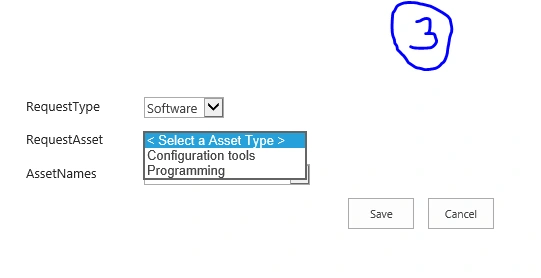
If you select Hardware in first column, Request Asset will filter with Input and Output Only,
If you select Software in first column, Request Asset will filter with configuration tools and programming only,
The following piece of code is for second level cascading dropdown,
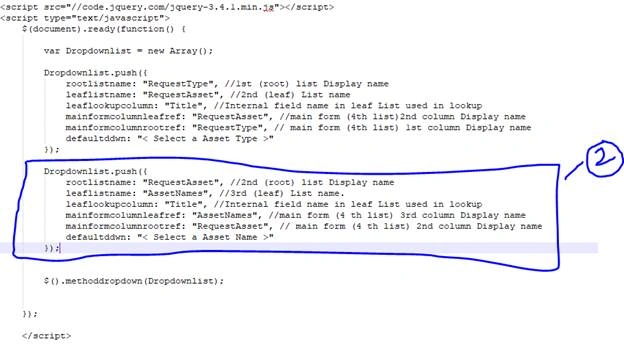
Output
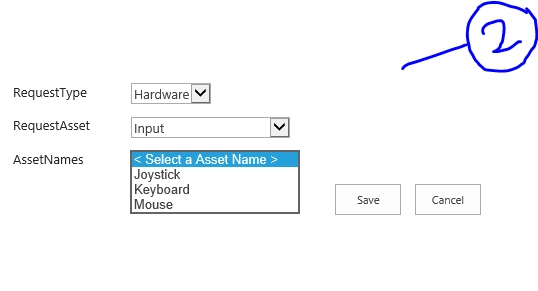
If you select Request Type as Hardware and Request asset as Input then the third column will filter with “Keyboard”, ”Mouse”, Joystick” dropdown options.
If you select Request Type as Hardware and request asset as Output then the third column will filter with “Keyboard”, ”Mouse”, Joystick” dropdown options.
Common method for above both piece of code is $().methoddropdown(Dropdownlist); and the whole code is as follows,
- <script src="//code.jquery.com/jquery-3.4.1.min.js"></script>
- <script type="text/javascript">
- $(document).ready(function() {
- var Dropdownlist = new Array();
- Dropdownlist.push({
- rootlistname: "RequestType", //1st (root) list Display name
- leaflistname: "RequestAsset", //2nd (leaf) List name
- leaflookupcolumn: "Title", //Internal field name in leaf List used in lookup
- mainformcolumnleafref: "RequestAsset", //main form (4th list)2nd column Display name
- mainformcolumnrootref: "RequestType", // main form (4th list) 1st column Display name
- defaultddwn: "< Select a Asset Type >"
- });
- Dropdownlist.push({
- rootlistname: "RequestAsset", //2nd (root) list Display name
- leaflistname: "AssetNames", //3rd (leaf) List name.
- leaflookupcolumn: "Title", //Internal field name in leaf List used in lookup
- mainformcolumnleafref: "AssetNames", //main form (4 th list) 3rd column Display name
- mainformcolumnrootref: "RequestAsset", // main form (4 th list) 2nd column Display name
- defaultddwn: "< Select a Asset Name >"
- });
- $().methoddropdown(Dropdownlist);
- });
- $.fn.methoddropdown= function (dropdownvalueArray)
- {
- var ddwndropdownvalue = new Array();
- var mainform = getParameterByName("ID") == null;
- $.fn.methoddropdown.Cascade = function(root,ddwnindex)
- {
- if (ddwnindex!= null && ddwnindex+1 > ddwndropdownvalue.length)
- {
- return;
- } else if(ddwnindex== null) {
- ddwnindex= $(root).attr("methoddropdownIndex");
- }
- var params = ddwndropdownvalue[ddwnindex];
- var rootID = $(root).val();
- if (root == null)
- {
- rootID = $("select[Title='"+params.rootlistname+"'], select[Title='"+
- params.rootlistname+" Required Field']").val();
- }
- if (rootID == undefined)
- {
- rootID = 0;
- }
- var leaf = $("select[Title='"+params.mainformcolumnleafref+"'], select[Title='"+
- params.mainformcolumnleafref+" Required Field']," +
- "select[Title='"+params.mainformcolumnleafref+" possible values']");
- var selectedoption = params.selectedoptionue;
- ddwndropdownvalue[ddwnindex].selectedoptionue = 0;
- $(leaf).empty();
- var dropdownvalue = "<option value='0'>"+params.defaultddwn+"</option>";
- var varstore = $.ajax({
- url: _spPageContextInfo.webAbsoluteUrl + "/_api/Web/Lists/GetByTitle('"+params.leaflistname+
- "')/items?$select=Id,"+params.leaflookupcolumn+","+params.mainformcolumnrootref+
- "/Id&$expand="+params.mainformcolumnrootref+"/Id&$filter="+params.mainformcolumnrootref+
- "/Id eq "+ rootID+"&$orderby=" + params.leaflookupcolumn,
- type: "GET",
- dataType: "json",
- headers: {
- Accept: "application/json;odata=verbose"
- }
- });
- varstore.done(function (data,textStatus, jqXHR){
- for (index in data.d.results)
- {
- dropdownvalue += "<option value='"+ data.d.results[index].Id +"'>"+
- data.d.results[index][params.leaflookupcolumn]+"</option>";
- }
- $(leaf).append(dropdownvalue);
- if(!mainform)$(leaf).val(selectedoption);
- $().methoddropdown.Cascade(null,Number(ddwnindex)+1);
- });
- varstore.fail(function (jqXHR,textStatus,errorThrown){
- alert("Error retrieving information from list: " + params.leaflistname + jqXHR.responseText);
- $(leaf).append(dropdownvalue);
- });
- }
- for (index in dropdownvalueArray)
- {
- var thisCascade = dropdownvalueArray[index];
- if(thisCascade.rootlistname != null)
- {
- var root = $("select[Title='"+thisCascade.rootlistname+"'], select[Title='"+
- thisCascade.rootlistname+" Required Field']");
- $(root).attr("methoddropdownIndex",index);
- $(root).change(function(){
- $().methoddropdown.Cascade(this,null);
- });
- }
- thisCascade.selectedoptionue = $("select[Title='"+thisCascade.mainformcolumnleafref+"'], select[Title='"+
- thisCascade.mainformcolumnleafref+" Required Field']," +
- "select[Title='"+thisCascade.mainformcolumnleafref+" possible values']").val();
- ddwndropdownvalue.push(thisCascade);
- }
- $().methoddropdown.Cascade(null,0);
- function getParameterByName(key) {
- key = key.replace(/[*+?^$.\[\]{}()|\\\/]/g, "\\$&"); // escape RegEx meta chars
- var match = location.search.match(new RegExp("[?&]"+key+"=([^&]+)(&|$)"));
- return match && decodeURIComponent(match[1].replace(/\+/g, " "));
- }}
- </script>
vivek tomarPosted Jun 30, 2020, 12:21 AM
Thanks for info its working perfectly but fetching only 100 items/values in lookup column not more than, can you please suggest to create a api url.
Venkatrao PalepuPosted May 19, 2020, 3:33 AM
Excellent article with detailed steps. it's very helpful.
Luca FaeddaPosted Apr 25, 2020, 4:38 AM
Hi, I did follow all the steps, made sure that internal names of the lists were right but, even not showing any error, the script does not work. It appears as isn't loading. Any advice?
yekula RajaPosted Nov 7, 2019, 6:51 AM
You written wonderful article, this is very helpful to me