

Here is Part 2
In this article we will be seeing how to use LINQ in SharePoint 2010 to merge
two lists.
In SharePoint 2010 you have the ability to use LINQ syntax to query the list
instead of using CAML query. In order to work with LINQ we need a command line
tool called SPMetal.exe.
This tool is used to generate the entity classes that is required to perform
object oriented queries towards SharePoint server. It is also required to get
the intellisense when we are working in Visual Studio 2010.This tool resides in
14\bin folder.
In this article we are going to merge two lists. I have two custom lists "A" and
"B" in the SharePoint site. We are going to merge the two lists and display the
result.
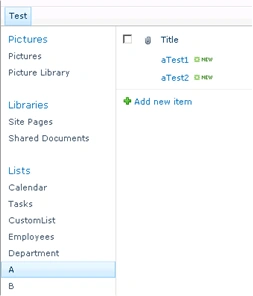
In custom list "A" we have two items as shown in the following.
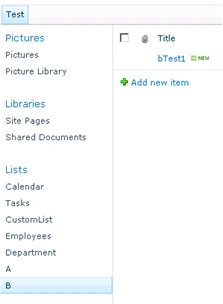
In custom list "B" we have one item as shown in the following.
Creating the entity classes:
- Open Command Prompt as an administrator.
- Change the path to C:\Program Files\Common Files\Microsoft Shared\Web Server Extensions\14\BIN.
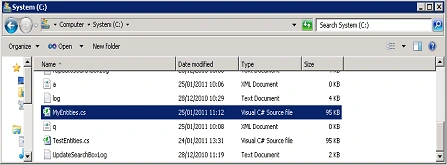
- Run the following command to generate the
entity classes.
Spmetal.exe /web:http://servername:2010/sites/test/ /code:C:\MyEntities.cs
Join two lists using LINQ:
- Open Visual Studio 2010.
- Go to File => New => Project.
- Select Console Application from the installed templates.
- Right click on the solution, select "Add an existing item".
- Add the MyEntities.cs class to the solution.
- Replace the code with the following.
static void Main(string[] args)
{
// Create an instance
MyEntitiesDataContext myEntitiesDataContext = new MyEntitiesDataContext("http://servername:2010/sites/test/");// Get the lists from the site
EntityList<Item> aList = myEntitiesDataContext.GetList<Item>("A");
EntityList<Item> bList = myEntitiesDataContext.GetList<Item>("B");List<Item> aListItems=(from a in aList select a).ToList();
List<Item> bListItems = (from b in bList select b).ToList();IEnumerable<Item> mergedList = aListItems.Union(bListItems);
foreach (Item items in mergedList)
{
Console.WriteLine(items.Title.ToString());
}
}
- Build the solution.
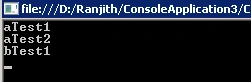
- Hit F5.
Join the conversation! Your thoughts help the community grow.