
Introduction : The Windows Workflow Foundation framework supports Web service interoperability. This includes the ability to expose a Workflow as Web service to ASP.NET clients and to other Workflows. Windows Workflow Foundation supports publishing a Workflow as an ASP.NET Web service on a Web server or server farm running ASP.NET on Internet Information Services (IIS). The Windows Workflow Foundation base activity library contains the WebServiceInputActivity and WebServiceOutputActivity, which enable a Workflow to be used as Web service end points. A Web service receives a request, performs some appropriate processing, and returns a response.
Creating a Workflow Service :
Step 1 : Open Visual Studio 2010.
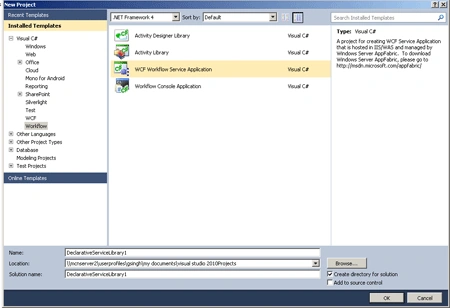
- Go to File->New->Project.
- Select WCF Workflow Service Application.
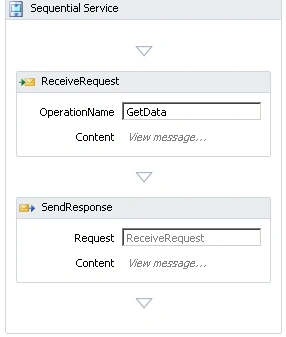
- When we click on the OK Button, the following Activities will show.
Define the Service :
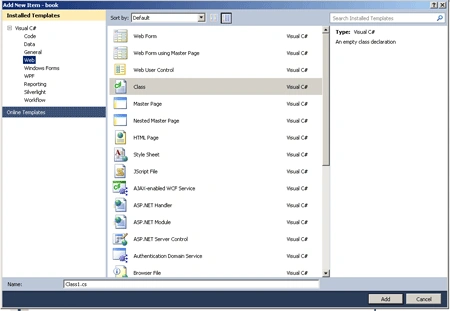
Step 2 : Go to Solution Explorer and right-click.
- Select Add->New Item->Class.
- Class1.cs file open.
- Write the below code.
Code :
using
System;
using
System.Collections.Generic;
using
System.Linq;
using
System.Web;
using
System.Runtime.Serialization;
using
System.ServiceModel;
namespace book
{
[ServiceContract]
public interface
ibook
{
[OperationContract]
binfo LookupBook(bookSearch
request);
}
[MessageContract(IsWrapped =
false)]
public class
bookSearch
{
private
String _ISBN
private
String _Title;
private
String _Author;
public bookSearch()
{
}
public bookSearch(String
title, String author,
String isbn)
{
_Title = title;
_Author = author;
_ISBN = isbn;
}
#region
Public Properties
[MessageBodyMember]
public
String Title
{
get {
return _Title; }
set { _Title =
value; }
}
[MessageBodyMember]
public
String Author
{
get {
return _Author; }
set { _Author =
value; }
}
[MessageBodyMember]
public
String ISBN
{
get {
return _ISBN; }
set { _ISBN =
value; }
}
#endregion
Public Properties
}
[MessageContract(IsWrapped =
false)]
public class
binfo
{
private Guid
_InventoryID;
private String
_ISBN;|
private
String _Title;
private
String _Author;
private
String _Status;
public binfo()
{
}
public binfo(String
title, String author,
String isbn,
String status)
{
_Title = title;
_Author = author;
_ISBN = isbn;
_Status = status;
_InventoryID = Guid.NewGuid();
}
#region
Public Properties
[MessageBodyMember]
public Guid
InventoryID
{
get {
return _InventoryID; }
set { _InventoryID =
value; }
}
[MessageBodyMember]
public
String Title
{
get {
return _Title; }
set { _Title =
value; }
}
[MessageBodyMember]
public
String Author|
{
get {
return _Author; }
set { _Author =
value; }
}
[MessageBodyMember]
public String
ISBN
{
get {
return _ISBN; }
set { _ISBN =
value; }
}
[MessageBodyMember]
public
String status
{
get {
return _Status; }
set { _Status =
value; }
}
#endregion
Public Properties
}
[MessageContract(IsWrapped =
false)]
public class
BookInfoList
{
private List<binfo>
_BookList;
public BookInfoList()
{
_BookList = new
List<binfo>();
}
[MessageBodyMember]
public List<binfo>
BookList
{
get {
return _BookList; }
}
}
}
Step 3 : Now we press F6 and
Build the solution.
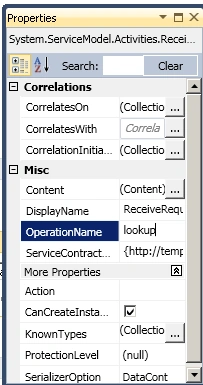
Step 4 : Open the Service1.xamlx File.
- Select ReciveRequest activity.
- Right-click->Properties.
- Select ServiceContract Property.
- Change IService and OperationName.
Step 5 : Go to Variables Control from Workflow Designer.
- Define the Varriable.
- Varriable->Name->Varriable Type->Scope.

Step 6 : Go to ReciveRequest activity.
- Content ->View message.
- Define Message Data and Message Type.
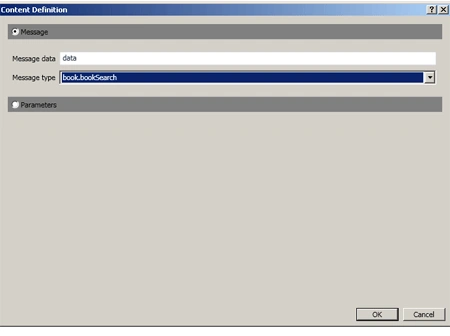
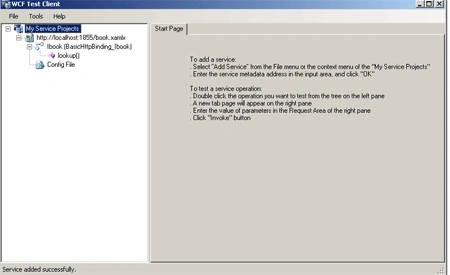
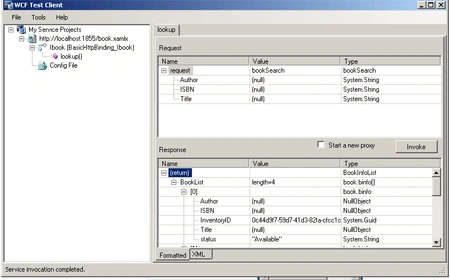
Step 7 : Now we Press F5 then see WCF Test Client template open.
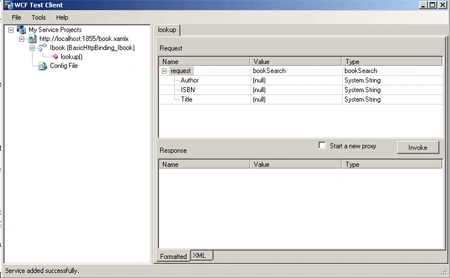
Step 8 : Double-click in Lookup option then give all information about the application data.
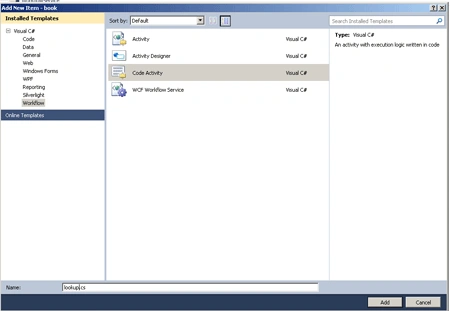
Step 9 : Go to Solution Explorer and Right-Click.
- Select Add->New Item->Code Activity.
- Write the below code.
Code :
using
System;
using
System.Collections.Generic;
using
System.Linq;
using
System.Text;
using
System.Activities;
namespace book
{
public sealed
class lookup
: CodeActivity
{
public
InArgument<bookSearch> Search {
get; set; }
public
OutArgument<BookInfoList> BookList {
get; set; }
public
InArgument<string> Text {
get; set; }
// If your activity returns a value, derive
from CodeActivity<TResult>
// and return the value from the
Execute method.
protected
override void
Execute(CodeActivityContext context)
{
string author =
Search.Get(context).Author;
string title =
Search.Get(context).Title;
string isbn =
Search.Get(context).ISBN;
BookInfoList l =
new BookInfoList();
l.BookList.Add(new
binfo(title, author, isbn,
"Available"));
l.BookList.Add(new
binfo(title, author, isbn,
"CheckedOut"));
l.BookList.Add(new
binfo(title, author, isbn,
"Missing"));
l.BookList.Add(new
binfo(title, author, isbn,
"Available"));
BookList.Set(context, l);
string text = context.GetValue(this.Text);
}
}
}
Step 10 : Drag the lookup
activity from Toolbox.
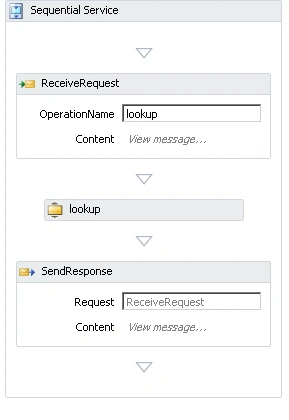
Step 11 : Go to the lookup activity
property and change the value.
Step 12 : Press F5 and run the application.
Join the conversation! Your thoughts help the community grow.