

This article primarily focuses on a detailed explanation of the Windows Phone Application Lifecycle.
Applies to: Windows Phone 8 and Windows Phone OS 7.1 Devices
The possible scenarios and navigation in a Windows Phone Application are:
- User may start the app from the start icon or may resume a suspended app.
- User may close the app.
- User may switch over to some other app.
If you explore the App.xaml.cs, you can find four predefined event handlers such as:
private void Application_Launching(object sender, LaunchingEventArgs e){}
private void Application_Activated(object sender, ActivatedEventArgs e){}
private void Application_Deactivated(object sender, DeactivatedEventArgs e){}
private void Application_Closing(object sender, ClosingEventArgs e){}
These event handlers will be fired when the app enters into various states. The states are Running, Not Running, Dormant, and Tombstone.
The following is an overview of what happens in the Windows Phone application life cycle.
Launching and Closing the App
The following describes launching and closing the app:
- When the app is started for the first time, the event Application_Launching is fired. This won't be fired when the app resumes from the suspended state.
- When the app is closed, the event handler Application_Closing is fired.
Note:
The debugger will keep running even when the application has stopped running.
Deactivation and Reactivation of the App
The following describes deactivation and reactivation of the app:
- There is a difference between a Windows App and a Windows Phone App. In Windows you can run more than one app in the foreground, whereas you can run only one app in the foreground for Windows Phone. This is because for long lasting battery power and for the best user experience.
- The user may make your application dormant (alive, but not active) at any time by launching another app from the start menu.
- When the app is dormant, the event handler Application_Deactivated is fired.
Note:
External events such as incoming call, lock screen or any other activities keeps your app in the dormant state.
- The user may return to your app and resume it at any time. During this event, the event handler Application_Activated is fired.
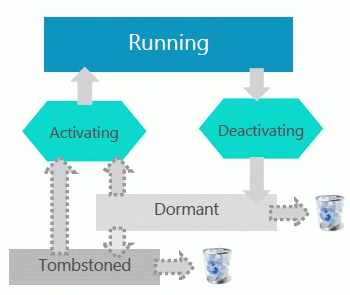
So how to deal with Dormant?
The following describes how to deal with being dormant.
- Do data persistence as much as possible during this state.
- When the application is returned from the dormant state, it will automatically resume at the page where it is deactivated.
- The state where the application left during the dormant will be preserved in memory.

Resuming an app; Fast Application Switching
The following describes the resumtion of an app; Fast Application Switching:
- When the application enters into the dormant state, the dormant application list will be maintained in the history stack.
Note:
Windows Phone OS 7.1 can maintain only up to 5 dormant apps in the history stack whereas Windows Phone OS 8 can maintain up to 8 dormant apps in the history stack.
- The user can resume the suspended/dormant application by continuously pressing the back key until the user has reached the suspend app.
- The back button also has another behavior called "long press". This shows the list of apps that is in the dormant state. The user can select the dormant application from the history stack to resume the suspended app directly.
From Dormant to Tombstone
The following describes the transition from Dormant to Tombstone:
- If the Operating System needs more memory then the OS will discard the dormant apps depending on their need. This process is called "Tombstoning".
- If the application is resumed from the dormant state then the application is automatically preserved and is started from the page where it left off.
- When the application returns from the dormant state then it starts from the page where it left off but the state will be cleared. In order to overcome this challenge, the developer can use the ApplicationState Dictionary (ASD) that is used to save the state. The tombstone app will use this state to restore its data.

So how will you find the app returning from dormant or tombstone?
You can use the following code.
|
private voidApplication_Activated(object sender, ActivatedEventArgs e) |
- If the IsApplicationInstance Preserved is true then the app returns from the dormant strate, else it returns from the Tombstone state.
- You can use the Application State Dictionary (ASD) using the following code:
PhoneApplicationService.Current.State["Url"]= "www.msdn.com";
- You can save any kind of object in this PhoneAppliationService.Current.State.
- So if you want to restore the ASD data then you can use the following code:
string url =PhoneApplicationService.Current.State["Url"].ToString();
Windows Phone Idle Detection
The following describes Windows Phone idle detection:
- The Windows Phone OS is able to detect when an application is idle, and if so detected then the OS will enable the Lock Screen.
- When the Lock screen is engaged, the event handler Application_Deactivated is fired and when the phone is unlocked the event handler Application_Activated is fired.
- We can also set the Idle Detection to the OFF state so that our app even runs when the lock screen is enabled.
- The developer can disable the Idle Detector using the following code.
PhoneApplicationService.Current.ApplicationIdleDetectionMode= IdleDetectionMode.Disabled;
Or can enable using the following code:
PhoneApplicationService.Current.ApplicationIdleDetectionMode= IdleDetectionMode.Enabled;
Fast Application Resume
In the Windows Phone OS 7.1, a fresh instance of the app is always launched when the user starts a new copy of the app that will cause all the classes and data tobe reloaded that slows down the app activation.
- To overcome this challenge, the Windows Phone 8 introduces a concept called Fast Application Resume (FAR) that allows you to resume the dormant app if the user starts a new copy of the app.
- To enable the FAR property, include the following code in the WMAppmanifest.xml:
<Tasks>
<DefaultTaskName="_default" NavigationPage="LoginPage.xaml"ActivationPolicy="Resume"/>
</Tasks> - FAR cannot be used in every scenario. It should be used based on the user experience on Navigation.
- On non-FAR enabled apps, if you launch an app to Page3, then Page3 will be the only page in the back stack and when the user presses the back key, the app exits.
- On FAR-enabled apps, if you launch an app to Page3, and if the suspended app back stack contains MainPage, Page1, Page2, Page3, Page4, then the newly launched app will end up with the back stack of MainPage, Page1, Page2,Page3, Page4, and Page3. So be careful when choosing your scenario to enable FAR.
The following image explains what happens if FAR is not enabled.

The following image explains what happens if FAR is enabled.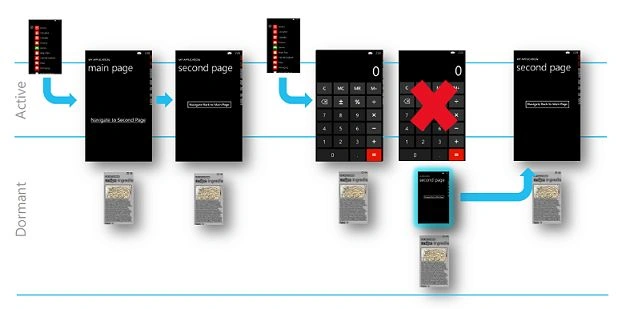
Happy Reading :)
Prasenjit DeyPosted Oct 7, 2013, 1:52 AM
nice
Sadeshkumar PeriyasamyPosted Oct 7, 2013, 1:18 AM
interesting, learned new things :)