

Overview

Microsoft SQL Server Reporting Services (SSRS) is a server-based report generation software system from Microsoft. It is part of a suite of Microsoft SQL Server services. The SSRS service provides a unique interface into Microsoft Visual Studio so that developers as well as SQL administrators can connect to SQL databases and use SSRS tools to format SQL reports in many complex ways. SSRS also provides a "Report Builder" tool for less technical IT workers to format SQL reports of less complexity. It provides a full range of ready-to-use tools and services to help you create, deploy and manage reports for your organization. Reporting Services includes programming features that enable you to extend and customize your reporting functionality. With Reporting Services, you can create interactive, tabular, graphical, or free-form reports from relational, multidimensional, or XML-based data sources. Reports can include impressive data visualization, including charts, maps and sparkle. You can publish reports, schedule report processing, or access reports on-demand. You can select from a variety of viewing formats and export reports to other applications such as Microsoft Excel and subscribe to published reports. The reports that you create can be viewed over a Web-based connection or as part of a Microsoft Windows application or SharePoint site. You can also create data alerts on reports published to a SharePoint site and receive email messages when report data changes.
Prerequisites for SQL Server Reporting Services (SSRS)
Microsoft SQL Server Reporting Services (SSRS) is a server-based report generation software system from Microsoft. It is part of a suite of Microsoft SQL Server services. The SSRS service provides a unique interface into Microsoft Visual Studio so that developers as well as SQL administrators can connect to SQL databases and use SSRS tools to format SQL reports in many complex ways. SSRS also provides a "Report Builder" tool for less technical IT workers to format SQL reports of less complexity. It provides a full range of ready-to-use tools and services to help you create, deploy and manage reports for your organization. Reporting Services includes programming features that enable you to extend and customize your reporting functionality. With Reporting Services, you can create interactive, tabular, graphical, or free-form reports from relational, multidimensional, or XML-based data sources. Reports can include impressive data visualization, including charts, maps and sparkle. You can publish reports, schedule report processing, or access reports on-demand. You can select from a variety of viewing formats and export reports to other applications such as Microsoft Excel and subscribe to published reports. The reports that you create can be viewed over a Web-based connection or as part of a Microsoft Windows application or SharePoint site. You can also create data alerts on reports published to a SharePoint site and receive email messages when report data changes.
Prerequisites for SQL Server Reporting Services (SSRS)
- To work with SQL Server Reporting Services you need Microsoft SQL Server (Standard/Enterprise/Developer/Evaluation) edition. One of them should be installed on your machine with the Reporting Services feature.
- You can also use SQL Server Reporting Services with Microsoft SQL Server Express Edition with Advanced Services if you don't have a licenced copy of Microsoft SQL Server. You can download this from Microsoft® SQL Server® 2012 Express.
Microsoft SQL Server Installation is very simple. But still if you require more details about installation please check this link Install SQL Server 2012.
First Report Server Project
So let's start with our first Report Server project.
Step 1
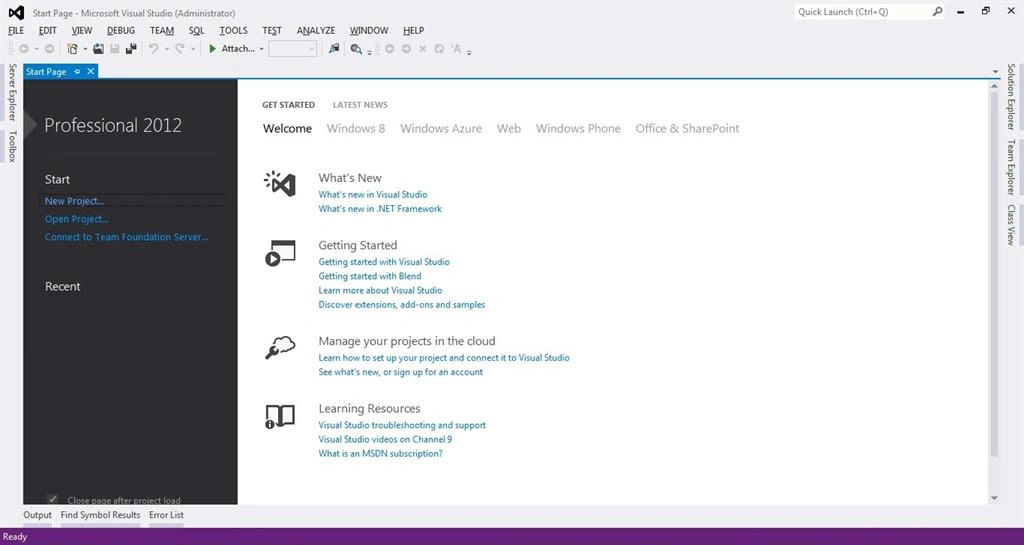
Open your Microsoft Visual Studio. Here, I am using Microsoft Visual Studio 2012 Professional.
Step 2
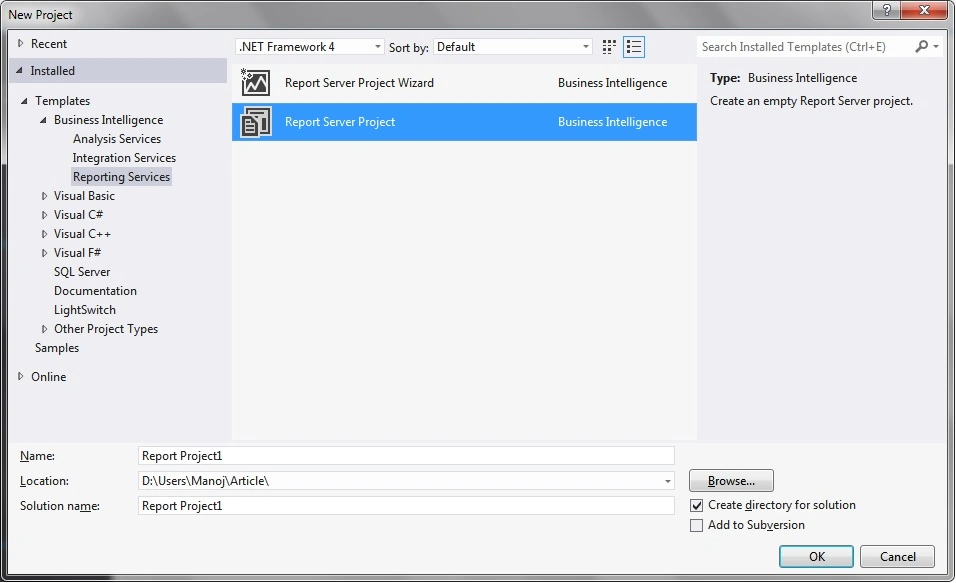
Click on New Project. Under Business Intelligence Templates select Reporting Services and then select Report Server Project. This will create New Report Project1 under specified location.
Step 3
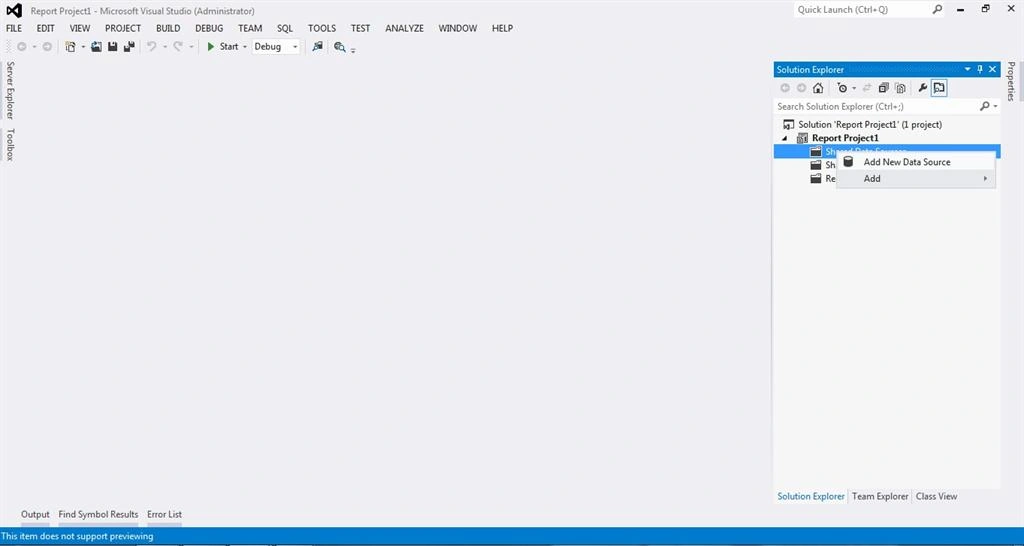
We will now create a Data Source to display the details on report from our database. If you see Solution Explorer you will see three folders under project "Report Project1" that are Shared Data Source, Share Data Sets and Reports. So here, To create new shared data source for our reports Right-click on Shared Data Sources and click on Add New Data Source.
Step 4
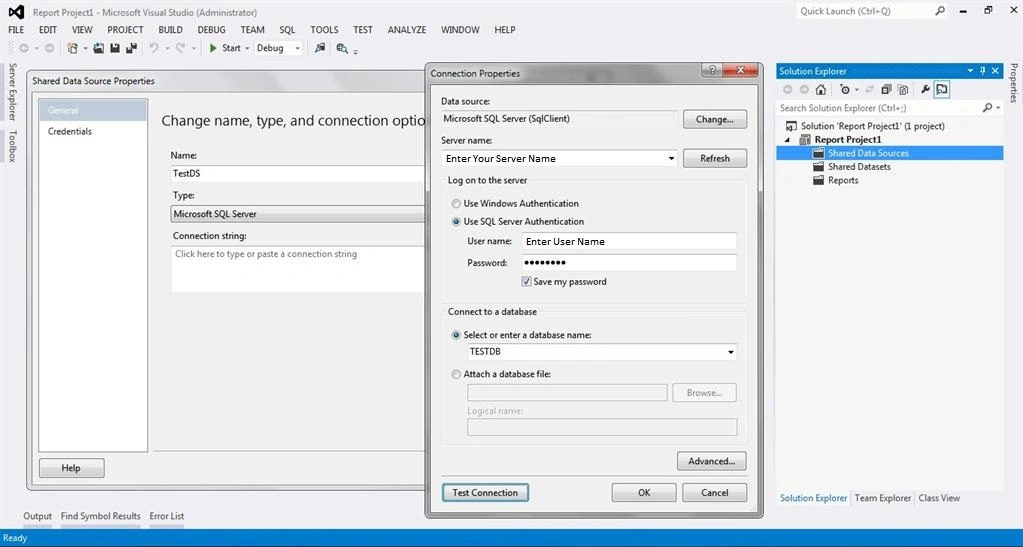
Enter Data Source Name, Select Data Source Type here i am selecting Microsoft SQL Server. Now click on the edit button that will open new window. Select your database Server Name. Here, I am using Microsoft SQL Server Database you can use database like Oracle, MySQL and and so on. Enter User Name and word for database authentication. Select database name from the list of available databases. Click on Test Connection to validate connection and then click OK. So, Here our Data source TestDS is ready to use.
Step 5
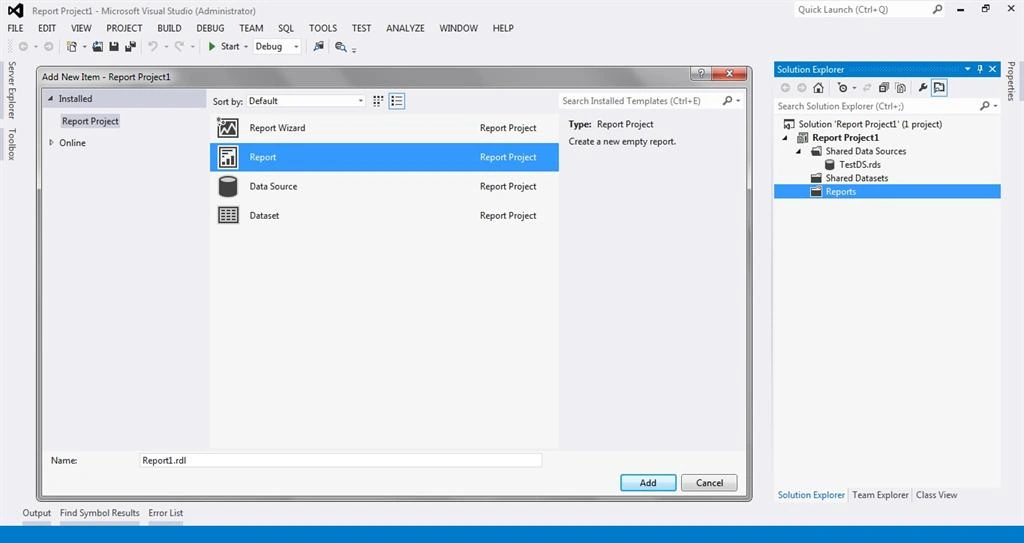
To create our first report Go to Solution Explorer, Right-click on the Reports folder and Click on Add New Item. Here new window will be opened. In that window select Report, enter your report name and click on Add.
Step 6
Now you can see a blank report on your screen. This is our first report so i will not make things complicated. We will just display data from our database on the report in tabular format.
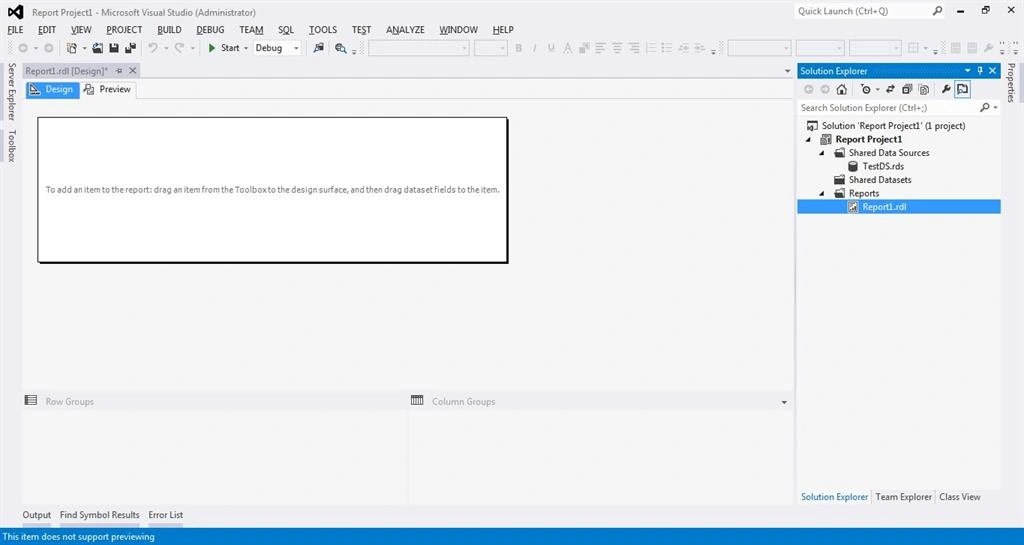
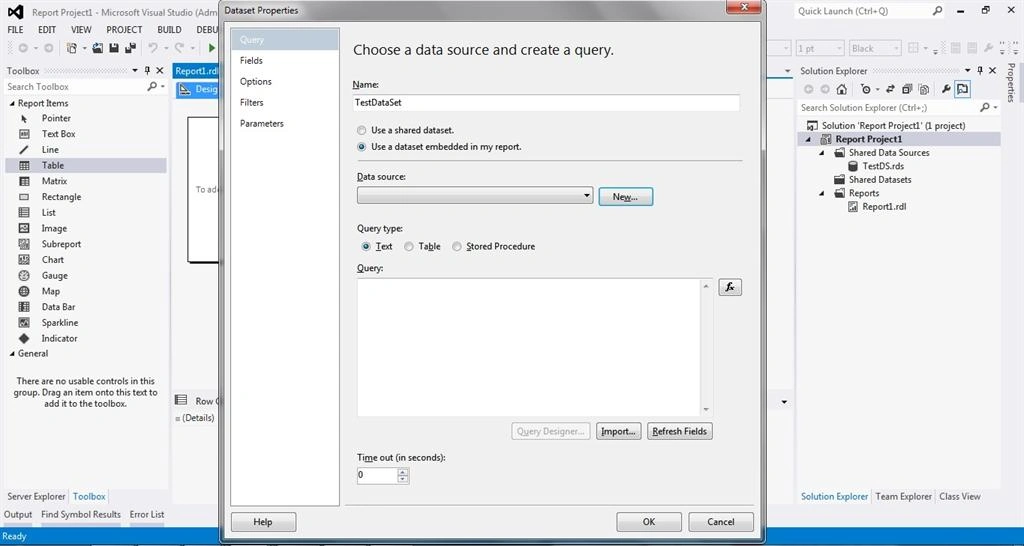
So for that, I will select Table Control (Some people called it as Tablix Control) from the Toolbox as shown in the following picture. Once you drag this Table control from Toolbox on the report it will ask you for Data Set Properties. Enter your Data Set Name. We have not created any shared data set, so i will select here Use a data set embedded in my report.
Step 7
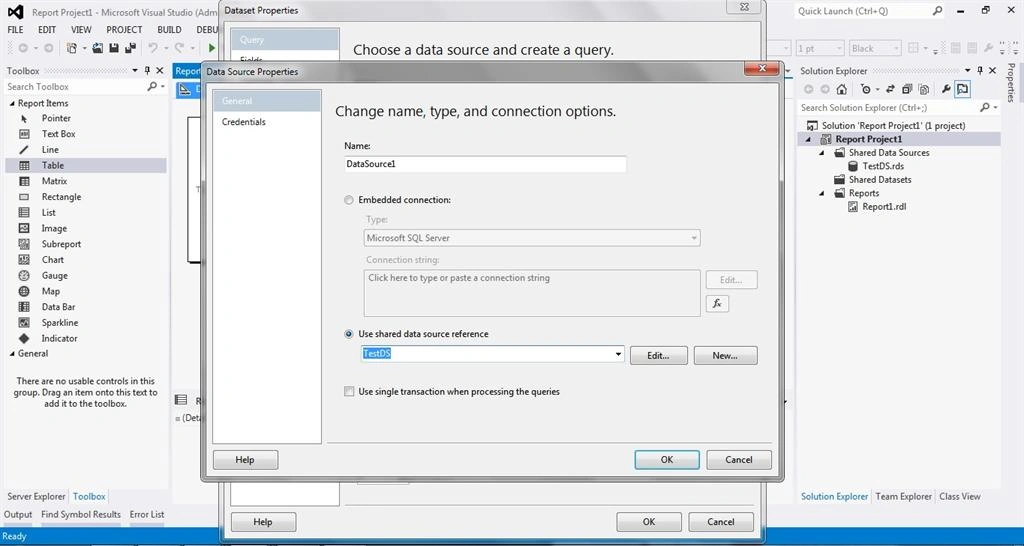
To select data source we have created in step 3, Click on the New Button that will open new window as Data Source Properties. In this window you will see two options first one is embedded connections and second one is Use shared data source reference. Select Use shared data source reference and select our created data source name from the drop down list. Here, I am selecting TestDS. Click on the OK button.
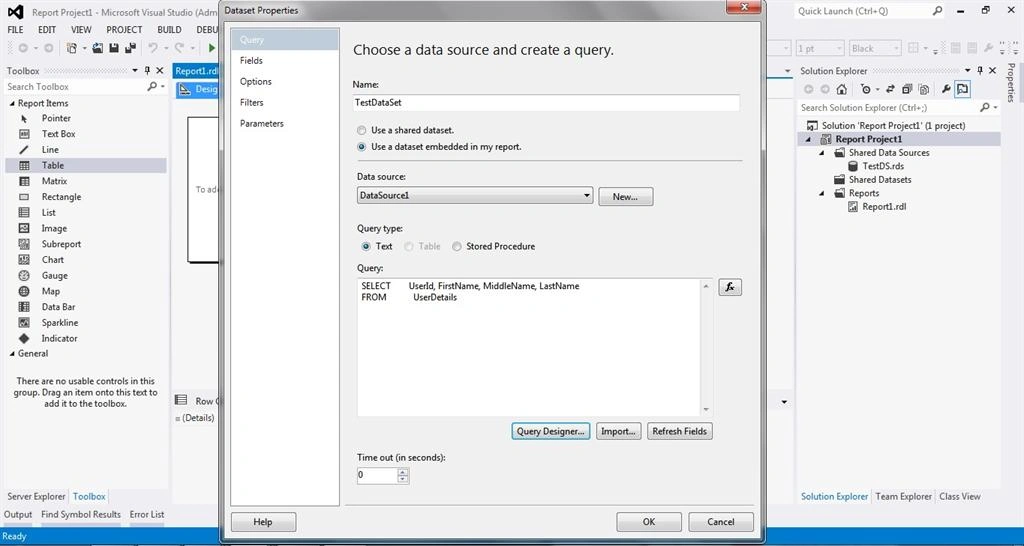
irst option that is Text. Here in this report we are just showing data from SQL Database on our report. So for that, I am using a simple UserDetails table having four columns UserId, FirstName, MiddleName and LastName. You can see sample data i am using to developed report in the following picture.
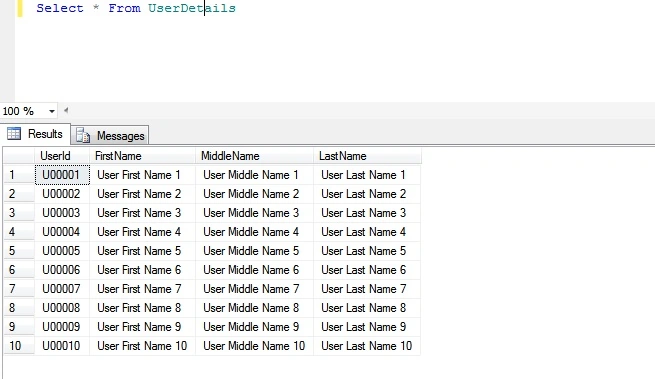
Hence, To display this data in our report, I am using normal SQL Select Statement as query type Text. You can validate your query using Query Designer. Click on the OK Button.
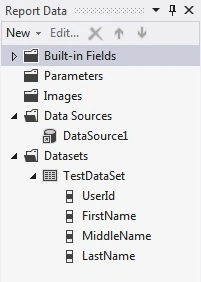
You can able to see our newly created Data Source and Data Set under Visual Studio Menus - View - Report Data.
Step 9
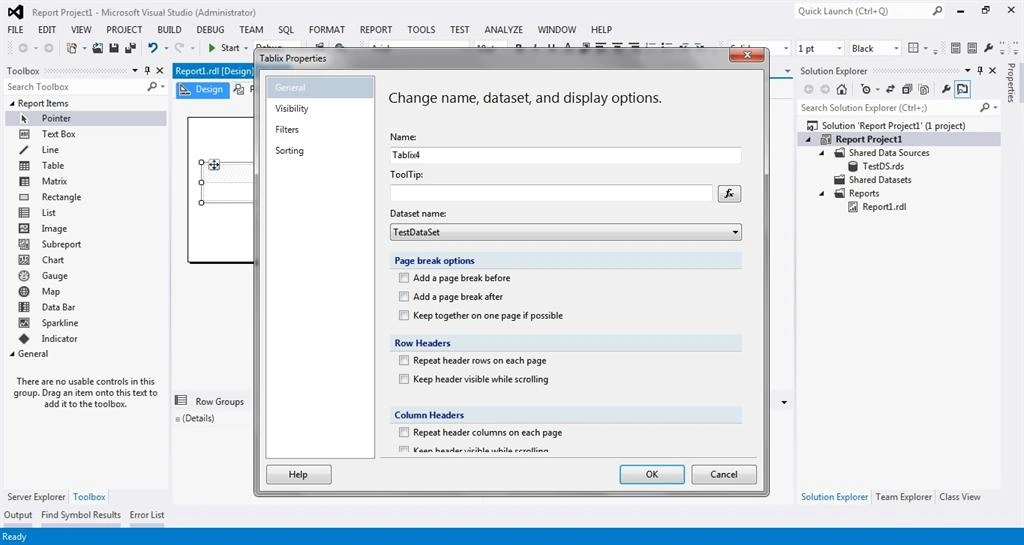
Next step is set data set to Tablix (Table) Control. Select Tablix (Table) and Right-click on the left upper corner of Tablix (Table) control and select Tabli Properties.
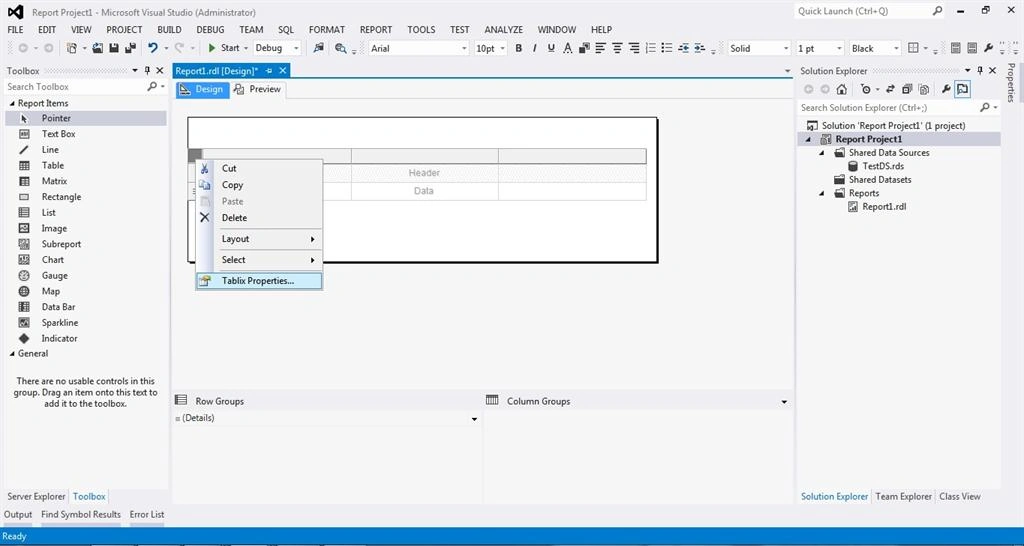
This will open Tablix Properties window as shown in the following picture. Select Dataset Name from given drop down list and click n OK.
Step 10
Now move your mouse on Tablix columns you will see sign ( ) as shown in the following picture. Click on that sign and select one by one column from the dataset for each tablix column.
) as shown in the following picture. Click on that sign and select one by one column from the dataset for each tablix column.
So, after adding all columns in your tablix control and some additional formatting like bold header columns, text alignment and and so on your final report will be look as in the following picture.
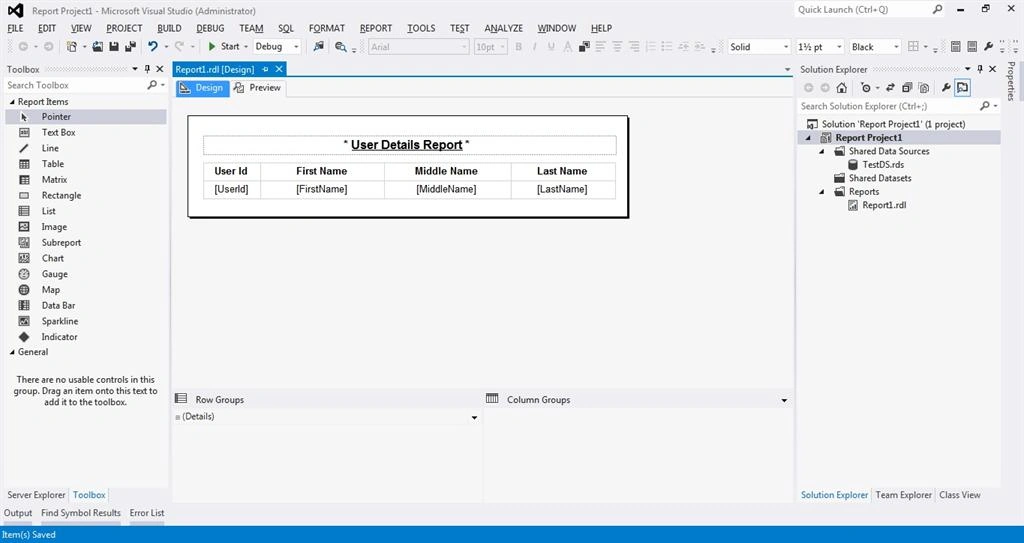
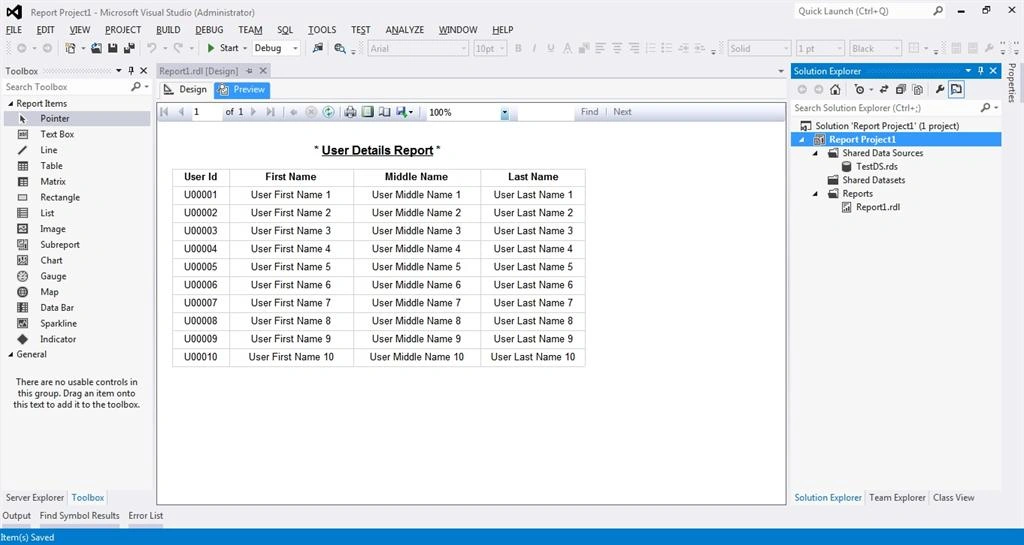
So, Here our report is ready and we can check the details by clicking on Preview tab next to Desing tab in Report Design window. Here is the preview of our report.
I hope you enjoyed reading of this article. We will learn some additional features provided by SSRS in my next article. So keep reading and don't forget to post your valuable feedback.
Ankur ChaturvediPosted Sep 2, 2015, 10:48 AM
Wonderful demo
Abhishek JaiswalPosted Jul 19, 2015, 12:32 PM
Very well explained! :)
Santhakumar MunuswamyPosted Jul 19, 2015, 7:42 AM
Good one
Gowtham RajamanickamPosted Jul 8, 2015, 2:58 AM
good one...
Jacob RobinsonPosted Jul 1, 2015, 2:04 AM
Nice One..
RakeshPosted Jun 30, 2015, 6:06 AM
Good explain
Chiheb ChebbiPosted Jun 29, 2015, 6:17 PM
thanks
Khan Abrar AhmedPosted Jun 28, 2015, 6:10 AM
Nice Artical.
Gopi ChandPosted Jun 22, 2015, 1:17 PM
Great one
Yashwant VishwakarmaPosted Jun 22, 2015, 6:55 AM
Nice, simple & easy to grasp :)
Jaipal ReddyPosted Jun 22, 2015, 12:38 AM
nice
Ankit BansalPosted Jun 21, 2015, 11:43 PM
???? ??????
Sibeesh VenuPosted Jun 21, 2015, 12:51 PM
Good one.
Santhakumar MunuswamyPosted Jun 21, 2015, 2:01 AM
Thanks for nice article:)
Venkata SubbareddyPosted Jun 21, 2015, 1:16 AM
Hi Bro your Article Great
Manoj KulkarniPosted Jun 21, 2015, 12:31 AM
Nice article. Thank you for sharing
Pankaj Kumar ChoudharyPosted Jun 20, 2015, 7:49 PM
Nice Article Sir..........